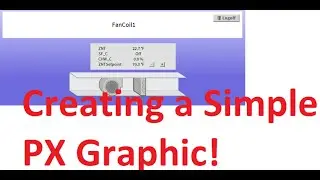
Nav to Niagara PX from Horyzon C
Автор: Cochrane Tech Services
Загружено: 2023-10-20
Просмотров: 1853
Abe Monreal, a Senior Automation Technician with Cochrane Tech Services out of our Dallas Branch demonstrates a brief walk-through on how to navigate to a Niagara PX view from Distech's Horyzen-C.
Once logged into the Horyzon C’s 2.0 ECLYPSE UI.
Make sure that the Local User is a user setup within the HORYZON-C’s User Management and that the user credentials within the EC-Net connection is a user within the station.
Check out the article here:
https://support.cochranetechservices....
Video 1
00:00:00 - 00:00:25
· For demonstration purposes I'm logging into a Jace station to display the Px graphic’s on a browser
00:00:25 - 00:00:58
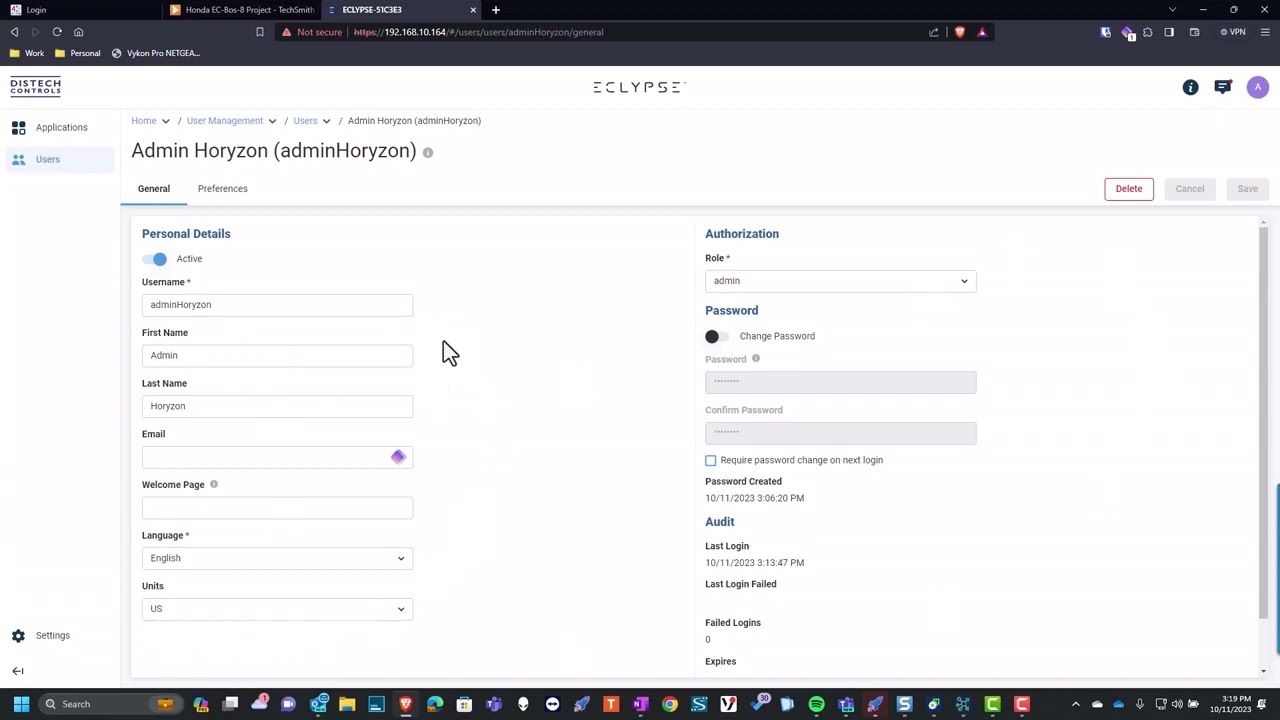
· On the Horyzon-C v 2.0 UI Navigated to User and demonstrated User Management on the updated Horyzon-C v 2.0 UI
· adminHoryzon User was created. Set Role to admin and set password.
00:00:58 - 00:01:38
· Navigated to Applications / Display (Settings) / Connection
· Add a Connection.
· Type selected - EC-Net
· Name – EC-Net Connect
· URL – Use your stations IP address
· Username – use your niagara user
· Password – us your niagara password
· Check Visible and Open on Startup
· Save
00:01:38 – 00:01:48
· Navigated to Applications/ Display / Connection
· Set Local User and entered my Horyzon User with admin role
· Enter password and Save
00:01:48 – 00:02:06
· Navigated to Applications/ Display (Launch)
· Open Launcher on Device will pop up.
· Confirm the Horyzon user and Continue.
· The launcher is running will show at the bottom of your browser.
Go to Video 2
00:00:00 - 00:00:05
· Navigate to EC-Net Connect. If the Icon is not displayed, Touch the 4 dots on the top left of the screen.
· Touch EC-Net Connect
00:00:08 - 00:00:24
· EC-net Connect will auto-launch into the Px graphic.
· Presetting Users in the Horyzon allowed for Authentication.
Доступные форматы для скачивания:
Скачать видео mp4
-
Информация по загрузке: