How to Install Windows 11 on ANY PC (Even Unsupported!) | Safe Method, Keep All Files
Автор: Passionate About Tech
Загружено: 2025-06-07
Просмотров: 1231
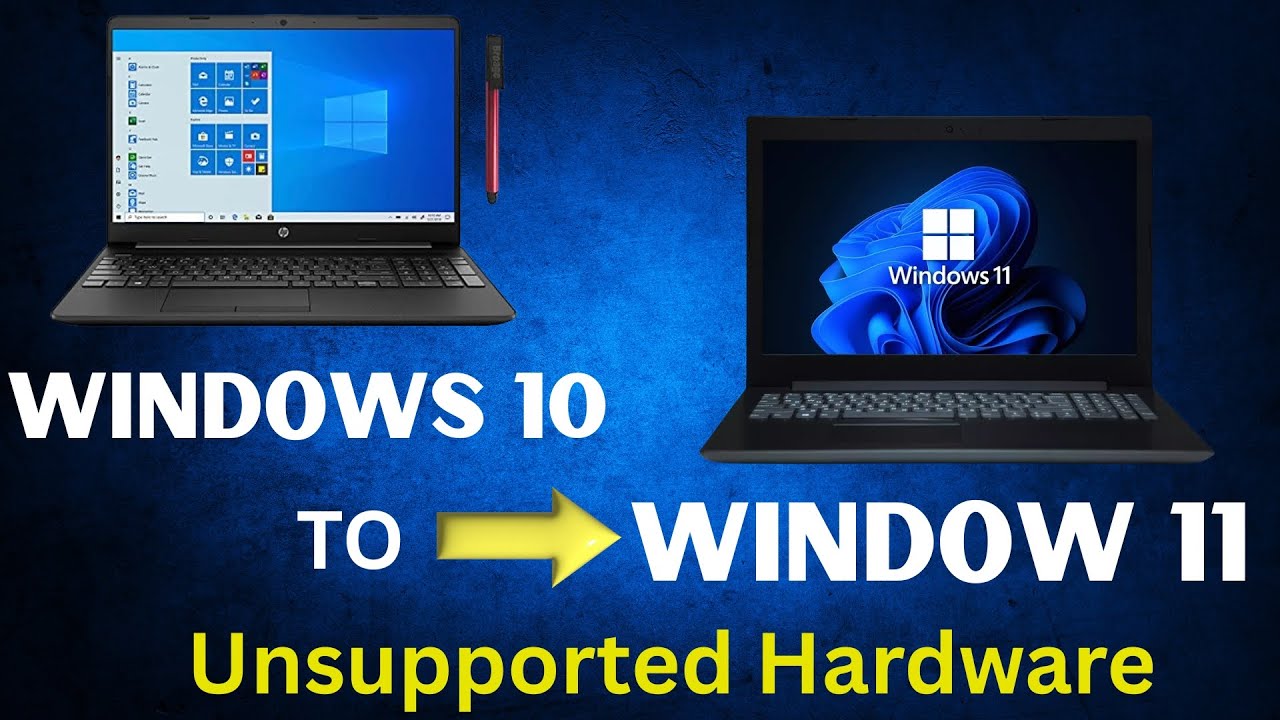
▶▶ In this step-by-step tutorial, you'll learn the simple and safe method to upgrade from Windows 10 to Windows 11 on any PC, even if it has unsupported hardware (like an old CPU, no TPM 2.0, or Secure Boot). We'll show you how to bypass the requirements and keep all of your files, apps, and settings.
This guide is perfect for anyone seeing the "This PC can't run Windows 11" error message. We use the official Microsoft Media Creation Tool and a simple command prompt trick to perform a clean, in-place upgrade without losing your data. No risky third-party software needed!
✅ TIMESTAMPS / CHAPTERS:
0:00 - The Easiest Way to Upgrade to Windows 11
0:37- Step 1: Match Your Language & Region Settings (Crucial!)
1:19- Step 2: Download the Official Windows 11 ISO
2:32- Step 3: Mount the ISO File
3:37- Step 4: The Command to Bypass Hardware Checks (TPM, CPU)
4:03- Step 5: Start the Upgrade & Keep Your Files
5:26- Final Tips for a Smooth Experience
In this video, we cover:
How to upgrade to Windows 11 on an unsupported computer or laptop.
How to bypass the TPM 2.0 and CPU check for the Windows 11 installation.
Using the Media Creation Tool to get a Windows 11 ISO.
The "setup.exe /product server" command prompt trick.
Ensuring the "Keep personal files and apps" option is available.
🔔 Subscribe to Passionate About Tech for more helpful tutorials!
[ / @passionateabouttech ]
#Windows11 #TechTutorial #Windows10 #UnsupportedHardware
Доступные форматы для скачивания:
Скачать видео mp4
-
Информация по загрузке:


