How to Automate Backlink Tracking Using Google Apps Script and Moz API (Step-by-Step Guide)
Автор: Moiz Iqbal
Загружено: 2026-01-21
Просмотров: 2
Automating Backlink Tracking with Google Apps Script and Moz API
Backlink tracking is one of the most time-consuming tasks for SEO teams. Manually checking whether a lAutomating Backlink Tracking with Google Apps Script and Moz API
Backlink tracking is one of the most time-consuming tasks for SEO teams. Manually checking whether a link is live or lost—and then validating Domain Authority (DA)—can slow down workflows and introduce human error.
In this guide, I’ll show you how to automate backlink tracking using Google Apps Script and the Moz API, exactly the same system we use for our Small SEO Team Backlink Progress Tracking Sheet.
By the end of this article, you’ll be able to:
• Automatically check live vs lost backlinks
• Fetch Domain Authority (DA) directly inside Google Sheets
• Build a scalable backlink monitoring system for your SEO team
Why Automate Backlink Tracking?
If your team is building backlinks regularly, you already know the pain points:
• Switching between tools to check DA
• Manually verifying whether links are live or removed
• Updating backlink status across spreadsheets
Automation solves all of this by allowing Google Sheets to:
• Check backlink status automatically
• Pull DA data from Moz
• Update your team’s backlink progress in real time
Step 1: Create a Backlink Tracking Google Sheet
Start by creating a new Google Sheet that will serve as your backlink tracker. This does not have to be a standard template—you can customize it based on your workflow.
Step 2: Get Access to the Moz API
To fetch Domain Authority automatically, we’ll use the Moz API.
How to Get the Moz API Token
1. Go to the Moz API Dashboard
2. Create an account (free plan is enough for testing)
3. Generate your API token
💡 The free Moz API provides limited requests (around 50), which is perfect for demonstrations and small projects.
Step 3: Open Google Apps Script
Now it’s time to connect your Google Sheet with Moz.
1. Open your Google Sheet
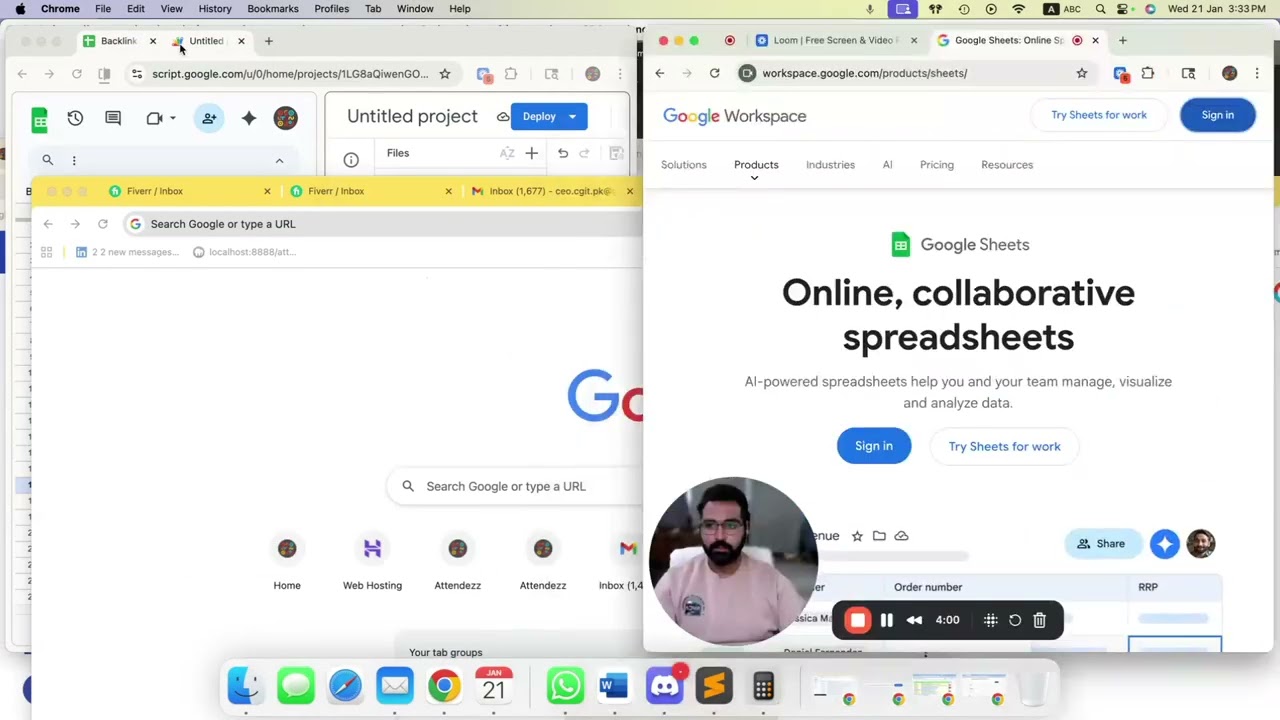
2. Click on Extensions → Apps Script
3. This will open the Google Apps Script editor
I’ve already prepared the code for this automation and shared it in the video description, so you can:
• Download the code
• Paste it directly into the Apps Script editor
Step 4: How the Script Works
The script consists of two main functions:
1. Backlink Metrics Function
• Fetches Domain Authority from the Moz API
• Updates DA directly into the Google Sheet
2. URL Validation Function
• Checks whether a backlink URL is live or lost
• Validates if the URL exists and returns a proper response
• Updates the link status column automatically
Once the code is pasted:
• Save the script
• Run it for the first time
• Grant Google permissions when prompted
This is required to allow the script to access external APIs and update your spreadsheet.
Step 5: Running the Automation
After running the script, you’ll see:
• Live backlinks marked correctly
• Lost or removed links flagged instantly
• DA values populated automatically
Example Test
When testing a backlink like attendees.com:
• The script confirms whether the link is live
• Retrieves the DA (for example, DA 55)
• Updates everything in one click—no manual checks required
This system gives your team instant backlink insights without leaving Google Sheets.
Benefits for SEO Teams
This automated backlink tracking system helps you:
• Save hours of manual work
• Improve reporting accuracy
• Track backlink performance in real time
• Scale backlink monitoring across multiple projects
It’s especially useful for small SEO teams managing multiple clients or campaigns.
Доступные форматы для скачивания:
Скачать видео mp4
-
Информация по загрузке: