Partial Donut Chart in Tableau: Control Donut Visibility for Dial/Gauge Charts
Автор: Golden Insights
Загружено: 2024-08-28
Просмотров: 6030
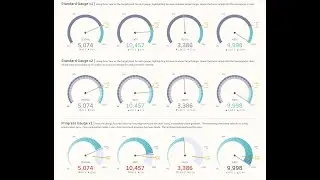
Learn how to create a Partial Donut Chart in Tableau and control its visibility for dial or gauge charts. Using a filler parameter, you can adjust how much of the donut chart is shown. By multiplying all segments by (1 - filler), you get proportionate pieces of the pie, and we’ll order these segments logically to achieve the desired visual effect. Perfect for creating customizable and dynamic visualizations in Tableau.
Tableau: https://public.tableau.com/app/profil...
Excel: https://docs.google.com/spreadsheets/...
First Segment: IF AVG([Progress (%)]) greater than 0.5 THEN 0.5 * (1-[Filler]) ELSE AVG([Progress (%)]) * (1-[Filler]) END
Remainder: IF AVG([Progress (%)]) greater than 0.5 THEN (AVG([Progress (%)])-0.5)* (1-[Filler]) ELSE 0 END
Not yet: IF AVG([Progress (%)]) greater than 0.5 THEN (1-[Filler]) * (1 - AVG([Progress (%)]))
ELSE (1-[Filler])*0.5 END
Not Yet ( less than 0.5): IF AVG([Progress (%)]) greater than 0.5 THEN 0 ELSE (0.5 - AVG([Progress (%)])) * (1-[Filler]) END
To account for greater than 100%:
Remainder: IF AVG([Progress (%)]) greater than 1 THEN (1 - 0.5) * (1-[Filler])
ELSEIF AVG([Progress (%)]) greater than 0.5 THEN (AVG([Progress (%)]) - 0.5) * (1-[Filler])
ELSE 0
END
Not Yet: IF AVG([Progress (%)]) greater than 1 THEN 0
ELSEIF AVG([Progress (%)]) greater than 0.5 THEN (1-[Filler]) * (1 - AVG([Progress (%)]))
ELSE (1-[Filler]) * 0.5
END
To account for 0%:
First Segment: IF AVG([Progress (%)]) greater than 0.5 THEN 0.5 * (1-[Filler]) ELSEIF AVG([Progress (%)]) = 0 THEN 0 ELSE AVG([Progress (%)]) * (1-[Filler]) END

Доступные форматы для скачивания:
Скачать видео mp4
-
Информация по загрузке:


![How to Create an Drill Down Donut Chart [in Tableau]](https://image.4k-video.ru/id-video/1Pb44LbR_a0)