Скачать
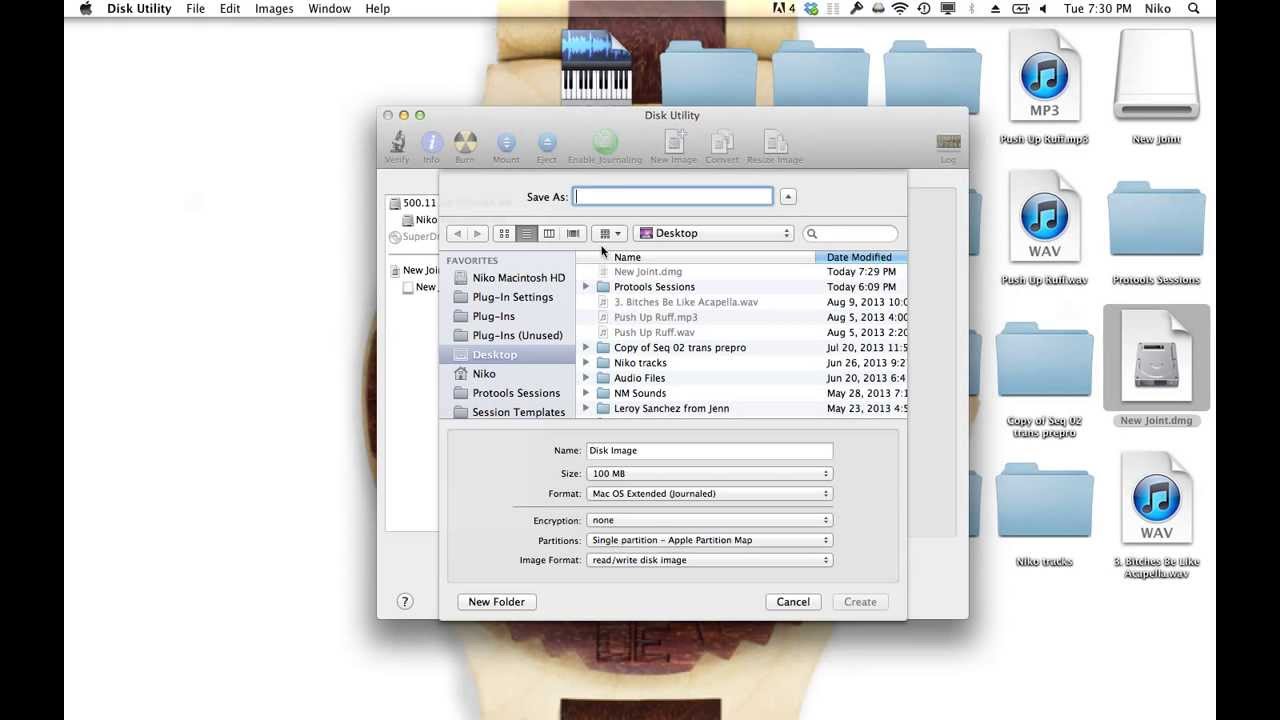
Sending an Encrypted file for free using Apple's Disk Utility to Create an encrypted Disk Image
Автор: Niko Marzouca
Загружено: 2013-08-13
Просмотров: 234
Описание:
Open Disk Utility and create a new image. Name it what you want. Select Size as necessary . Make sure to turn on encryption, then hit create. Then enter the password you want to use. Your mac will mount the newly created disk image. Drag your file to the disk then unmount. You can now send the encrypted disk image thru a regular service such as sendspace, yousendit, or wetransfer and no one can open the file unless you give them the password you created.
Доступные форматы для скачивания:
Скачать видео mp4
-
Информация по загрузке:



![Как сжимаются изображения? [46 МБ ↘↘ 4,07 МБ] JPEG в деталях](https://image.4k-video.ru/id-video/Kv1Hiv3ox8I)