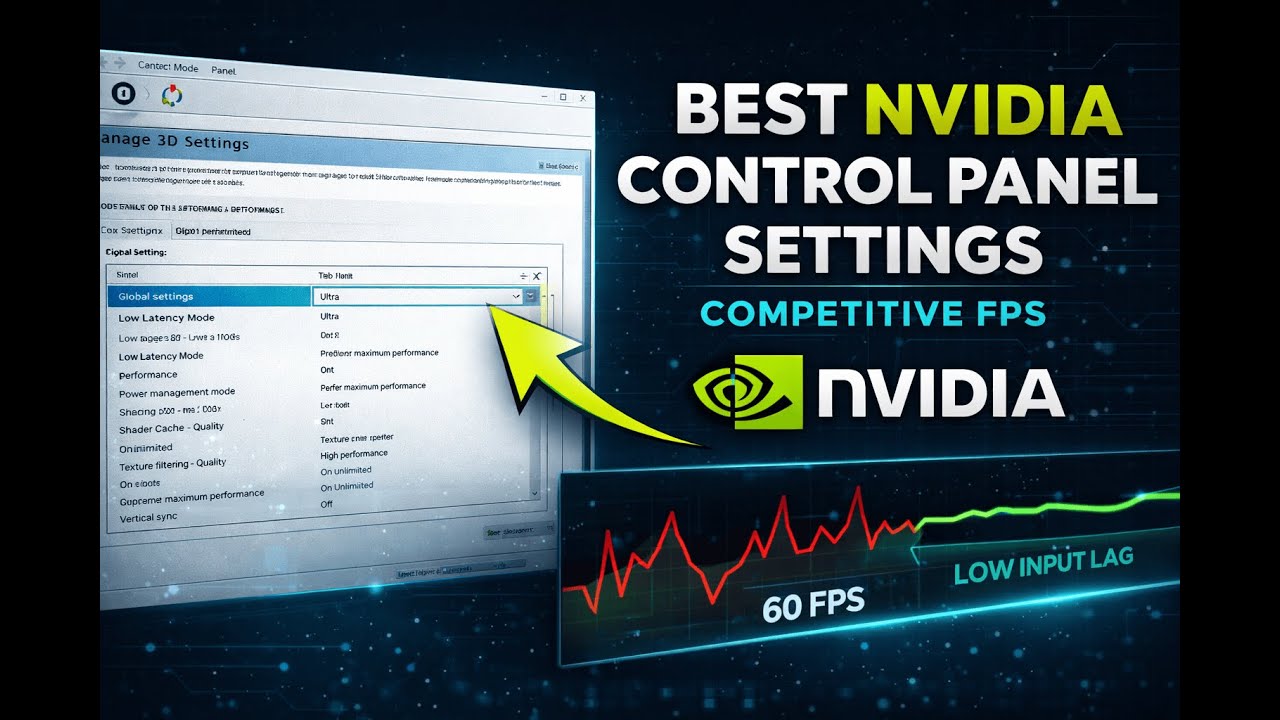
Best NVIDIA Control Panel Settings for Competitive FPS
Автор: FrameTuned
Загружено: 2026-01-20
Просмотров: 9
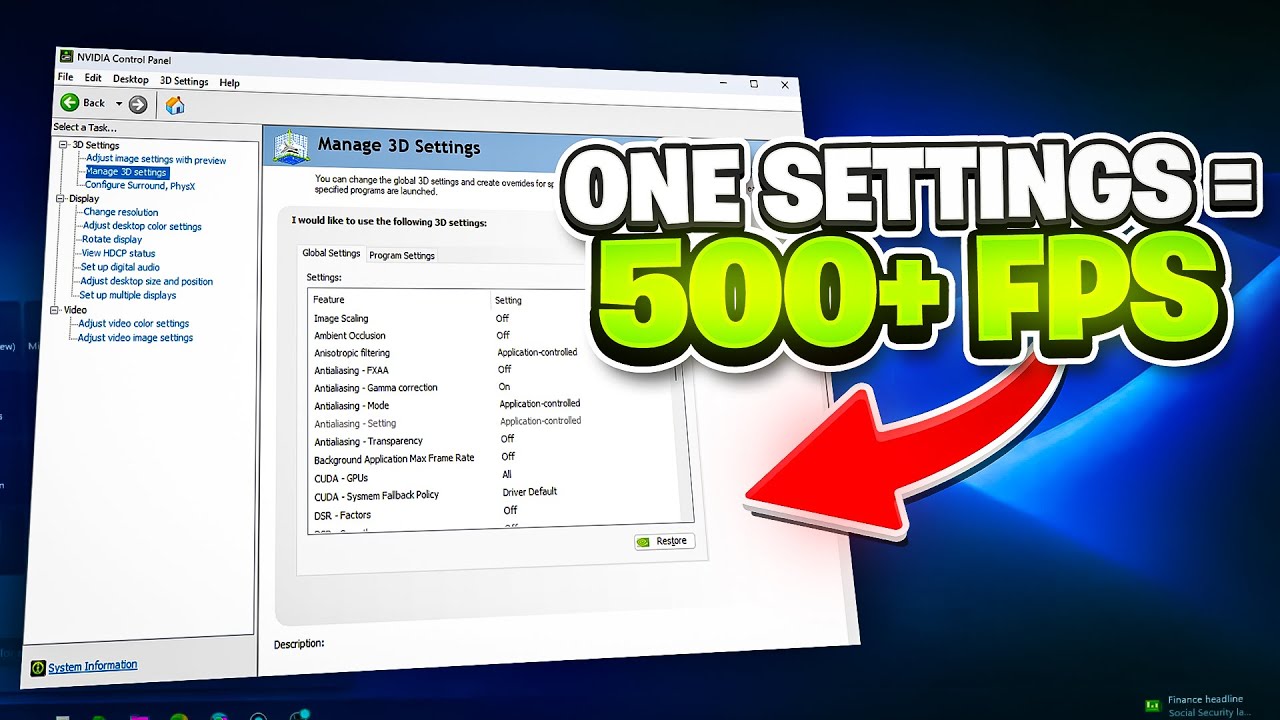
Maximize your NVIDIA Control Panel for competitive FPS gaming! In this video, I guide you through the best settings to reduce input lag, stabilize frame times, and achieve the most consistent FPS in games like CS2, Valorant, Apex Legends, and more.
⚡ Settings Covered:
Ambient Occlusion: Off
Anisotropic Filtering: Application-controlled
Anti-aliasing FXAA: Off
Antialiasing Gamma Correction: Off
Antialiasing Mode: Application-controlled
Antialiasing Transparency: Off
Background Application Max Frame Rate: Off
CUDA GPUs: All
CUDA System Fallback Policy: Prefer System Fallback
Low Latency Mode: Ultra
Max Frame Rate: Off
Multi-Frame Sampled AA (MFAA): Off
OpenGL GDI Compatibility: Auto
OpenGL Rendering GPU: Your GPU Model
Power Management Mode: Prefer Maximum Performance
Preferred Refresh Rate: Application-controlled
Shader Cache Size: Unlimited
Texture Filtering – Anisotropic Sample Optimization: On
Texture Filtering – Negative LOD Bias: Allow
Texture Filtering – Quality: High Performance
Texture Filtering – Trilinear Optimization: On
Threaded Optimization: On
Triple Buffering: Off
Vertical Sync: Off
VR Pre-rendered Frames: 1
VR – Variable Rate Supersampling: Off
Vulkan/OpenGL Present Method: Auto
💡 Pro Tips:
Benchmark your settings to measure real improvements in FPS and input lag
These are tested, real-world tweaks—no myths or placebo adjustments
🔔 Subscribe for more Windows performance guides, FPS optimization tips, AI tools, and gaming tweaks!
#FrameTuned #NVIDIASettings #FPSOptimization #CompetitiveGaming #GamingPerformance #InputLagFix #HighFPSGaming #PCTweaks #EsportsSetup #WindowsOptimization #FrameTimeStability #GamingPC #NVIDIAControlPanel
Доступные форматы для скачивания:
Скачать видео mp4
-
Информация по загрузке: