How to Remove the First Row When Exporting Google Sheets Data to CSV Using Apps Script
Автор: vlogize
Загружено: 2025-09-28
Просмотров: 2
Learn how to efficiently export selected data from Google Sheets to CSV format while excluding the first row using Google Apps Script.
---
This video is based on the question https://stackoverflow.com/q/63590082/ asked by the user 'Simon GIS' ( https://stackoverflow.com/u/9861647/ ) and on the answer https://stackoverflow.com/a/63590721/ provided by the user 'Tanaike' ( https://stackoverflow.com/u/7108653/ ) at 'Stack Overflow' website. Thanks to these great users and Stackexchange community for their contributions.
Visit these links for original content and any more details, such as alternate solutions, latest updates/developments on topic, comments, revision history etc. For example, the original title of the Question was: Delete or Remove first row of Google Sheet Script export to CSV
Also, Content (except music) licensed under CC BY-SA https://meta.stackexchange.com/help/l...
The original Question post is licensed under the 'CC BY-SA 4.0' ( https://creativecommons.org/licenses/... ) license, and the original Answer post is licensed under the 'CC BY-SA 4.0' ( https://creativecommons.org/licenses/... ) license.
If anything seems off to you, please feel free to write me at vlogize [AT] gmail [DOT] com.
---
How to Remove the First Row When Exporting Google Sheets Data to CSV Using Apps Script
If you're working with Google Sheets and need to export specific data to a CSV format, you might encounter a common issue: the first row of your sheet inadvertently makes it into your exported file. This usually happens when you set your data range but the export still includes header or unwanted rows. In this post, we'll explore how to modify your Google Apps Script to ensure that you export only the desired data, starting from the second row.
Understanding the Problem
You likely have a script that exports data from a specific sheet in Google Sheets, but no matter how you define your range, the export still contains data from the first row. The goal is to effectively exclude this row in your exported CSV file.
Proposed Solution
To achieve this, we need to make a minor adjustment to the URL construction used in your Apps Script. We'll modify the endpoint to specify the range directly in the URL.
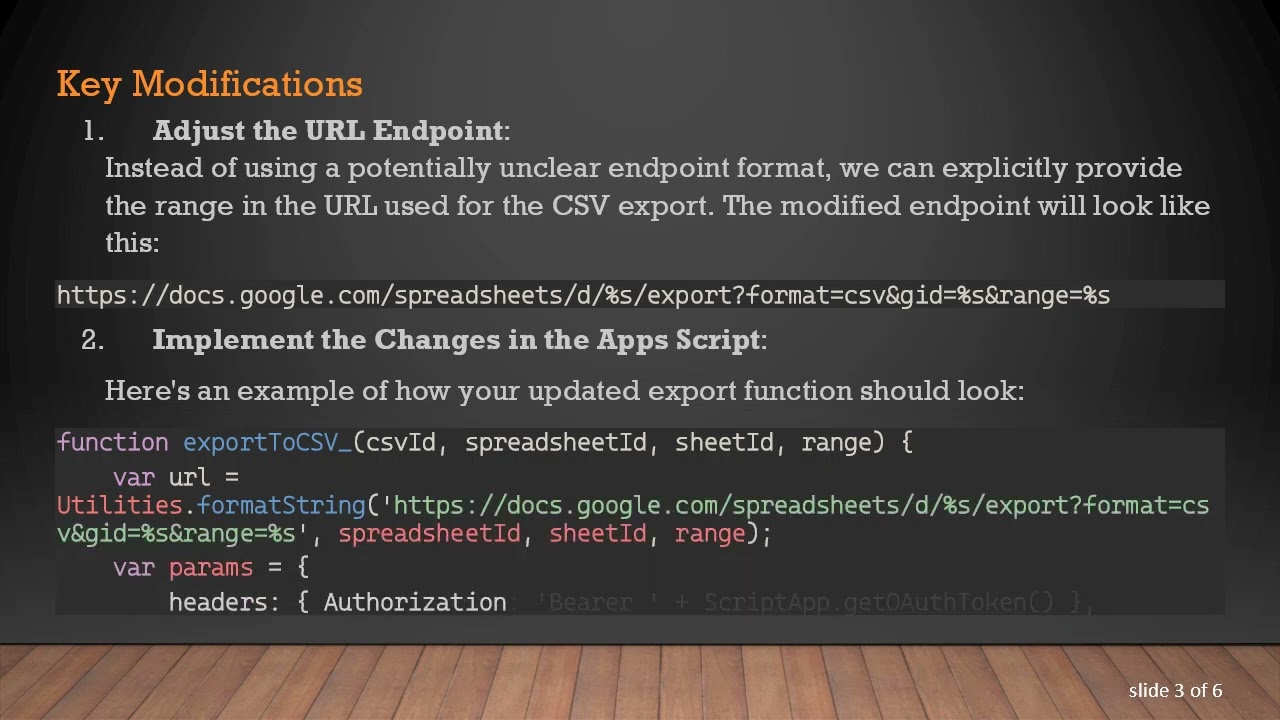
Key Modifications
Adjust the URL Endpoint:
Instead of using a potentially unclear endpoint format, we can explicitly provide the range in the URL used for the CSV export. The modified endpoint will look like this:
[[See Video to Reveal this Text or Code Snippet]]
Implement the Changes in the Apps Script:
Here's an example of how your updated export function should look:
[[See Video to Reveal this Text or Code Snippet]]
Key Steps to Use This Function:
Specify the Range: When you call the exportToCSV_ function, pass in the range you want to export, such as "A2:AI19000". This parameter tells the script which part of your sheet to consider for the export.
[[See Video to Reveal this Text or Code Snippet]]
Complete Script Example
To demonstrate, here's how you might structure your entire script:
[[See Video to Reveal this Text or Code Snippet]]
Conclusion
By implementing the above modifications in your Google Apps Script, you can easily export data from Google Sheets to CSV while avoiding the inclusion of the first row. This solution is simple yet effective, ensuring you get exactly the range of data you need without headers or irrelevant information.
Feel free to adjust the range as necessary depending on your specific requirements, and happy coding with Google Apps Script!
Доступные форматы для скачивания:
Скачать видео mp4
-
Информация по загрузке:







![[4K FULL HD] Relaxing Water Background | 1 HOUR | Calm Water Wallpaper (No Sound)](https://image.4k-video.ru/id-video/y9PTNTSpGJs)


