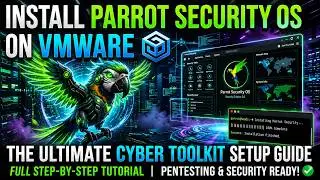
Install Parrot Security OS on Proxmox | Full Step-by-Step Virtual Machine Setup
Автор: NLR Crew
Загружено: 2026-01-08
Просмотров: 55
In this video we install Parrot Security OS on Proxmox, showing the entire process from start to finish in a clear and practical way.
We go step by step through:
downloading Parrot Security OS (www.parrotsec.org)
creating a virtual machine in Proxmox
configuring CPU, RAM, storage, and network settings
completing the OS installation
first login and initial system setup
This is not an advanced or enterprise deployment, but a clean, complete walkthrough made by an enthusiast, designed for learning, labs, and personal practice.
The goal is to help you understand how Parrot Security OS works inside a virtualized environment, without overcomplicating things or skipping important steps.
So you’ll:
install Parrot Security OS on Proxmox
configure a virtual machine correctly
complete the installation process
boot and access the system
prepare the environment for further study
Note (12:59):
The command sudo nmcli device connect ens18 is used to manually activate and connect the network interface of the system.
This is useful when the network does not start automatically after installation, especially in virtualized environments like Proxmox.
Once the interface is connected, the system can access the internet, allowing updates, package downloads, and normal network communication to work correctly.
If you’re curious about Parrot Security OS or want to use it safely inside a virtual machine, this video should help you get started in a simple and structured way.
Feel free to leave a comment if something isn’t clear or if you run into any issues - I’ll do my best to help.

Доступные форматы для скачивания:
Скачать видео mp4
-
Информация по загрузке: