How to Get Text Values from Multiple Tkinter CheckButtons in Python
Автор: vlogize
Загружено: 2025-09-28
Просмотров: 0
Learn how to efficiently retrieve the selected text values from multiple Tkinter CheckButtons in Python, making your application intuitive and user-friendly.
---
This video is based on the question https://stackoverflow.com/q/63586124/ asked by the user 'tibaH_lluN' ( https://stackoverflow.com/u/14165844/ ) and on the answer https://stackoverflow.com/a/63586636/ provided by the user 'Bryan Oakley' ( https://stackoverflow.com/u/7432/ ) at 'Stack Overflow' website. Thanks to these great users and Stackexchange community for their contributions.
Visit these links for original content and any more details, such as alternate solutions, latest updates/developments on topic, comments, revision history etc. For example, the original title of the Question was: How to get text values from multiple Tkinter CheckButtons with Python
Also, Content (except music) licensed under CC BY-SA https://meta.stackexchange.com/help/l...
The original Question post is licensed under the 'CC BY-SA 4.0' ( https://creativecommons.org/licenses/... ) license, and the original Answer post is licensed under the 'CC BY-SA 4.0' ( https://creativecommons.org/licenses/... ) license.
If anything seems off to you, please feel free to write me at vlogize [AT] gmail [DOT] com.
---
Getting Text Values from Tkinter CheckButtons in Python
When designing a graphical user interface with Tkinter in Python, you might find yourself needing to collect user inputs from CheckButtons. A common challenge many developers face is retrieving the text values corresponding to selected CheckButtons upon user actions, such as clicking a "Submit" button. This guide will guide you through a simple, effective method to achieve this.
Understanding the Problem
In a typical Tkinter application, you may have several CheckButtons that allow users to select multiple options. The main issue arises when you need to get the actual text values of the selected buttons, not just their indices. For instance, if a user selects the first, second, and fifth CheckButtons, you want to print “Anemia”, “Asthma”, and “Diabetes” instead of just the numbers “1, 2, 5”.
Let’s review how you can modify your current setup to get the desired text values when the user interacts with your application.
Step-by-Step Solution
1. Initialize CheckButton Variables Correctly
First, it's important to initialize your CheckButton variables correctly. In your original implementation, you were not appending the options to the list sick inside the loop where you create them. This might lead to unexpected behavior. Here's how to initialize it properly:
[[See Video to Reveal this Text or Code Snippet]]
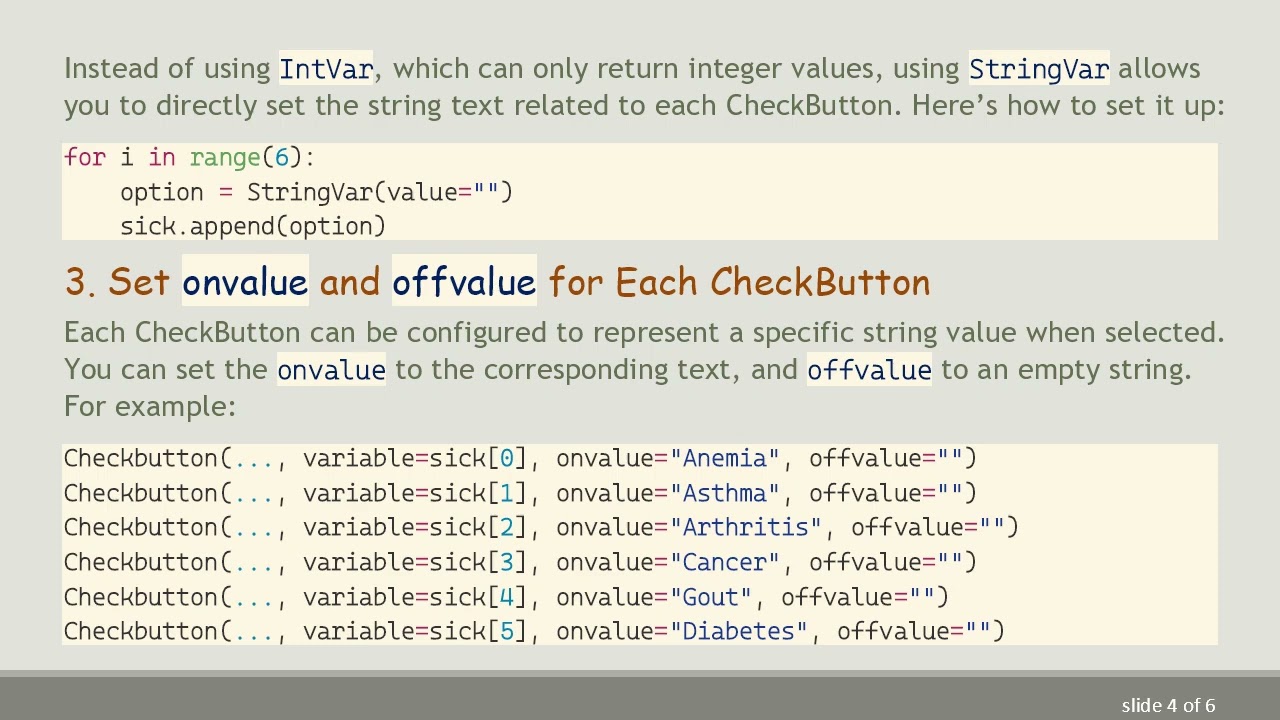
2. Use StringVar for Better Efficiency
Instead of using IntVar, which can only return integer values, using StringVar allows you to directly set the string text related to each CheckButton. Here’s how to set it up:
[[See Video to Reveal this Text or Code Snippet]]
3. Set onvalue and offvalue for Each CheckButton
Each CheckButton can be configured to represent a specific string value when selected. You can set the onvalue to the corresponding text, and offvalue to an empty string. For example:
[[See Video to Reveal this Text or Code Snippet]]
4. Retrieve Selected Values Effectively
Instead of checking each button individually in the getChecked() function, you can loop through the list sick, retrieving the text values for all selected CheckButtons. Here's a cleaner way to achieve this:
[[See Video to Reveal this Text or Code Snippet]]
Summary
By following these steps, you'll be able to retrieve the text values from multiple Tkinter CheckButtons effectively. This method makes your application more user-friendly by displaying the actual options selected by users. Here’s a quick summary of the adjustments made:
Properly initialize CheckButton variables within the loop.
Use StringVar for flexible text values.
Set onvalue and offvalue properties for each CheckButton.
Simplify your value retrieval logic for more efficient code.
With these changes, you can confidently enhance your Tkinter applications, ensuring a seamless user experience when it comes to input selection.
Feel free to experiment with the setup, adding more CheckButtons or varying the text and values based on your application's needs. Happy coding!
Доступные форматы для скачивания:
Скачать видео mp4
-
Информация по загрузке:
![Python - Полный Курс по Python [15 ЧАСОВ]](https://image.4k-video.ru/id-video/cfJrtx-k96U)






![Курс Python с Абсолютного нуля! [12 часов из 80] Python курс - качественный старт для начинающих!](https://image.4k-video.ru/id-video/lYMLLI-MJek)


