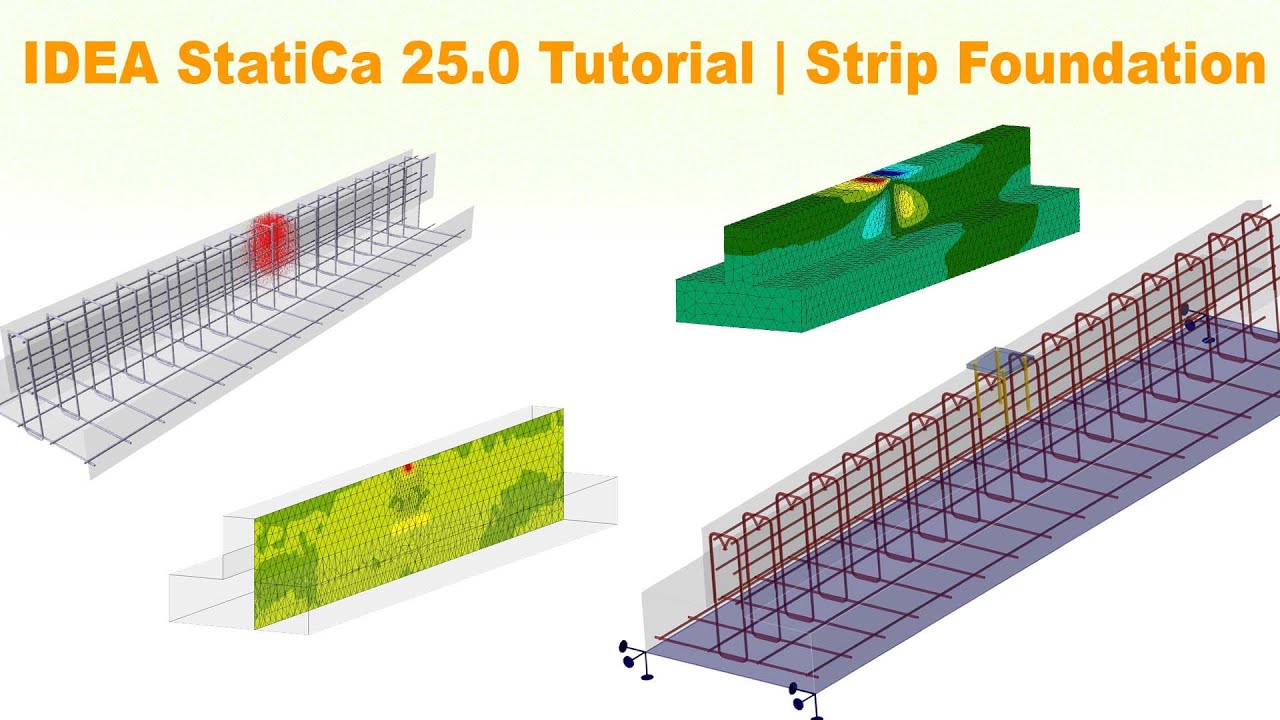
IDEA StatiCa 24.0 Tutorial: Designing a Wall with Openings
Автор: Global Structural training
Загружено: 2024-10-30
Просмотров: 388
IDEA StatiCa 24.0 Tutorial: Designing a Wall with Openings
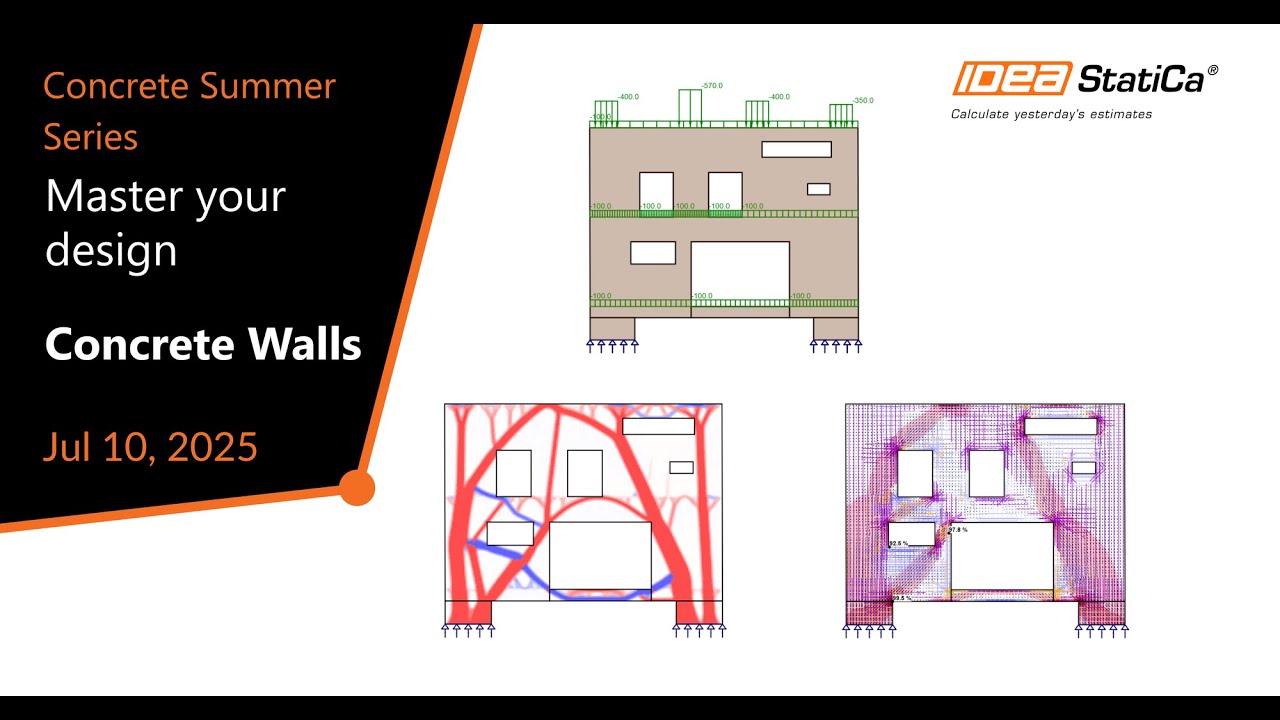
This tutorial covers the steps to create and analyze a wall with openings using IDEA StatiCa 24.0.
Step 1: Open IDEA StatiCa and Create a New Project
Launch IDEA StatiCa and click on New Project.
In the Project Setup window, select Wall Design from the available templates.
Input your project name, location, and any other relevant information.
Step 2: Define the Wall Geometry
Set Wall Dimensions:
Go to Geometry settings.
Input the height, width, and thickness of the wall. Make sure these dimensions align with your project requirements.
Add Openings:
Under the Openings section, click Add Opening.
Specify the location (position from wall edges), dimensions (height and width), and shape (rectangular or circular) of each opening.
If there are multiple openings, repeat this process for each one.
Step 3: Define Support Conditions
Go to Supports to set up the boundary conditions for the wall.
Specify whether the wall is fixed, pinned, or free at each edge, depending on your structural setup.
Adjust fixity parameters like rotations and translations if necessary.
Step 4: Apply Loads to the Wall
Open the Load Cases tab and define load types (dead loads, live loads, wind loads, etc.).
Apply surface loads, point loads, or line loads as needed. For example:
Dead load on the entire wall surface.
Wind load on the outer face.
Make sure the loads are positioned accurately, especially around openings, to reflect real-life conditions.
Step 5: Run the Analysis
Once your model is complete, navigate to the Analysis tab.
Choose Load Combinations to generate or manually input combinations based on relevant design standards.
Click on Run Analysis to perform a structural analysis of the wall.
Review Results: Check stress, displacement, and utilization ratios, especially around the openings, which are critical points.
Step 6: Review Results and Interpret Output
Go to the Results tab to analyze the output.
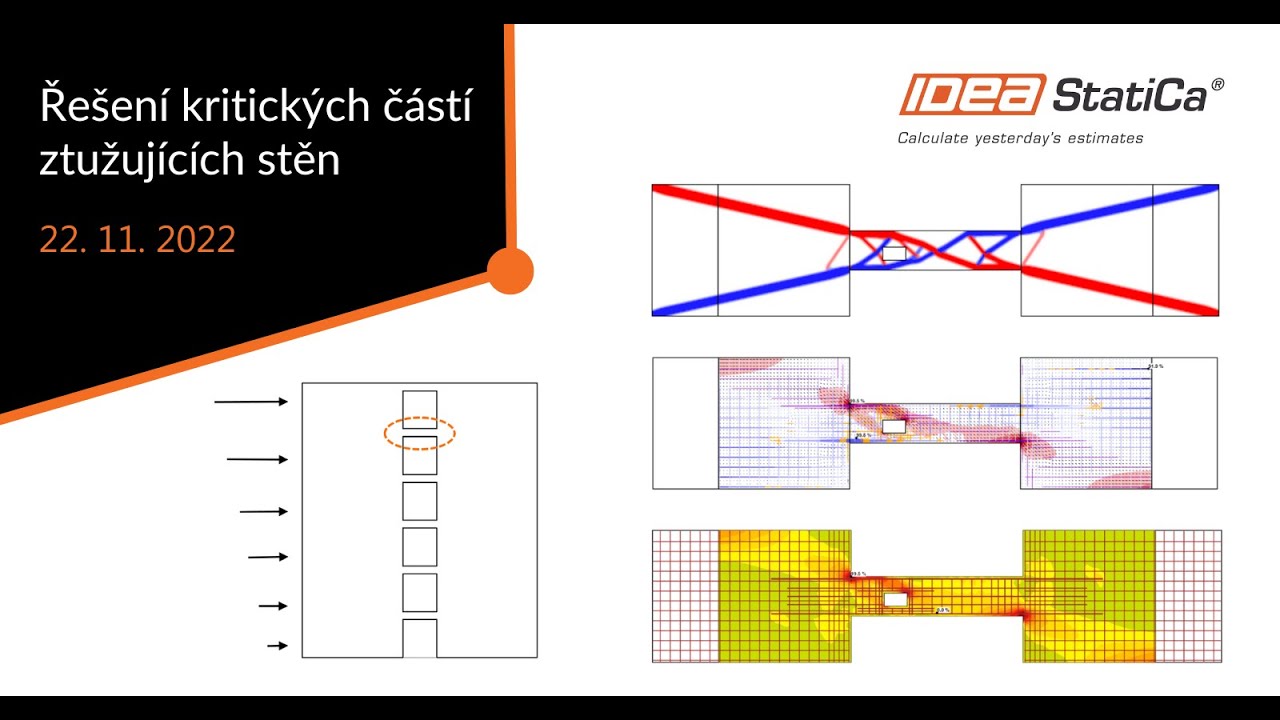
Stress Distribution: Look at the distribution of stress around the wall, paying attention to areas around openings where stress concentrations may occur.
Displacements: Check for any large displacements that may affect the structural stability.
Crack Patterns (if applicable): If concrete is being used, crack patterns around openings might be critical for serviceability.
Use the Graphical Output and 3D Visualization features to better understand areas of stress concentration and any potential points of failure.
Step 7: Generate the Report
After the analysis, click on Generate Report to create a detailed document with all inputs, outputs, and design checks.
Customize the report to include relevant sections, such as:
Load cases and combinations.
Support conditions and boundary constraints.
Stress and displacement results.
Export the report in PDF format for easy sharing and record-keeping.
With these steps, you should be able to design a structurally sound wall with openings using IDEA StatiCa 24.0. Adjust your model as needed based on the analysis results to ensure it meets design standards.
#IDEAStatiCa #StructuralEngineering #AnalysisAndDesign #CivilEngineeringSoftware #ConnectionDesign #ConcreteAnalysis #SteelStructures #LoadBearingStructures #FiniteElementAnalysis #StructuralSafety #InnovativeEngineering #BuildingDesignSoftware

Доступные форматы для скачивания:
Скачать видео mp4
-
Информация по загрузке: