Fix App Permissions on Mac osx: Resolving Microphone and Camera Issues (Open core)
Автор: The Studio Mechanic
Загружено: 2023-05-27
Просмотров: 19941
👉 Instructions Link
📝 List of Application Identifiers WhatApp, Teams, Zoom and more https://techdontech.com/mac-osx-apps-...
Updated • *Updated*How to Fix Permissions to Applica...
Download the following file and save it in your downloads folder GitHub Link: https://github.com/jslegendre/tccplus...
follow these steps:
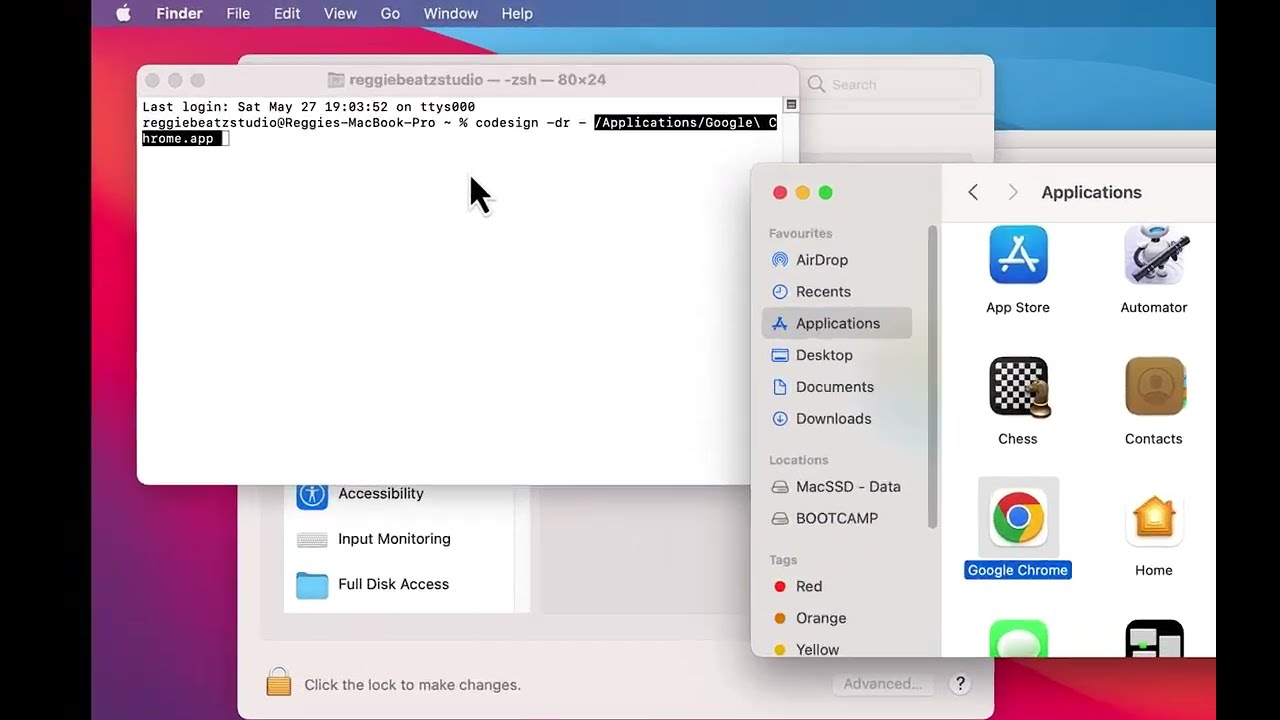
Locate the app folder in Finder that contains the app for which you need to assign permissions.
Open Terminal, type the command "codesign -dr -" (without quotes) and drag the app file from Finder into the Terminal window.
Press Enter. The Terminal will display the path to the app along with other details, including its identifier.
Example: codesign -dr - /Applications/Microsoft\ Teams.app
Take note of the app's identifier (e.g., com.microsoft.teams).
In the Terminal, enter the following commands:
cd ~/Downloads/
chmod +x tccplus
./tccplus add Microphone [identifier]
Replace "[identifier]" with the app's identifier you noted earlier.
Example: ./tccplus add Microphone com.microsoft.teams
Press Enter. The Terminal will confirm the successful addition of permissions.
To grant camera access as well, repeat the previous command, replacing "Microphone" with "Camera".
By following these steps, you'll be able to efficiently resolve permission issues with your apps. If you found this video helpful, please consider liking, sharing, and subscribing to my channel for more valuable tech tips and solutions.
Доступные форматы для скачивания:
Скачать видео mp4
-
Информация по загрузке:






![[SOLUCION] Activar Permisos en Cámara y Micrófono - OpenCore](https://image.4k-video.ru/id-video/ttCzIOUhaIQ)

