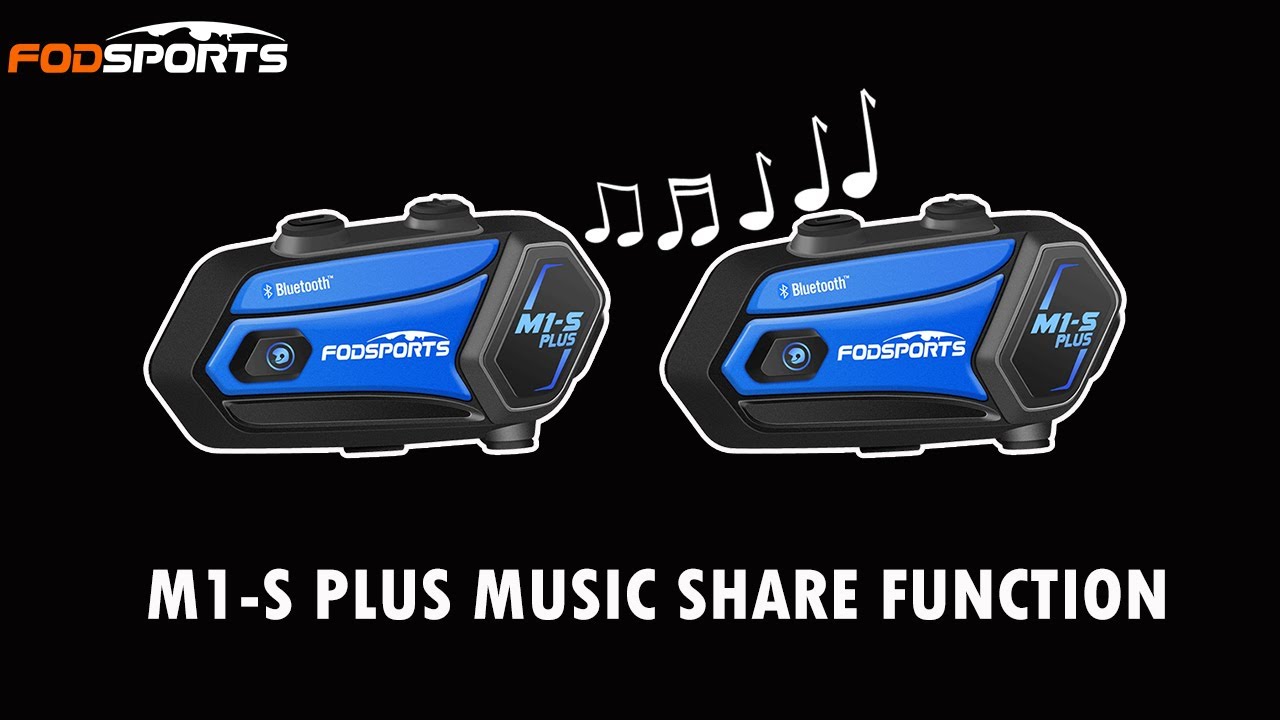
How To Use The Fodsports M1 S Plus Music Share Function
Автор: Fodsports
Загружено: 2021-08-08
Просмотров: 12859
⚫️ SUBSCRIBE to our channel ⚫️ https://bit.ly/3lnnjEC
Hit the thumbs up, and comment for more content!
-- TIMESTAMPS --
00:00 How To Use The Fodsports M1 S Plus Music Share Function
00:03 Start Fodsports M1-S Plus A Pairing Bluetooth
00:33 Start Fodsports M1-S Plus B Pairing Bluetooth
00:57 Let's A And B Temporarily Exit The Intercom State
01:08 Proceed To A And B Start Music Sharing Operation
01:28 Start Enjoying Music Sharing With M1-S Plus
01:53 End Of Sharing Music With M1-S Plus
M1-S Plus Music Share Function Tips
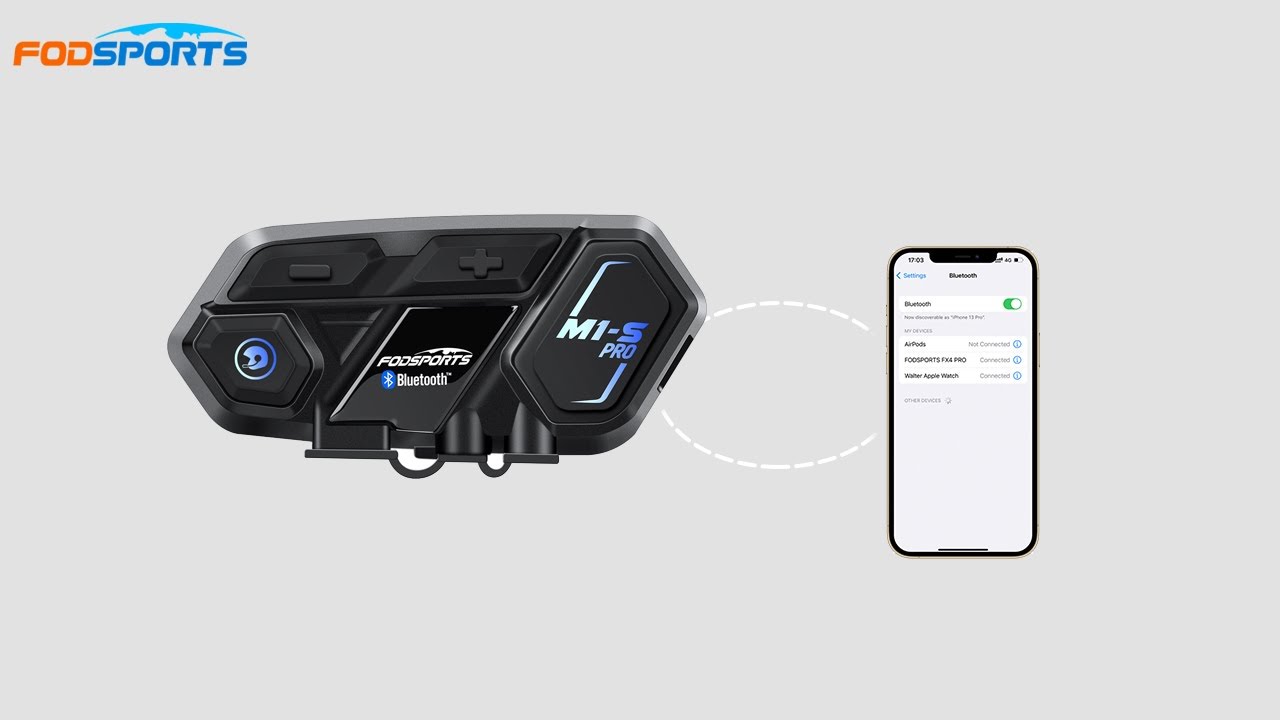
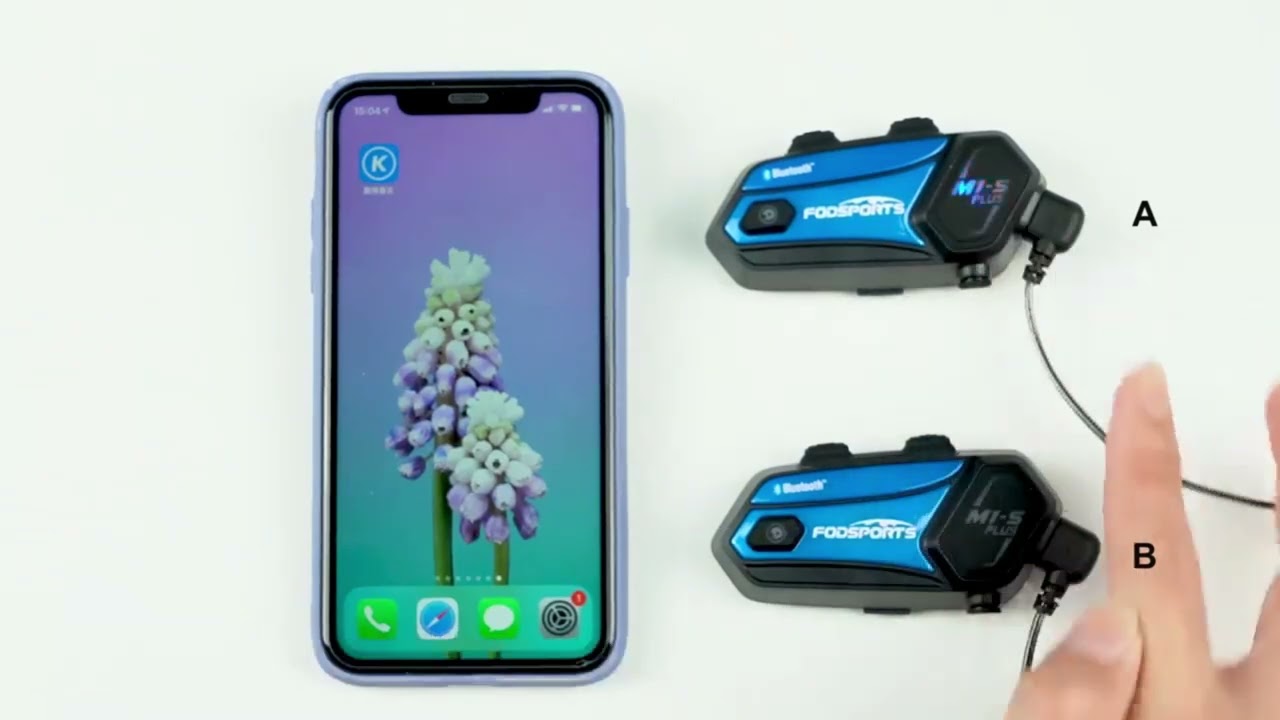
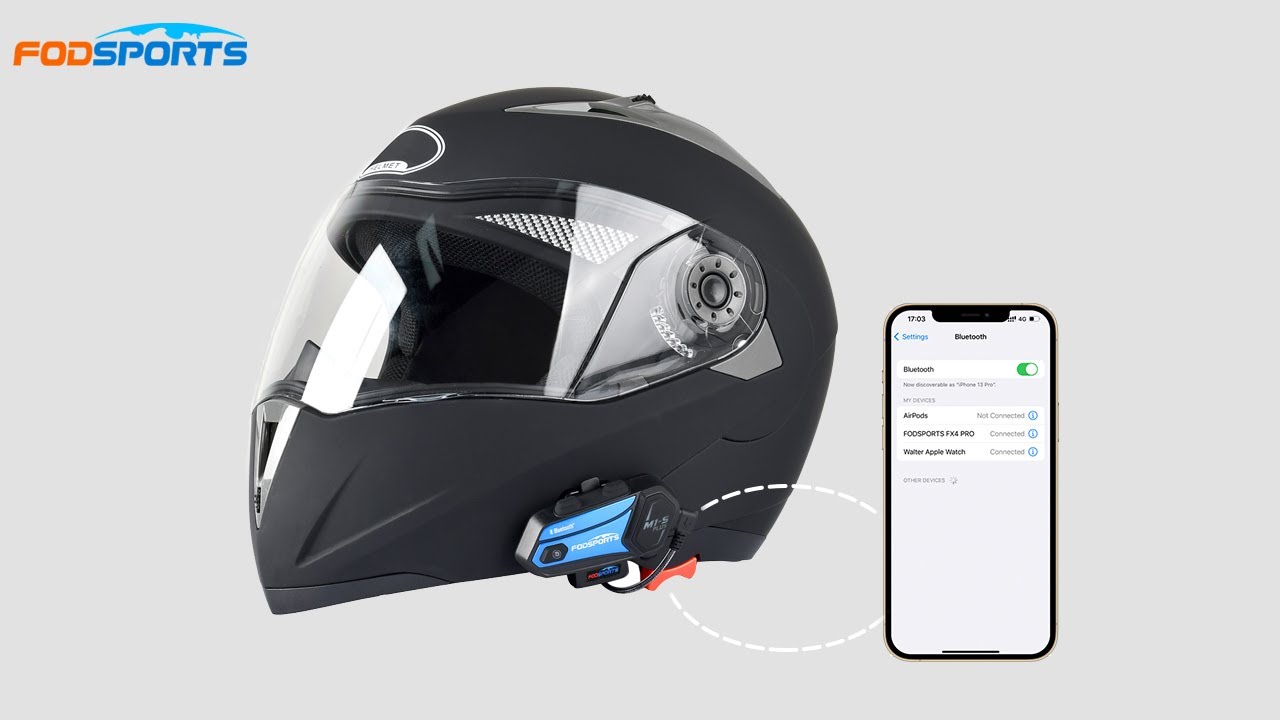
1. Turn on intercom A, press and hold the multi-function button for 3 seconds to enter the pairing mode (red and blue lights flash quickly), and A connects to the phone.
2. Long press the intercom button of A for 3 seconds to enter the search mode again (red and blue lights flash slowly)
Turn on intercom B, press and hold the multi-function button for 3 seconds to enter the pairing mode (red and blue lights flashing quickly)
A and B intercoms connection is successful.
3. Short press the A intercom button, A and B temporarily exit the intercom state.
4. Long press the V+ button of A for 3 seconds, the voice prompt "start music sharing".
5. Open the music player of phone A and play the song. (Share music completed).
6. Short press the intercom button A or B to switch between intercom and music sharing.
7. Pause music sharing: A or B short press the intercom button, A and B temporarily exit the intercom, long-press A's V+ button for 3 seconds, the voice prompt "stop music sharing". (End of sharing music).
⚫️Follow us⚫️
Instagram: / fodsports_official
Facebook: / fodsports
Twitter: / thefodsports
Fodsports were special because of our unique wind-suppressing technology that
can accurately reduce noise. And you can always trust the battery life of Fodsports
— Focus on outdoor sports —
#Fodsports#
Доступные форматы для скачивания:
Скачать видео mp4
-
Информация по загрузке: