How to open Steps recorder in windows?
Автор: Trusted Eagle
Загружено: 2022-06-11
Просмотров: 1
How to open Steps recorder in windows?
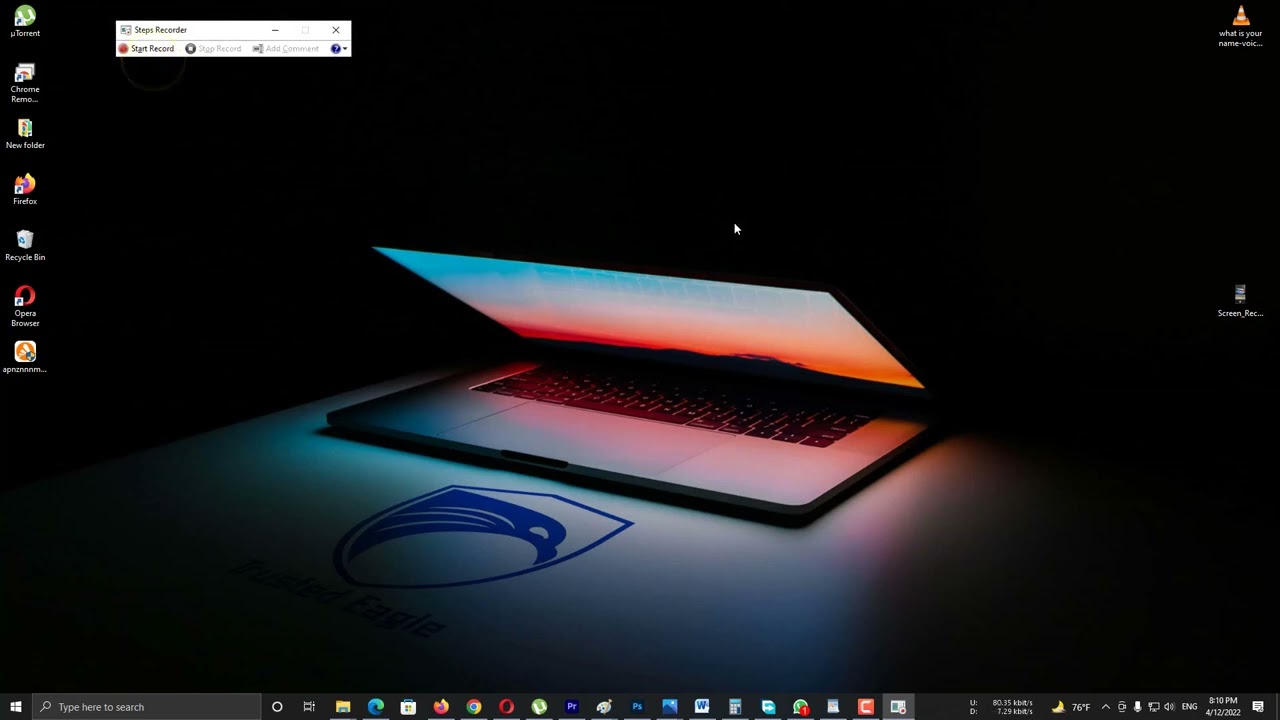
Welcome to our video where we will show you how to open Steps Recorder in Windows.
Steps Recorder, also known as Problem Steps Recorder, is a built-in tool in Windows that allows users to record a sequence of actions taken on their computer. This can be helpful for troubleshooting technical issues or providing detailed instructions to others.
To open Steps Recorder in Windows 10, follow these simple steps:
Press the Windows key on your keyboard or click the Start menu.
Type "Steps Recorder" in the search bar.
Select "Steps Recorder" from the search results.
The Steps Recorder tool will open on your desktop.
Alternatively, you can also access Steps Recorder by pressing the Windows key and the R key on your keyboard to open the Run dialog box. Then, type "psr" and press Enter.
Once Steps Recorder is open, you can begin recording your actions by clicking the "Start Record" button. The tool will automatically capture screenshots and record your mouse clicks and keystrokes as you navigate through your computer.
Once you have completed your sequence of actions, click the "Stop Record" button to save the recording. You can then review the recording, add comments, and save it as a ZIP file to share with others.
In our video, we will demonstrate these steps in real-time, so you can easily follow along and start using Steps Recorder to troubleshoot issues or provide detailed instructions to others. So if you're a Windows user looking to take advantage of this helpful tool, be sure to check out our video.
#www.trustedeagle.com.au
Доступные форматы для скачивания:
Скачать видео mp4
-
Информация по загрузке: