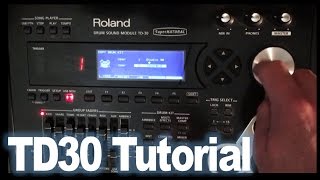
Roland TD-30 Module - Update Guide
Автор: Vdrum Tips
Загружено: 2017-03-24
Просмотров: 33413
This is a video tutorial explaining the Roland TD-30 System Update Process in detail and step by step.
Find V-drum Tips on:
Facebook: http://goo.gl/sW6z3S
Twitter: http://goo.gl/svH95f
Webpage: http://www.v-drumtips.com
Chapters:
1:15 - 1. Formatting USB Flash Drive
1:52 - 2. Backing Up All Data
2:36 - 3. Creating the USB memory for Update
3:44 - 4. Update Process
4:54 - 5. Factory Reset
5:32 - 6. Loading Backup Data
TD-30 Update Download link: https://goo.gl/UwvWxu
Buy the gear mentioned in the video here:
► Roland TD-30 Module: http://geni.us/TD30
► USB Flash Drive: http://geni.us/usbflash
► Mac Book Pro: http://geni.us/pJnnc
--------------------------------------------
Why would you update your module?
Updates usually improve a device or add additional features. The newest update 1.13 makes your module compatible with Roland's newest trigger types. For example the BT-1, KT-10 or the new RT-30 Trigger series.
It does also improve Midi functionality related to the hi-hat, which is really good if you trigger a drum software. Some system version 1.10 functionality bugs are fixed as well.
The update process is really simple. You do only need your computer with an internet connection and a USB flash drive. Please be aware that I will not be liable if you damage your module by following this tutorial. Proceeding the update is at your own risk.
Before you want to do the update, I recommend checking your modules current software version. Who knows, maybe you do already run the latest software version and don’t even need to update.
Press Setup - F5 to change to “Page C” - F4 /“Info” - F5 to see the Version. Here you can see the modules system version.
--------------------------------------------
1. Formatting USB Flash Drive
At first, you need to format your USB drive with the module. Be aware that you will delete all data from your USB flash when formating it.
Plug in the USB flash drive - press the “USB MEM” button - F5 to switch to “Page B” - F4/“Format” - F5 - and then F5 to Execute the formatting process. Wait until the module shows a message box that says: “Completed!”
2. Backing Up All Data
Insert the formatted USB drive - Press “USB MEM” - and F1 / “Save”. You can select a bank for the Backup or overwrite old ones. In this case, there is no backup on the USB drive, so we will leave it at Bank Number 1. Press F5 / “Save” and F5 again, to execute the backup process. If you see the “Completed” message, you have successfully backed up your settings onto the USB key.
3. Creating the USB memory
Go to the Roland Support website for the TD-30 System Update. You can find the link here: https://goo.gl/7cRNcq
Scroll down, tick the “I agree - Box” and download the file. Go to your Download folder, find the zipped update folder and unzip it.
Plug in your formatted USB flash drive and open it. The Roland folder contains the backup that was created before.
Copy the 4 update files into the USB flash drive. Do not copy these files into the Roland folder. Do also not copy the entire folder. Eject the USB Flash and unplug it.
4. Update Process
Shut down the module and then plug in the flash that contains the update files. Press and hold the USB Memory button and turn on the module, while holding that button.
You should see this exact screen. Otherwise, you will have to turn off the module and to repeat step 3 again. Press the USB Memory button and wait until the update process has been finished. Do not turn off your module while you run the update. This can take a while.
Turn the module off if you see this screen with the message “Update Completed”.
Turn it back on again and verify again the software version. Check if you see the number of the system version 1.13.
5. Factory Reset
Press “Setup” - F4 / “Factory Reset” - F5 to confirm the Factory Reset and F5 again to execute the factory reset. The module will ask you for some settings. Just cancel the requests.
6. Loading Backup Data
Insert the USB Flash Drive with the backup data on it. Press USB Memory and F2 / “Load”. You can see the backup on bank 1, that was created earlier. Press F5 / “Load” and F5 again to execute the download of the backup. Wait until it is completed, exit the USB Menu and check your User Drum Kits, the custom trigger settings and all data, which has been completely restored.

Доступные форматы для скачивания:
Скачать видео mp4
-
Информация по загрузке: