How to Format Unix Time in Typo3 Using TypoScript and Fluid
Автор: vlogize
Загружено: 2025-10-06
Просмотров: 0
Discover a step-by-step guide on formatting Unix timestamps into a human-readable date format in Typo3 using TypoScript and Fluid.
---
This video is based on the question https://stackoverflow.com/q/17521045/ asked by the user 'typo3job' ( https://stackoverflow.com/u/1645488/ ) and on the answer https://stackoverflow.com/a/63986720/ provided by the user 'Sonal' ( https://stackoverflow.com/u/8131078/ ) at 'Stack Overflow' website. Thanks to these great users and Stackexchange community for their contributions.
Visit these links for original content and any more details, such as alternate solutions, latest updates/developments on topic, comments, revision history etc. For example, the original title of the Question was: typoscript date is tstamp from DB how to format
Also, Content (except music) licensed under CC BY-SA https://meta.stackexchange.com/help/l...
The original Question post is licensed under the 'CC BY-SA 3.0' ( https://creativecommons.org/licenses/... ) license, and the original Answer post is licensed under the 'CC BY-SA 4.0' ( https://creativecommons.org/licenses/... ) license.
If anything seems off to you, please feel free to write me at vlogize [AT] gmail [DOT] com.
---
How to Format Unix Time in Typo3 Using TypoScript and Fluid
When working with databases in Typo3, you might encounter Unix timestamps that need to be displayed in a more human-readable format on your forms, especially when using extensions like Powermail. If you've pulled a date from the database but it appears as a Unix time (like 1609459200), you may wonder how to format it. Let's explore how to transform that Unix timestamp into a friendly format such as %d %m %y, which will enhance the user experience.
Understanding the Problem
The typical database returns dates in a format that is not user-friendly. For instance, if you have a date field such as begin_date, the data might be stored as a Unix timestamp, which is the number of seconds since January 1, 1970. This format is great for calculations but not suitable for display. Your goal is to convert this timestamp into a format like 31 12 20, which reads as December 31, 2020.
Solution Overview
To achieve this, we’ll utilize TypoScript to pull the timestamp and then use Fluid to format that date into human-readable text. Below are the steps you'll take to set this up.
Step 1: Retrieve the Timestamp
You already have the TypoScript code that retrieves the timestamp from the database. Here is the relevant portion of your code:
[[See Video to Reveal this Text or Code Snippet]]
This snippet does the following:
Retrieves the timestamp from the database using the uid provided in the input (tx_seminars_pi1).
Wraps and inserts the data appropriately for display.
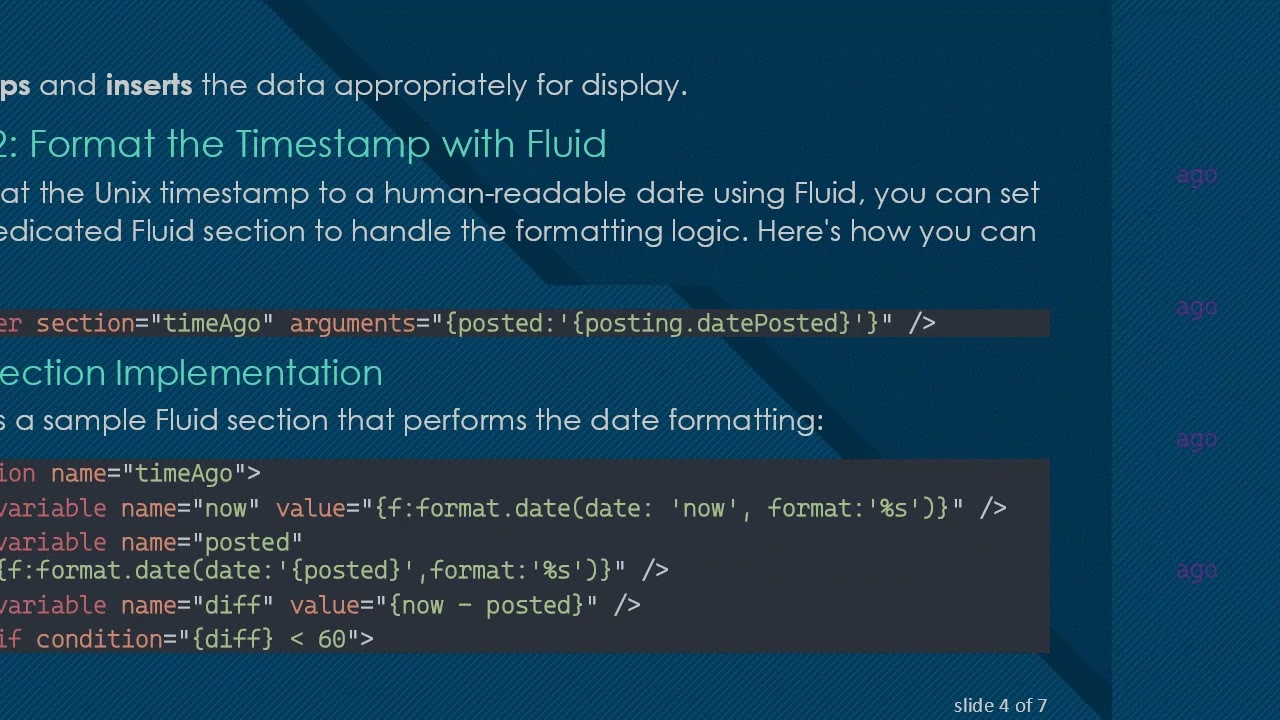
Step 2: Format the Timestamp with Fluid
To format the Unix timestamp to a human-readable date using Fluid, you can set up a dedicated Fluid section to handle the formatting logic. Here's how you can do it:
[[See Video to Reveal this Text or Code Snippet]]
Fluid Section Implementation
Below is a sample Fluid section that performs the date formatting:
[[See Video to Reveal this Text or Code Snippet]]
Step 3: Insert Your Variable in Fluid
Make sure to properly pass your date variable into the Fluid section by adjusting the arguments accordingly. The variable in this example is posting.datePosted. You'll need to adapt it to match your actual data source in Typo3.
Conclusion
Transforming Unix timestamps into a human-readable format doesn’t have to be a daunting task. With this guide, you have both the TypoScript and Fluid templates needed to achieve the desired formatting. By following these steps and ensuring your variables are correctly set, you can effectively improve the clarity of date displays in your Typo3 forms.
Now you're all set to make Unix timestamps user-friendly and engaging! Thank you for reading!
Доступные форматы для скачивания:
Скачать видео mp4
-
Информация по загрузке:



![Как сжимаются изображения? [46 МБ ↘↘ 4,07 МБ] JPEG в деталях](https://image.4k-video.ru/id-video/Kv1Hiv3ox8I)