How to Install and Run Kafka on Windows 11: A Step-by-Step Guide
Автор: The Tech Compass
Загружено: 2026-01-21
Просмотров: 2
#DataEngineering #SoftwareDevelopment #BigData #Zookeeper #Java #Tutorial #Backend #DevOps #Microservices #EventStreaming
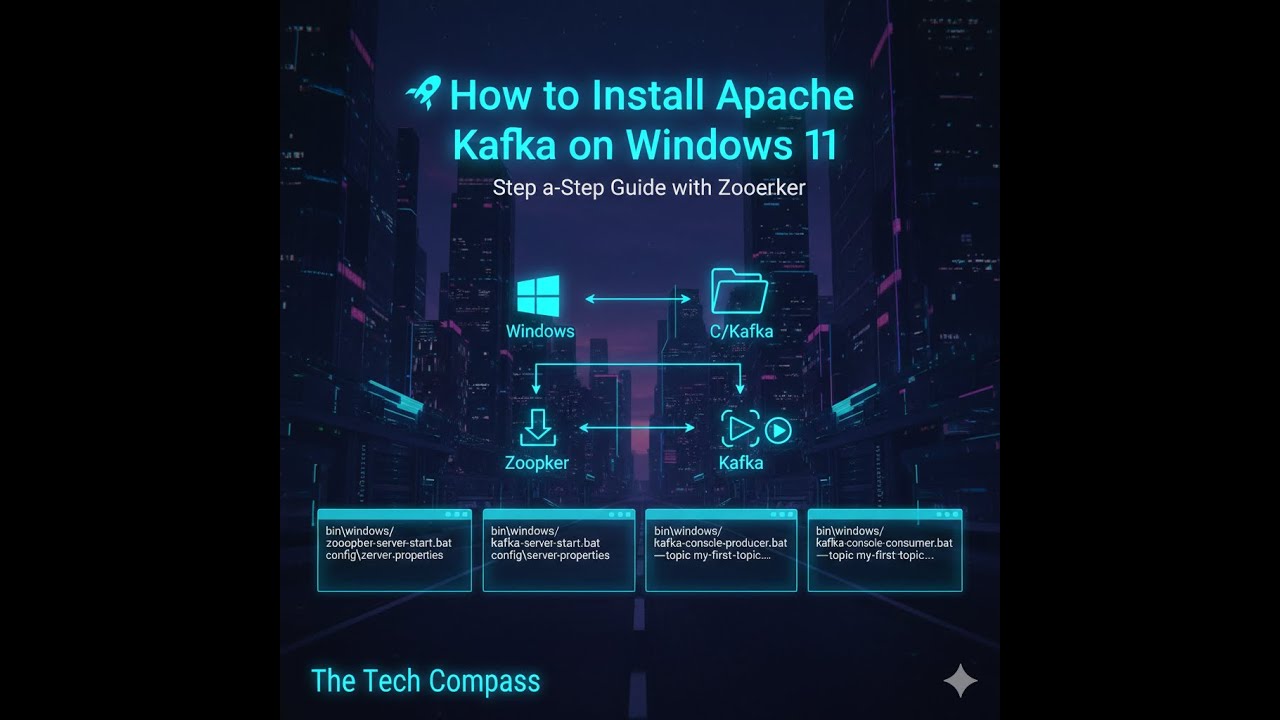
🚀 How to Install and Run Apache Kafka on Windows 11This guide provides a step-by-step walkthrough for setting up Apache Kafka locally on Windows 11 using Zookeeper.📋 PrerequisitesBefore starting, ensure your system meets the following requirements:Java JDK: Version 17 or higher.Verification: Open CMD and run java -version to confirm your installation.📥 Step 1: Download & SetupDownload Kafka: Visit the official Apache Kafka website and download the latest binary (Recommended: Kafka 3.x with Scala 2.13).Extract Files: Unzip the downloaded .tgz file.Create Directory: Create a folder at the root of your C: drive named C:\Kafka.Move Files: Paste all the extracted files into C:\Kafka.⚙️ Step 2: Start Zookeeper & Kafka ServerTo get Kafka running, you will need to open four separate Command Prompt windows. Navigate to C:\Kafka in each.1. Start ZookeeperIn the first terminal, run:DOSbin\windows\zookeeper-server-start.bat config\zookeeper.properties
Wait for the logs to stabilize and minimize this window.2. Start Kafka BrokerIn the second terminal, run:DOSbin\windows\kafka-server-start.bat config\server.properties
Note: If the server fails to start, ensure you have correctly pointed to the configuration files or try running the command with administrator privileges.📬 Step 3: Produce and Consume MessagesNow that the server is live, let's test the messaging system.3. Create a TopicIn the third terminal, create your first topic named my-first-topic:DOSbin\windows\kafka-topics.bat --create --topic my-first-topic --bootstrap-server localhost:9092 --partitions 1 --replication-factor 1
4. Start the ProducerIn the same terminal, start the producer to send messages:DOSbin\windows\kafka-console-producer.bat --topic my-first-topic --bootstrap-server localhost:9092
Once started, type any message (e.g., "Hello Kafka!") and press Enter.5. Start the ConsumerIn the fourth and final terminal, run this command to receive the messages:DOSbin\windows\kafka-console-consumer.bat --topic my-first-topic --bootstrap-server localhost:9092 --from-beginning
✅ Summary of ComponentsComponentFunctionZookeeperManages and coordinates the Kafka brokers.Kafka BrokerThe server that stores and serves the data.ProducerSends (writes) data into the Kafka topics.ConsumerReads (receives) data from the Kafka topics.
bin\windows\zookeeper-server-start.bat config\zookeeper.properties
bin\windows\kafka-server-start.bat config\server.properties
bin\windows\kafka-topics.bat --create ^
--topic python-topic ^
--bootstrap-server localhost:9092 ^
--partitions 1 ^
--replication-factor 1
bin\windows\kafka-topics.bat --list --bootstrap-server localhost:9092
bin\windows\kafka-console-producer.bat ^
--topic python-topic ^
--bootstrap-server localhost:9092
bin\windows\kafka-console-consumer.bat ^
--topic python-topic ^
--bootstrap-server localhost:9092 ^
--from-beginning
Доступные форматы для скачивания:
Скачать видео mp4
-
Информация по загрузке: