Home Assistant Floor Plan make your home image and realistic
Автор: Obengplus com
Загружено: 2025-06-20
Просмотров: 1982
00:00 Download HomeAssistantFloorPlanPlugin-vx.xx.xx
https://github.com/shmuelzon/home-ass...
00:34 Add Light for Entity ID
01:50 Copy Paste Entity ID Home Assistant to Sweet Home 3D
02:45 Render Floor Plan for Home Assistant
03:46 Enable HACS and FTP Home Assistant
04:04 Install HA Digital Twin
05:30 Copy images from Sweet Home 3D to HA
05:46 Add image in Floor3D Card
06:08 Copy YAML Floor Plan to Home Assistant
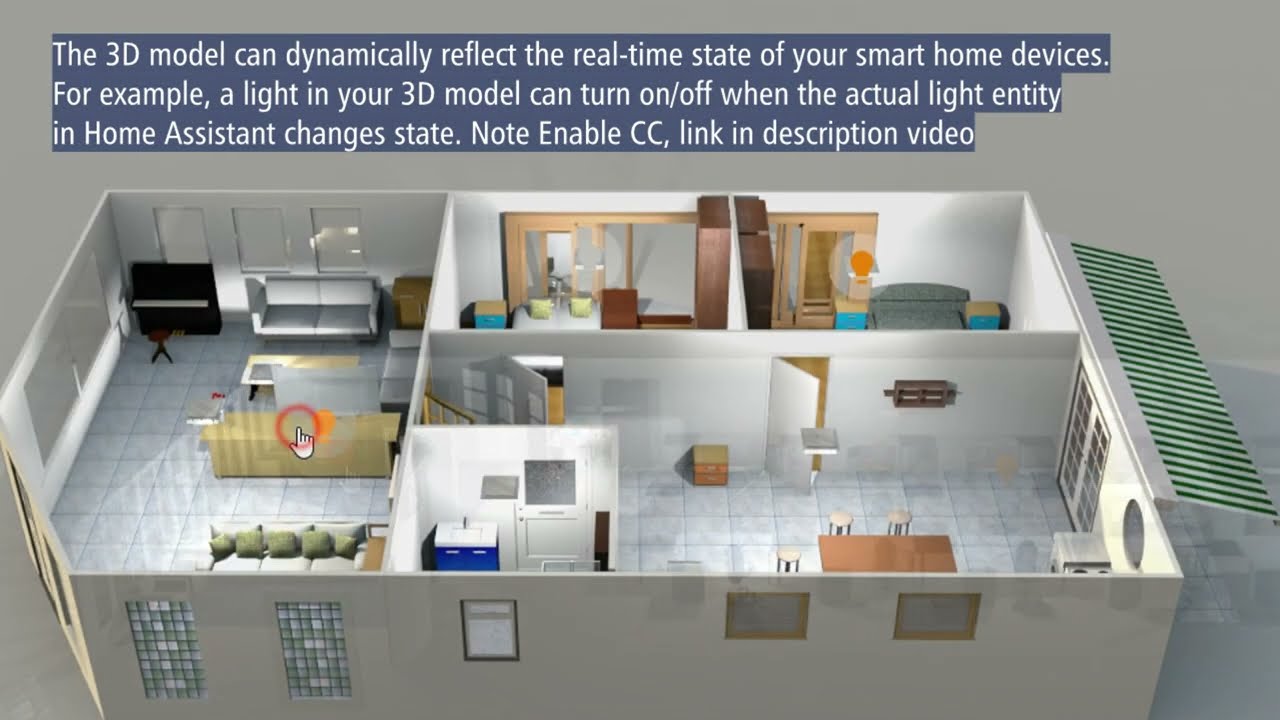
07:12 Home Assistant Dashboard like realistic
Design Software - Sweet Home 3D program (Free)
Design your home or office layout for Home Assistant dashboard
Download install version
www.sweethome3d.com/download.jsp
Build your home in Sweet Home 3D. I make this room only 2 hours, include learning via YT Video
Add home room for Home Assistant, you can draw with Sweet Home 3D.
Add Lighting and Export Renders
It’s now time to start giving your home some life. This step is the reason you’re here in the first place; lighting. The next steps are simple, but crucial towards building your home. i will try my best to break them down as much as possible.
Next Level Home Assistant Dashboard
Step install Floor Plan to Home Assistant
Copy file
HomeAssistantFloorPlanPlugin-v0.13.1.sh3p
Latest version check below
https://github.com/shmuelzon/home-ass...
to folder
C:\Users\name\AppData\Roaming\eTeks\Sweet Home 3D\plugins
Home Assistant
Add plugin HACS (search with Floor word)
Your HA Digital Twein floord3d-card Plugin
More simple, just add device, put on image, render
Home Assistant with HomeAssistantFloorPlanPlugin, no need program
YAML will add after finish render.
Copy file rendering (image files) Sweet Home 3D from computer
To /config/www/floorplan
House Sketch for Home Assistant typically refers to creating an interactive floor plan visualization, rather than a specific integration called"House Sketch. There are a couple of popular approaches to achieve this, often involving tools outside of Home Assistant to create the visual assets.
Here's a breakdown of how to add a "House Sketch" (interactive floor plan) on Home Assistant and create interactive light switch buttons:
Understanding the Core Concept
The idea is to have a base image of your floor plan (lights off) and then overlay smaller, transparent images or icons that represent the "on" state of your lights or other entities. When an entity changes state (e.g., a light turns on), the corresponding overlay image or icon is shown, making your floor plan interactive. You'll then place "buttons" on this floor plan that, when tapped, toggle the associated lights.
Sweet Home 3D: A popular choice with a dedicated Home Assistant Floor Plan Plugin that helps generate the necessary images (on/off states for lights) and YAML configuration. This is often recommended for its ease of use in generating the different light states.
Create your 3D model in Sweet Home 3D: Design your house, place furniture, and most importantly, add your light sources
Home Assistant: Your running Home Assistant instance.
Install the Home Assistant Floor Plan Plugin for Sweet Home 3D: Download the latest plugin from its GitHub releases page and install it in Sweet Home 3D.
HACS (Home Assistant Community Store): Highly recommended for easily installing custom cards like ha-floorplan or picture-elements (though picture-elements is built-in, custom card options might offer more flexibility).
Device control
air_quality.xxx
alarm_control_panel.xxx
assist_satellite.xxx
binary_sensor.xxx
button.xxx
camera.xxx
climate.xxx
cover.xxx
device_tracker.xxx
fan.xxx
humidifier.xxx
input_boolean.xxx
input_button.xxx
lawn_mower.xxx
light.xxx
lock.xxx
media_player.xxx
remote.xxx
sensor.xxx
siren.xxx
switch.xxx
todo.xxx
update.xxx
vacuum.xxx
valve.xxx
water_header.xxx
weather.xxx
Add Temp sensor
Go to and YAML, add the sensor like this.
type: state-badge
entity: sensor.temperature
style:
top: 70%
left: 20%
color: white
font-size: 10px
Copy paste, for other sensor, change sensor.xxxxxxx
Top and Left = position badget
Font-size - change small or bigger
Not show all entity appear for multi levels Sweet Home 3D.
Note for Multi Level before render - Click 3D view - Display all levels
Доступные форматы для скачивания:
Скачать видео mp4
-
Информация по загрузке: