Simplifying Your Logs in Google Stackdriver: View Multiple Containers at Once
Автор: vlogize
Загружено: 2025-08-30
Просмотров: 0
Discover how to effectively view logs from multiple containers in Google Stackdriver with simple commands and operations.
---
This video is based on the question https://stackoverflow.com/q/64367749/ asked by the user 'xetra11' ( https://stackoverflow.com/u/5967828/ ) and on the answer https://stackoverflow.com/a/64371473/ provided by the user 'guillaume blaquiere' ( https://stackoverflow.com/u/11372593/ ) at 'Stack Overflow' website. Thanks to these great users and Stackexchange community for their contributions.
Visit these links for original content and any more details, such as alternate solutions, latest updates/developments on topic, comments, revision history etc. For example, the original title of the Question was: Google Stackdriver - How can I show the logs of multiple containers in one view?
Also, Content (except music) licensed under CC BY-SA https://meta.stackexchange.com/help/l...
The original Question post is licensed under the 'CC BY-SA 4.0' ( https://creativecommons.org/licenses/... ) license, and the original Answer post is licensed under the 'CC BY-SA 4.0' ( https://creativecommons.org/licenses/... ) license.
If anything seems off to you, please feel free to write me at vlogize [AT] gmail [DOT] com.
---
Simplifying Your Logs in Google Stackdriver: View Multiple Containers at Once
If you’re working with multiple services in a cloud environment, especially when using Google Stackdriver to manage your logs, keeping track of inter-service communications can be a real challenge. As you've experienced, switching between different logs can become cumbersome and time-consuming. But there’s a way to streamline your logging view and make it much easier to track the interactions among your services.
The Problem
Imagine you have three services—FooService, BarService, and SnickerService—that communicate with one another. When troubleshooting or analyzing logs, it becomes necessary to view the logs from all three services simultaneously to understand the interaction flow better. Currently, you’re stuck opening multiple browser tabs and manually adjusting the timestamp for each service log, which can be quite cumbersome and inefficient. You’re left wondering if there’s a more convenient way to consolidate these logs into one unified view within Google Stackdriver.
Solution: Unified Logging View in Stackdriver
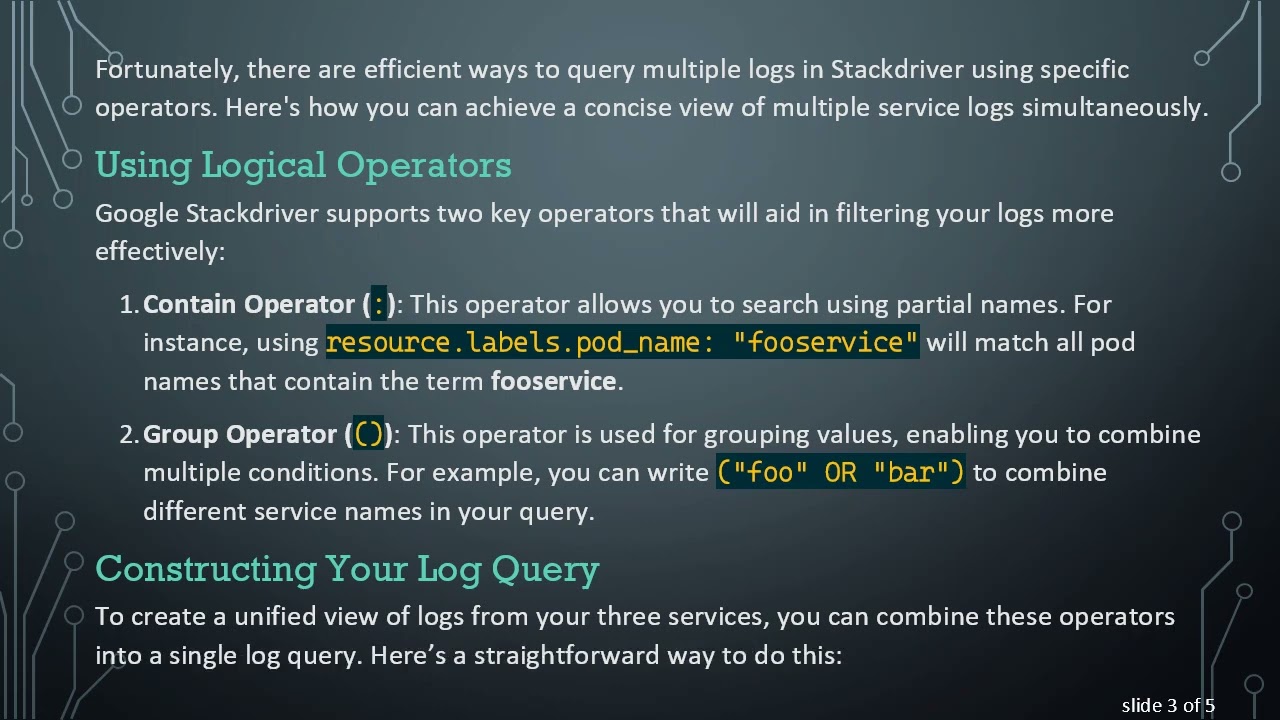
Fortunately, there are efficient ways to query multiple logs in Stackdriver using specific operators. Here's how you can achieve a concise view of multiple service logs simultaneously.
Using Logical Operators
Google Stackdriver supports two key operators that will aid in filtering your logs more effectively:
Contain Operator (:): This operator allows you to search using partial names. For instance, using resource.labels.pod_name: "fooservice" will match all pod names that contain the term fooservice.
Group Operator (()): This operator is used for grouping values, enabling you to combine multiple conditions. For example, you can write ("foo" OR "bar") to combine different service names in your query.
Constructing Your Log Query
To create a unified view of logs from your three services, you can combine these operators into a single log query. Here’s a straightforward way to do this:
[[See Video to Reveal this Text or Code Snippet]]
In this example, the filter specifically targets logs that belong to either fooservice or barservice pods. This means you can now see logs from both services together, which will make it easier to understand how they interact with each other during their processing.
Benefits of This Approach
Time-Saving: With a single query, you can easily get logs from multiple services without switching between tabs or repeated configurations.
Clarity: An aggregated view helps you to spot issues and patterns in the inter-service communications quickly.
Efficiency: Reduces the overall manual effort needed for troubleshooting logging-related issues.
Additional Tips for Searching Pods
Managing pod IDs can often feel like a hassle when you're diving into your Workloads. To make your life easier:
Try to search by partial names. This allows you to quickly find relevant pods without having to navigate through various menus.
Remember that filtering by pod name as previously described can significantly cut down the time needed to locate and analyze logs for your services.
Conclusion
By using the operators : and (), you can effectively consolidate your Google Stackdriver logs into one manageable view, helping you better understand the communication among your services without the awkward need for multiple tabs. Start implementing this strategy today to enhance your logging experience in Google Cloud!
Доступные форматы для скачивания:
Скачать видео mp4
-
Информация по загрузке: