Shelly Cashman PowerPoint 365/2021 | Module 2: SAM Project 1a Focux Safeguards Training
Автор: Calculus Physics Chem Accounting Tam Mai Thanh Cao
Загружено: 2025-04-08
Просмотров: 2667
Join this channel to get access to perks:
/ @calculusphysicschemaccountingt
Shelly Cashman PowerPoint 365/2021 | Module 2: SAM Project 1a
Focux Safeguards Training
ENHANCING A PRESENTATION USING VISUAL ELEMENTS.
GETTING STARTED
• Save the file SC_PPT365_2021_2a_FirstLastName_1.pptx as SC_PPT365_2021_2a_FirstLastName_2.pptx
o Edit the file name by changing “1” to “2”.
o If you do not see the .pptx file extension, do not type it. The file extension will be added for you automatically.
• To complete this Project, you will also need the following files:
o Support_PPT365_2021_2a_Scraper.jpg
• With the file SC_PPT365_2021_2a_FirstLastName_2.pptx open, ensure that your first and last name is displayed in the presenter notes on Slide 1.
o If the presenter notes do not display your name, delete the file and download a new copy.
PROJECT STEPS
1. As the personnel security analyst for Focux Safeguards Training, you provide companies with their annual ID badge refresher training. You also want to enhance the first part of your presentation.
Start by creating a custom design element on the Slide 1 title slide ("Focux Safeguards Training") as follows:
a. Use Smart Guides to position the yellow sun shape on top of the purple starburst shape as shown in Figure 1.
b. Send the yellow sun shape to the back.
c. First select the purple starburst shape, and then select the yellow sun shape. Merge the two shapes using the Subtract option.
d. Change the merged shape's height to 1.3". Allow the width to adjust automatically.
e. Use Smart Guides to position the merged purple shape in the light blue box as shown in Figure 2.
Figure 1: Position for Shapes on Slide 1
Figure 2: Position for Merged Shape on Slide 1
2. On Slide 2 ("Small Things Add Up"), copy and align shapes to highlight key points as follows:
a. Copy one of the rectangular shapes, and then paste it on the same slide.
b. Change the text to:
Compliance
c. Use Smart Guides to position the "Compliance" rectangle beneath the other rectangles, as shown in Figure 3.
d. Select the rectangular shapes and use Align Right to align the selected objects to each other.
e. Use Distribute Vertically to distribute the selected objects to each other.
Figure 3: Position for Rectangle Shape on Slide 2
3. On Slide 3 ("Refresher Briefing"), convert the numbered list into the Pyramid List SmartArt layout as shown in Figure 4 to see if it makes the content more noteworthy.
a. Change the layout of the SmartArt to Vertical Box List as shown in Figure 5.
b. Apply the Subtle Effect SmartArt style in the Best Match for Document section.
Figure 4: Pyramid List SmartArt Layout
Figure 5: Vertical Box List SmartArt Layout
4. With Slide 3 still displaying, insert a hyperlink from the "Constant updates" text to:
https://www.cengage.com/
5. On Slide 4 ("Credentials Essentials"), rearrange objects on the slide for a better effect as follows:
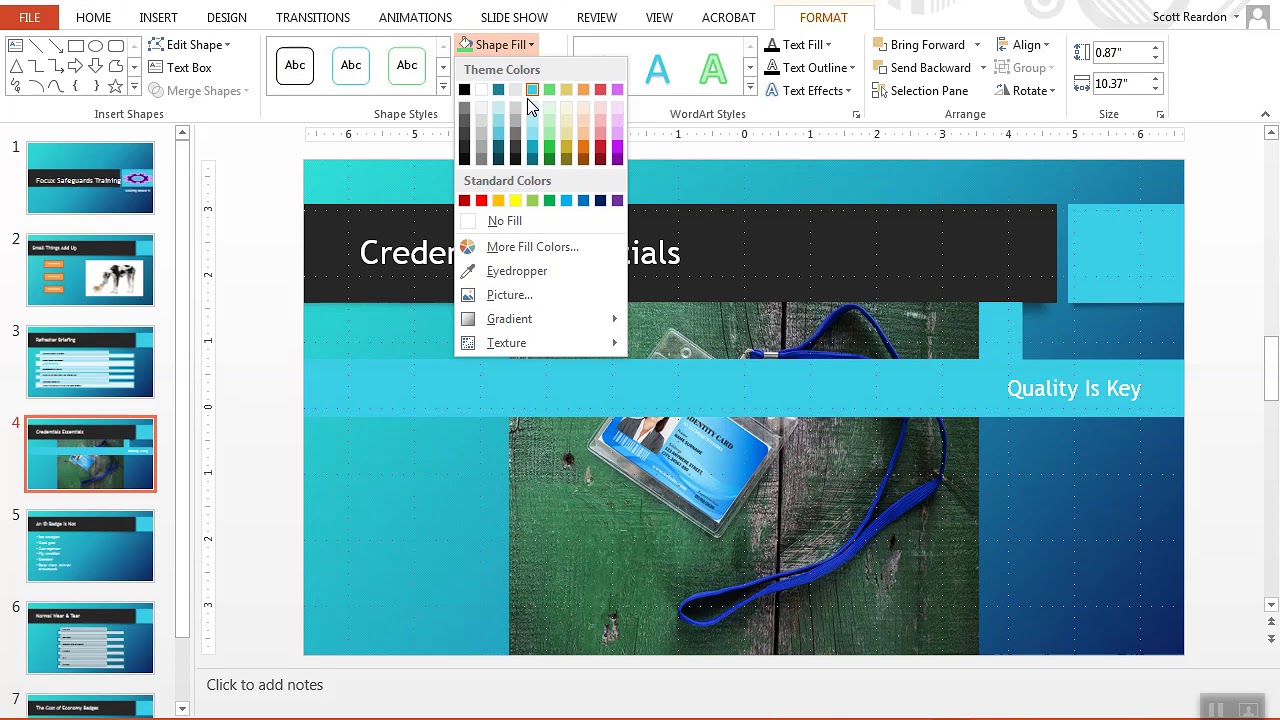
a. Change the color of the long blue rectangle to Turquoise, Accent 1, Lighter 40% (5th column, 4th row in the Theme Colors palette).
b. Apply the Glow: 8 point; Lavender, Accent color 6 Glow shape effect to the turquoise rectangle.
c. Send the turquoise rectangle to the back of the slide.
d. Flip the "Quality Is Key" shape horizontally.
e. Group the turquoise rectangle, the picture, and the "Quality Is Key" shape.
6. On Slide 5 ("An ID Badge Is Not"), highlight the content by inserting a picture in a shape as follows:
a. Insert the Cube shape from the Basic Shapes section of the Shapes gallery.
b. Resize the cube shape to a height of 3.5" and the width to 4.29".
c. Insert the file Support_PPT365_2021_2a_Scraper.jpg available for download from the website as a picture fill in the shape.
7. With Slide 5 still displaying, show the Ruler and Guides, align the shape to the guides as shown in Figure 6, and then hide the guides.
Figure 6: Position for the Shape on Slide 5
8. Delete Slide 7 because it is no longer necessary.
9. With Slide 6 still displaying, change the color of the SmartArt outline to Turquoise, Background 2 (3rd column, 1st row in the Theme Colors palette).
10. Add slide numbers and footer text to complete your presentation as follows:
a. Insert a slide number on all slides except the title slide. (Hint: Use the Don't show on title slide check box in the Header and Footer dialog box.)
b. Enter the following text in the footer:
ID Badge Refresher
In Slide Sorter view, your presentation should look like the Final Figure on the following page. Save your changes, close the presentation, and exit PowerPoint. Follow the directions on the website to submit your completed project.
Final Figure
© Eric Isselee/Shutterstock.com; © IgorGolovniov/Shutterstock; © mimagephotography/Shutterstock; © pm_video/Shutterstock.com

Доступные форматы для скачивания:
Скачать видео mp4
-
Информация по загрузке:







![[4K FULL HD] Relaxing Water Background | 1 HOUR | Calm Water Wallpaper (No Sound)](https://imager.clipsaver.ru/y9PTNTSpGJs/max.jpg)