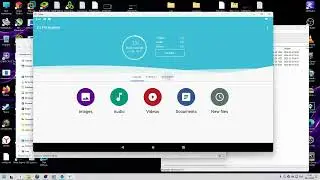
How to install Android Os using Virtualbox
Автор: Farah Hantah
Загружено: 2025-09-23
Просмотров: 199
Intro
"Hey everyone! In this video, I’ll show you how to install Android OS on VirtualBox step by step. Let’s get started!"
Step 1: Download the Files
"First, download and install VirtualBox from virtualbox.org.
Then, download the latest Android-x86 ISO from android-x86.org.
We’ll use these two files to set up our virtual machine."
(Show screen recording of downloads)
Step 2: Install VirtualBox
"Run the VirtualBox installer and follow the default setup options. Once installed, open VirtualBox."
(Show VirtualBox opening)
Step 3: Create a New Virtual Machine
"Click on New.
Name it Android OS.
Set Type: Linux and Version: Other Linux (64-bit).
Allocate at least 2GB RAM.
Then create a new virtual hard disk of about 16GB."
(Screen record these clicks)
Step 4: Mount the Android ISO
"Now go to Settings → Storage, click on the empty disk, and select the Android ISO you downloaded."
Step 5: Start the Virtual Machine
"Click Start to boot from the ISO.
Select Install Android-x86 to hard disk."
Step 6: Partition the Disk
"Choose Create/Modify partitions.
Make a new Primary partition using the full space.
Format it as ext4.
Then, install GRUB bootloader when asked."
Step 7: Reboot
"Once installation is done, restart the VM.
But before that, don’t forget to remove the ISO file from the virtual drive in Settings → Storage."
Step 8: First Boot
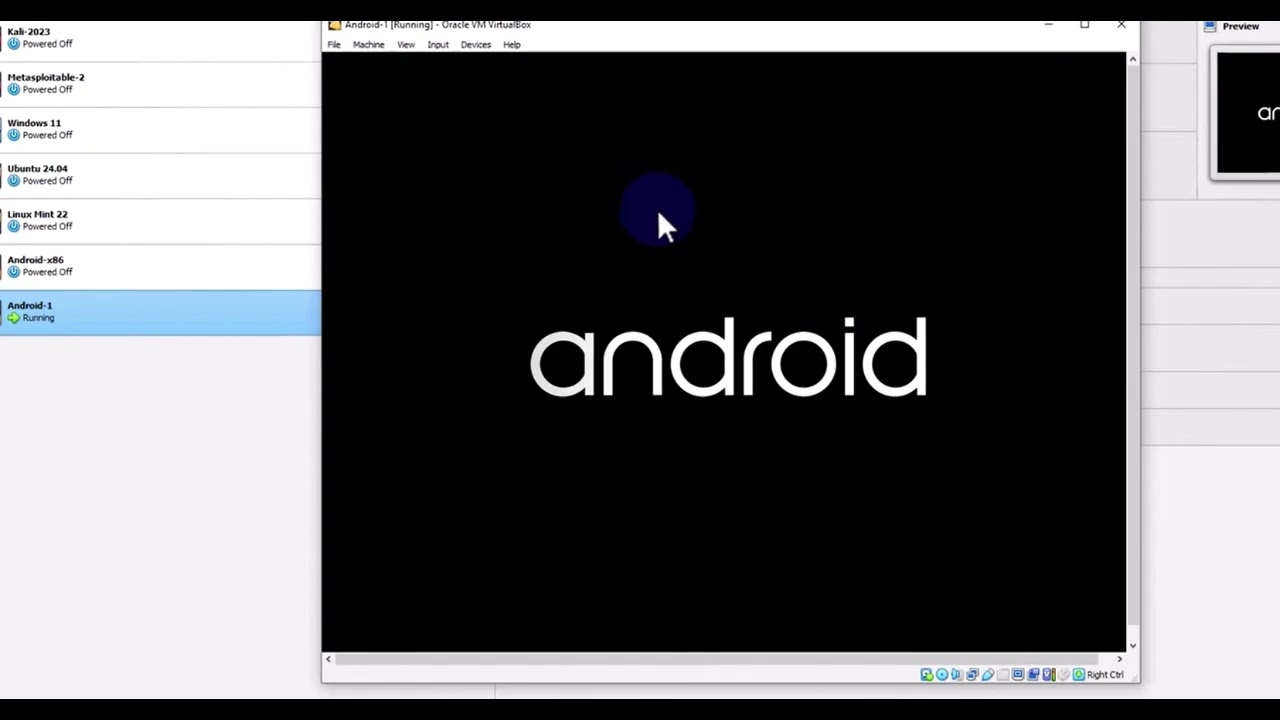
"Now your VirtualBox will boot into Android OS.
Go through the setup just like on a phone—select language, sign in with Google, and you’re ready!"
🔗 Downloads & Guides:
VirtualBox (latest version): 👉 https://www.virtualbox.org/wiki/Downloads
Android-x86 ISO (official project): 👉 https://www.android-x86.org/download
Step-by-step guide (text tutorial): 👉 https://www.android-x86.org/documents/inst...
Доступные форматы для скачивания:
Скачать видео mp4
-
Информация по загрузке: