Disable this Setting in Windows to Boost Performance & Optimize Windows PC
Автор: Open Box Tech
Загружено: 2026-01-18
Просмотров: 44
Is your Windows 11 or Windows 10 PC feeling sluggish? Are you experiencing random internet lag or slow download speeds? The problem might not be your hardware—it could be a hidden background setting that is turned ON by default.
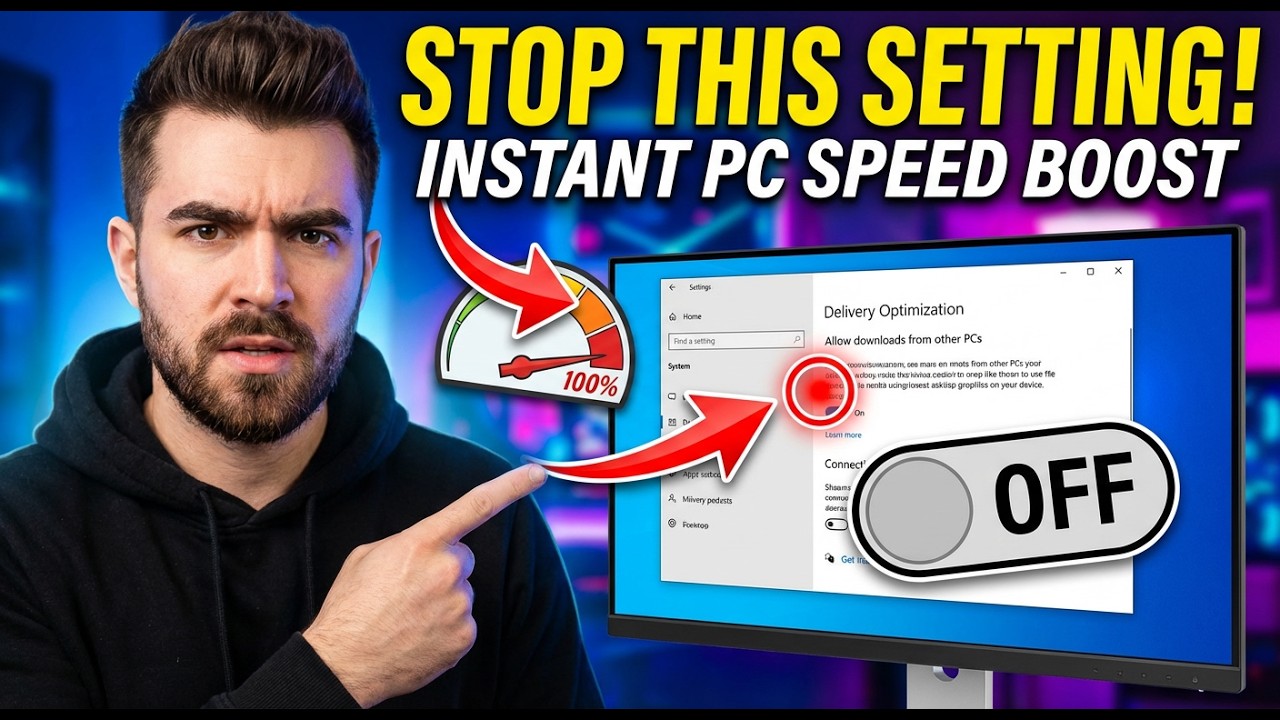
In this video, I will show you exactly how to disable Delivery Optimization in Windows. This feature essentially turns your computer into a peer-to-peer server for Microsoft, uploading update files to strangers across the internet. While this helps Microsoft, it hogs your internet bandwidth, eats up RAM, and drains your CPU usage, causing performance drops in games and daily tasks.
By following this step-by-step guide, you will learn how to take control of your system resources, lower your ping, and give your PC a much-needed performance boost. This is especially critical for users with older PCs or those with 4GB to 8GB of RAM.
🚀 WHAT YOU WILL LEARN IN THIS VIDEO:
How to access the Windows Update advanced settings menu.
What is Delivery Optimization and why it slows down your internet.
How to disable background data sharing to save bandwidth.
How to manually check for updates to ensure system security.
Simple tips to speed up your PC without deleting apps.
🔔 SUBSCRIBE FOR MORE WINDOWS TIPS:
/ @openboxtech
👇 RELATED VIDEOS:
How to Clean Up Junk Files in Windows 11: • How to Free Up GIGABYTES of Disk Space on ...
🔎 INCOMING SEARCH TERMS:
How to speed up Windows 11, fix slow internet on PC, disable delivery optimization Windows 10, reduce lag in games, Windows 11 hidden settings, stop Windows update from using internet, increase internet speed PC, optimize Windows for gaming, turn off peer to peer updates Windows, fix high CPU usage Windows 11.
#Windows11 #SpeedUpPC #DeliveryOptimization #TechTips #Windows10 #PCGaming #InternetSpeed
Доступные форматы для скачивания:
Скачать видео mp4
-
Информация по загрузке: