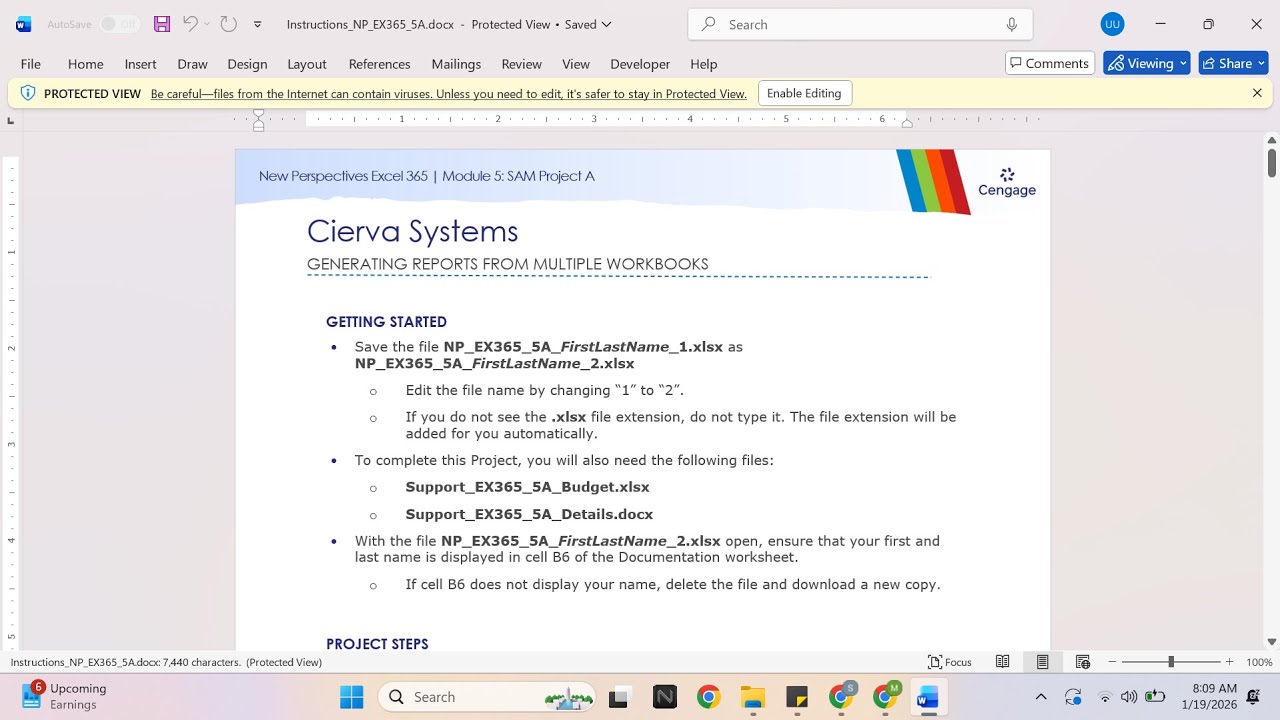
New Perspectives Excel 365 | Module 5: SAM Project A Cierva Systems
Автор: Excel Assignments
Загружено: 2026-01-18
Просмотров: 0
If you directly want to get the project from us then contact us on our Whatsapp. Link is given below,
https://wa.me/message/PPXGSJS2TLWUA1
Whatsapp Contact Number:
+91 8114420233
Email ID:
excelprojectshelp@gmail.com
New Perspectives Excel 365 | Module 5: SAM Project A Cierva Systems
PROJECT STEPS
Santiago Andres is an administrative coordinator for Cierva Systems, a leading manufacturer of aerospace products. He is using an Excel workbook to plan the company's exhibits at industry trade shows and asks you to complete the plan.
Go to the Trade Shows worksheet. Santiago asks you to correct one hyperlink and insert others to provide access to external information.
In cell D4, edit the hyperlink to use Bahru Exhibition Center as the display text to show the full name of the location.
In cell F6, create a hyperlink to an email address as follows:
Insert a link to the following email address:
lucsorel@example.cengage.com
Use lucsorel@example.cengage.com as the text to display.
In cell B10, create a hyperlink to a Word document containing descriptions of the trade shows as follows:
Link to the file Support_EX365_5A_Details.docx.
Use Detailed show descriptions as the text to display.
Use Review trade show details as the ScreenTip text.
In cell B11, create a hyperlink to another worksheet as follows:
Link to cell A1 in the U.S. Shows worksheet of the current workbook.
Use Projected expenses as the display text.
Go to the Houston worksheet. Santiago wants you to make the following changes in the three trade show expense worksheets, which have the same structure:
Group the Houston, Las Vegas, and Orlando worksheets so you can format them at the same time.
In cell B2, enter Projected Expenses as the worksheet title.
In cell B2, apply the shading color Aqua, Accent 5, Lighter 80% (9th column, 2nd row in the Theme Colors palette).
In the range C15:E15, apply the Currency number format with zero decimal places and $ as the symbol.
With the Houston, Las Vegas, and Orlando worksheets still grouped, add formulas to the worksheets as follows:
In cell C11, enter a formula using the SUM function to calculate the total expenses for Booth 1 (the range C5:C10).
Fill the range D11:F11 with the formula in cell C11 to calculate total expenses for Booths 2 and 3 and the total for the location.
In cell C15, enter a formula without using a function to divide the total expenses for Booth 1 (cell C11) by the square footage (cell C14).
Fill the range D15:E15 with the formula in cell C15 to calculate the cost per square foot for Booths 2 and 3.
Ungroup the worksheets and then check to confirm that all three worksheets contain the formatting and formulas from Steps 5 and 6.
Santiago asks you to create a copy of the formatted Orlando worksheet as follows to use for the projected expenses of attending the Paris trade show:
Create a copy of the Orlando worksheet and use Paris as the name of the new worksheet.
Move the Paris worksheet so it appears between the Orlando and U.S. Shows worksheets.
In cell B3, edit the text to read Paris as the trade show location.
Clear the contents of the range C5:E10.
Go to the U.S. Shows worksheet. Santiago wants you to consolidate the data from each of the U.S. trade shows as follows:
In cell B5, enter a formula without using a function that references cell B5 in the Houston worksheet.
Fill the range B6:B10 with the formula in cell B5, filling without formatting.
In cell C5, enter a formula using the SUM function, 3-D references, and grouped worksheets that totals the values from cell C5 in the Houston:Orlando worksheets.
Fill the range C6:C10 with the formula in cell C5, filling without formatting.
Fill the range D5:E10 with the formulas and the formatting in the range C5:C10.
Santiago has a workbook containing total budget amounts for each trade show expense. He asks you to add the budget data to the range G5:G10 by creating external references as follows:
Open the file Support_EX365_5A_Budget.xlsx, and then go to the U.S. Shows worksheet in the project workbook.
Link cell G5 in the U.S. Shows worksheet to cell G5 in the Trade Show Budget worksheet in the Support_EX365_5A_Budget.xlsx workbook.
Link each cell in the range G6:G10 in the U.S. Shows worksheet to the corresponding cell in the Trade Show Budget worksheet in the Support_EX365_5A_Budget.xlsx workbook.
Close the Support_EX365_5A_Budget.xlsx workbook.
Santiago started to create named ranges in the worksheet and asks you to complete the
#samproject1a #samprojects #cengageassignments #NP_EX365_5a #NP_EXCEL #excel_assignments #excel_sam_projects #Module5SamProjecta #cierva_systems #new_perspectives_excel #NP_EX365_5a_FirstLastName_1.xlsx #NP_EX365_5a_FirstLastName_2.xlsx
Доступные форматы для скачивания:
Скачать видео mp4
-
Информация по загрузке:


![[Плейлист] Когда вы не хотите думать ни о чем | Уютная расслабляющая джазовая музыка на заднем фоне](https://image.4k-video.ru/id-video/Llour2YvsiI)


