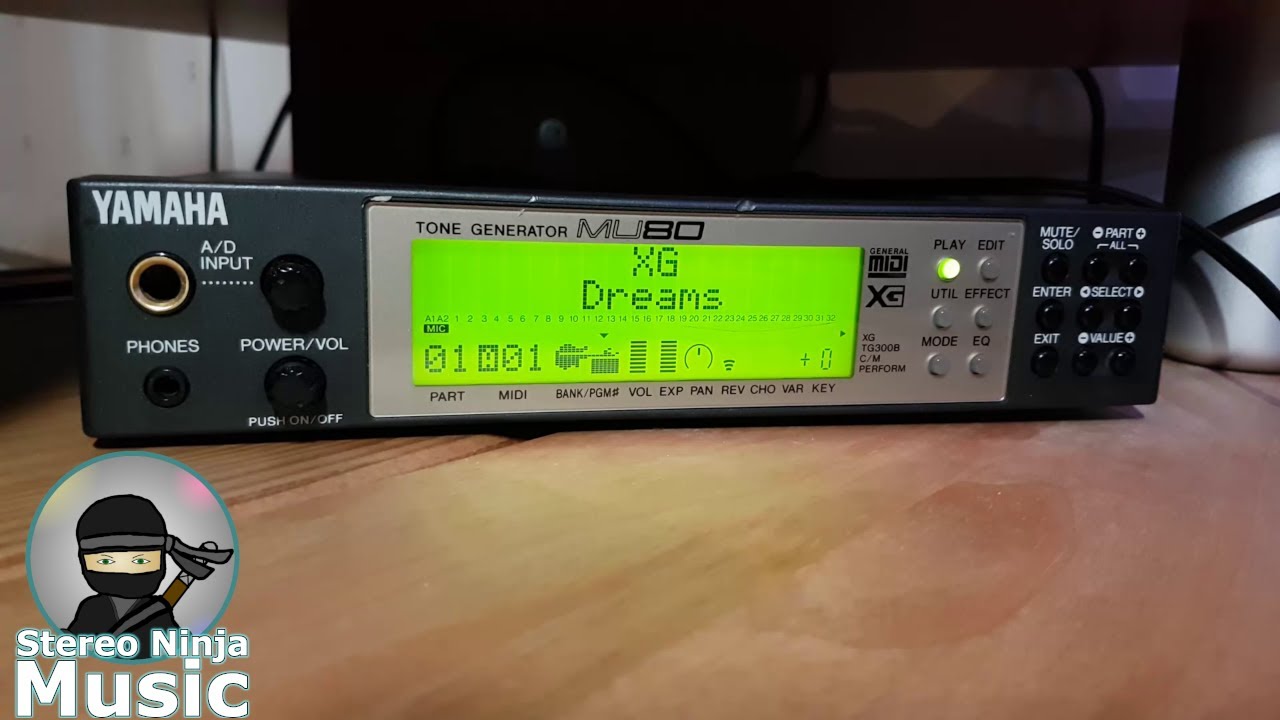
XG Dreams: a song I made using a Yamaha MU80 by Stereo Ninja Music
Автор: Stereo Ninja Music
Загружено: 2026-01-15
Просмотров: 11
Here is a song that I made using a Yamaha MU80 tone generator from 1994 that supports the Yamaha Extended General MIDI (XG) standard. I named the song XG Dreams after the both the XG standard and the Dreams voice which I used for the main melody.
All sounds heard in this track were produced by the MU80. Logic Pro 9 was used only for sequencing.
List of Voices Used
Synth Bass 1 Dark - Reduced filter resonance and cutoff
Dream - with chorus effect added
Piano + Strings
Standard Drum Kit 1
Electric Percussion
Electric Grand Piano
Koto
Q. How do you get the MU-80 to display text?
A. You do this by transmitting the following System Exclusive (SysEx) message in hex
0x43, 0x10, 0x4C, 0x06, 0x0, 0x0, then add the ascii characters that you want to the end. So 0x43, 0x10, 0x4C, 0x06, 0x0, 0x0, 0x53 will print an S character (0x53 is the ascii code for S). You can add an additional 32 bytes to the end of the SysEx command to display text on two lines. Bytes 1-16 correspond to columns 1-16 on the top part while 17-32 correspond to columns 1-16 on the bottom part. For more info check out the MU80 Sound list and MIDI data booklet which you can download from Yamaha's website.
Q. How did you get the MU80 to display a smiley face at the end?
A. Like with text this is done using SysEx. It's a bit more tricky however as it involves transmitting multiple bytes and then using the values of each bit (0-6 as bit 7 is used to indicate a status byte in MIDI) to determine what pixel to turn on or off. Refer to page 16 in the MU80 Sound list and MIDI data booklet for more info.
I actually used a custom program which I made to generate the text and image and save it as a SysEx file which I then converted to MIDI (as Logic Pro 9 does not support importing SysEx file Directly) then imported the MIDI files into Logic.
Q. How did you get the screen to fade out at the end?
A. This was done by adjusting the contrast settings. The contrast can be controlled remotely by transmitting the following SysEx.
0x43, 0x10, 0x49, 0, 0, 8, 1.
The last byte (1) determines the contrast setting so
0x43, 0x10, 0x49, 0, 0, 8, 1 = contrast 2
0x43, 0x10, 0x49, 0, 0, 8, 0 = contrast 1
0x43, 0x10, 0x49, 0, 0, 8, 2 = contrast 3 etc.
Remember to set it back to at least contrast 2 otherwise you will not be able to see the display.
If you have any questions about this video, feel free to ask :)
I hope you enjoy and thanks for watching
© Stereo Ninja Music 2026
Download this track for free at https://stereoninjamusic.weebly.com/m... (mp3 only)
Like my music? Please check out my other songs by visiting my channel. You can access my channel by clicking on my username.
Feel free to thumb up and share my video too :)
Got a question about the tone generator used in this video? Please check out my keyboard Frequently Asked Questions (FAQ) page on my site https://stereoninjamusic.weebly.com/k...
Equipment used:
Yamaha MU80
MacBook Pro mid 2012 running OSX Mountain Lion
Behringer U-Controll UCA222 - For recording audio
Logic Pro 9 :) - Sequencing and recording
Quicktime - For recording screen captures of Logic
Kdenlive - Video Editor
GNU Image Manipulation Program - For editing the thumbnail
Доступные форматы для скачивания:
Скачать видео mp4
-
Информация по загрузке:




![ChatGPT и Gemini устарели. Вот реально рабочий инструмент [Opal]](https://image.4k-video.ru/id-video/0RvCVXVMftE)