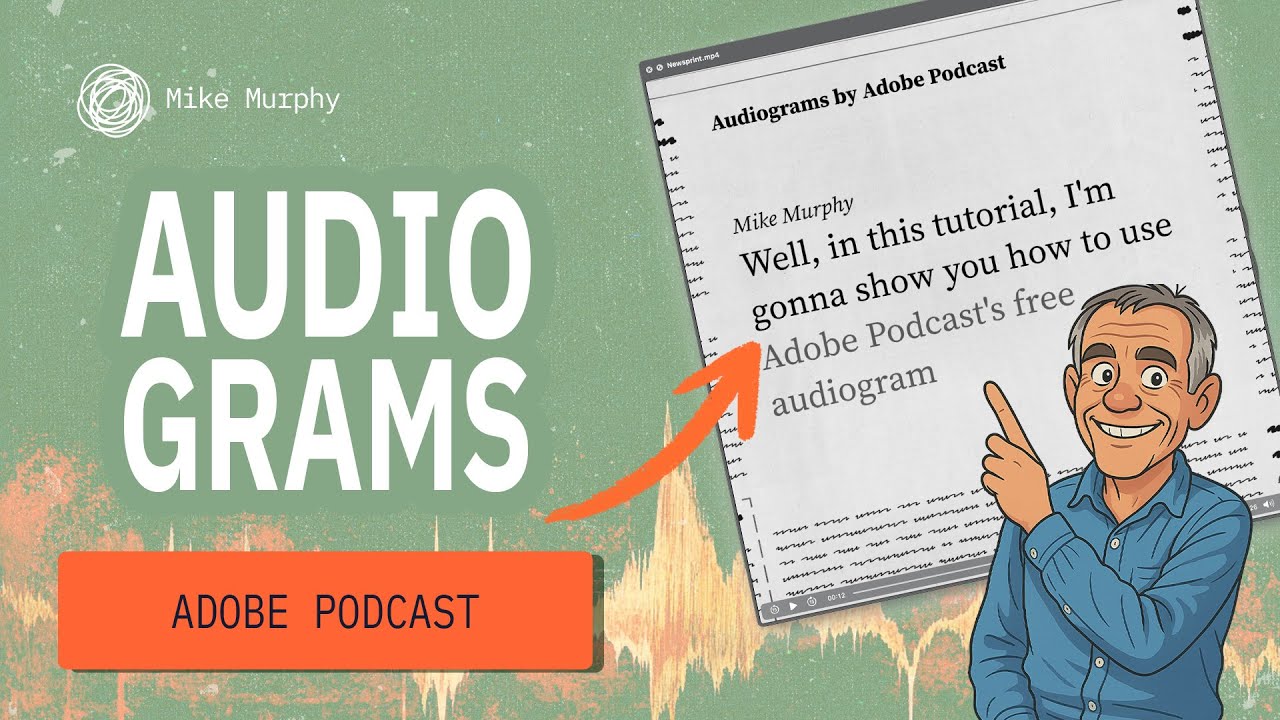
Adobe Podcasts: How To Create Audiograms
Автор: Mike Murphy Co
Загружено: 2025-05-21
Просмотров: 808
Adobe Podcasts: How To Create Audiograms
This tutorial will show you how to use Adobe Podcasts to create free audiograms to transform audio content into shareable video clips with waveform animations and captions.
Adobe Podcast:
https://podcast.adobe.com
AudioGram Documentation:
https://podcast.adobe.com/en/guides/a...
What is an Audiogram?:
A short, visually engaging video that combines audio clips with dynamic waveforms, captions, and imagery to make spoken content more shareable.
———————
Gear I Use:https://mikemurphy.co/resources
To try or buy Adobe After Effects CC 2025:
https://mikemurphy.co/adobe (affiliate link)
Terrapin Textures:
https://terrapintextures.com
⭕️ Check out my Domestika Course on Adobe Audition:
https://mikemurphy.co/domestika
——————
Chapters:
00:00 Intro: About The Tutorial
00:16 AudioGrams-MP4 Videos
00:33 Samples of Audiograms
00:54 How To Create Audiograms
01:05 Free vs. Premium
01:25 Record Audio
01:36 Start Recording or Upload Audio
01:53 Rename Projects
02:00 Select Microphone
02:10 Upload Audio File
02:22 Transcribe Audio
02:36 Speaker Name
02:55 Edit Transcription
03:24 Add Background Music
03:44 Move Tracks
03:55 Set To Background
04:09 Split Music Track
04:42 Download (Create Audiogram)
04:56 Customize Audiogram
05:18 Create Audiogram
05:37 Preview Audiogram
06:05 Create Additional Audiograms
06:18 After Effects Workflow
06:52 Re-open Older Projects
——————
How To Create Audiograms using Adobe Podcast:
1. Open a web browser
2. Visit https://podcast.adobe.com
3. Click on ‘Tools’
4. Click on ‘Studio
5. Click on ‘New Project’
6. Click next to Home icon in the top left to Rename Project.
7. To add audio files, click Upload from the left menu and pick an audio file.
8. To record, click the red circle icon [🔴] and begin recording your content.
9. Select text and click on Pencil to edit Transcription
10. Click on ‘Filters’ to Enhance Audio
11. Click on +Music to add background music
12. Click icon in top right of Music track and ‘Set to Background Music’
13. Click ‘Download’ in the top right corner
14. Click on ‘Audiogram’
15. Change Size/Aspect Ratio
16. Click to change ‘Theme’
17. Click to add ‘Background’ image
18. Click to ‘Remove Branding’
19. Click ‘Create audiogram’ to generate and download
---------------------------------------------------------------
➜Amazon Influencer Store: https://www.amazon.com/shop/mikemurphyco
➜See All My Gear: https://www.mikemurphy.co/podgear
➜ Get Adobe Creative Cloud: https://mikemurphy.co/adobe
➜Screencast Software:
Screenflow: https://mikemurphy.co/screenflow
---------------------------------------------------------------
➜ VISIT MY WEBSITE:
https://mikemurphy.co
➜ SUBSCRIBE TO PODCAST
-https://mikemurphy.co/mmu
➜ SOCIAL MEDIA:
Instagram: / mikeunplugged
Facebook: https://mikemurphy.co/facebook
Twitter: / mikeunplugged
YouTube: https://mikemurphy.co/youtube
Amazon Associates Disclosure:
Mike Murphy is a participant in the Amazon Services LLC Associates Program, an affiliate advertising program designed to provide a means for sites to earn advertising fees by advertising and linking to Amazon.com
Доступные форматы для скачивания:
Скачать видео mp4
-
Информация по загрузке: