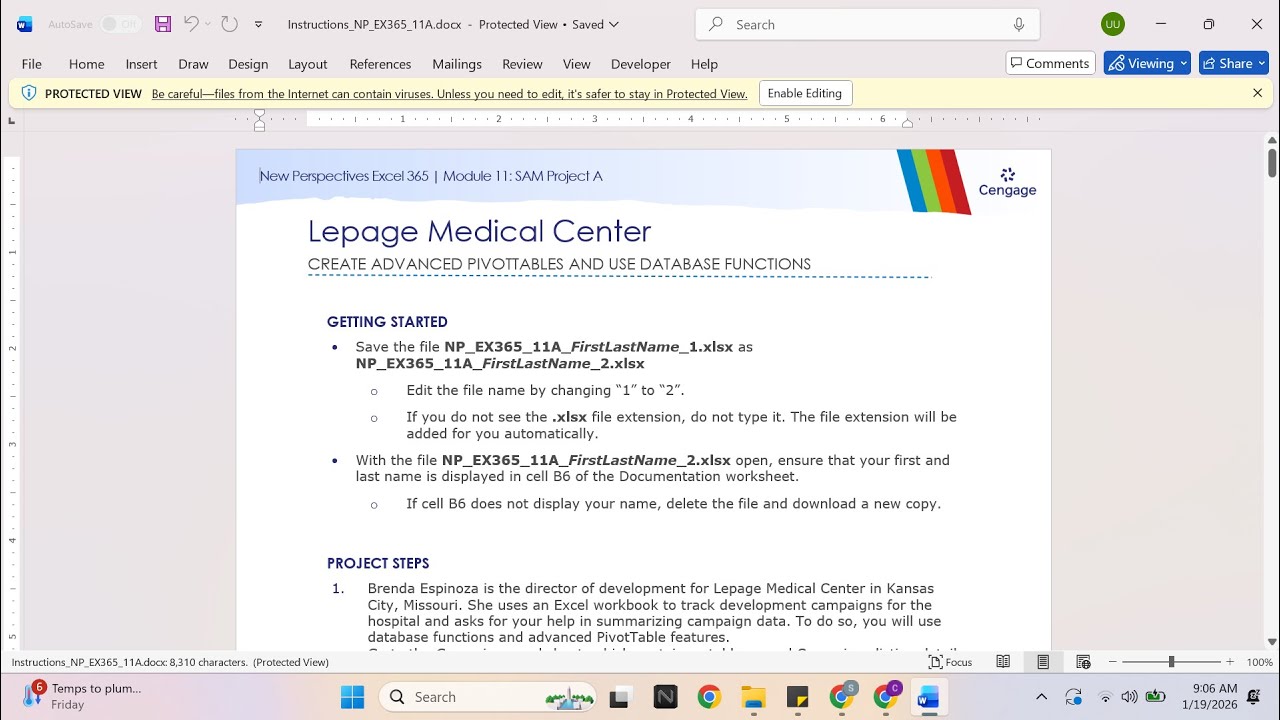
New Perspectives Excel 365 | Module 11: SAM Project A Lepage Medical Center
Автор: Excel Tutor
Загружено: 2026-01-18
Просмотров: 0
If you directly want to get the project from us then contact us on our Whatsapp. Link is given below,
https://wa.me/message/PPXGSJS2TLWUA1
Whatsapp Contact Number:
+91 8114420233
Email ID:
excelprojectshelp@gmail.com
New Perspectives Excel 365 | Module 11: SAM Project A Lepage Medical Center
PROJECT STEPS
Brenda Espinoza is the director of development for Lepage Medical Center in Kansas City, Missouri. She uses an Excel workbook to track development campaigns for the hospital and asks for your help in summarizing campaign data. To do so, you will use database functions and advanced PivotTable features.
Go to the Campaigns worksheet, which contains a table named Campaigns listing details about the hospital's development campaigns. In column K, Brenda asks you to enter formulas for analyzing campaign data.
Start by counting the number of campaigns that raised more than $150,000 as follows:
In cell K5, create a formula using the DCOUNT function.
Use the data in the entire Campaigns table (Campaigns[#All]).
Count the values in the Total Raised column ("Total Raised") that are equal to the values in the range J3:J4.
Based on the formula in cell K5, count the number of campaigns completed in 2029 as follows:
In cell K9, create a formula using the DCOUNTA function.
Use the data in the entire Campaigns table.
Count the values in the Completed column that are equal to the values in the range J7:J8.
Calculate the total amount raised for the Orthopedics Department as follows:
In cell K13, create a formula using the DSUM function.
Use the data in the entire Campaigns table.
Total the values in the Total Raised column for departments equal to the values in the range J11:J12.
Calculate the average amount raised for the Orthopedics Department as follows:
In cell K17, create a formula using the DAVERAGE function.
Use the data in the entire Campaigns table.
Average the values in the Total Raised column for departments equal to the values in the range J15:J16.
Determine the maximum amount raised for annual giving campaigns as follows:
In cell K21, create a formula using the DMAX function.
Use the data in the entire Campaigns table.
Determine the maximum of the values in the Total Raised column for campaign types equal to the values in the range J19:J20.
Determine the minimum amount raised for major gift campaigns as follows:
In cell K25, create a formula using the DMIN function.
Use the data in the entire Campaigns table.
Determine the minimum of the values in the Total Raised column for campaign types equal to the values in the range J23:J24.
Go to the Departments worksheet. Brenda has created a PivotTable named Departments on this worksheet to list the total raised by hospital department, beneficiary, and year. She grouped the year data into two-year spans, but asks you to list them as separate years.
Ungroup the year data in the PivotTable.
Brenda asks you to make the PivotTable look less crowded. She also wants you to draw attention to grand totals of $500,000 or more and those less than $100,000. Adjust the PivotTable as follows:
Change the report layout to show the PivotTable in Outline Form.
Turn off the display of the subtotals.
For the grand totals in the range H6:H24, apply the 3 Triangles icon set.
Edit the icon set rule to display a green triangle when the value is greater than or equal to 500,000 using the Number type.
Display a yellow rectangle when the value is greater than or equal to 100,000 using the Number type.
Resize column H to its best fit to display all the data in the column.
Return to the Campaigns worksheet to complete another type of campaign analysis. Include the total amount raised for each department as follows:
In cell L28, insert a formula using the GETPIVOTDATA function to display the grand total for the ER department in cell C25 on the Departments worksheet.
In cell L29, insert a formula using the GETPIVOTDATA function to display the grand total for the ICU department in cell D25 on the Departments worksheet.
In cell L30, insert a formula using the GETPIVOTDATA function to display the grand total for the ONC department in cell E25 on the Departments worksheet.
In cell L31, insert a formula using the GETPIVOTDATA function to display the grand total for the OR department in cell F25 on the Departments worksheet.
In cell L32, insert a formula using the GETPIVOTDATA function to display the grand total for the ORTHO department in cell G25 on the Departments worksheet.
Go to the Cam
#samproject1a #samprojects #cengageassignments #NP_EX365_11a #NP_EXCEL #excel_assignments #excel_sam_projects #Module11SamProjecta #lepage_medical_center #new_perspectives_excel #NP_EX365_11a_FirstLastName_1.xlsx #NP_EX365_11a_FirstLastName_2.xlsx
Доступные форматы для скачивания:
Скачать видео mp4
-
Информация по загрузке: