How to Fix Xbox App Sign-In Error 0x800040005 (Windows 11/10)
Автор: Delft Stack
Загружено: 2026-01-22
Просмотров: 1
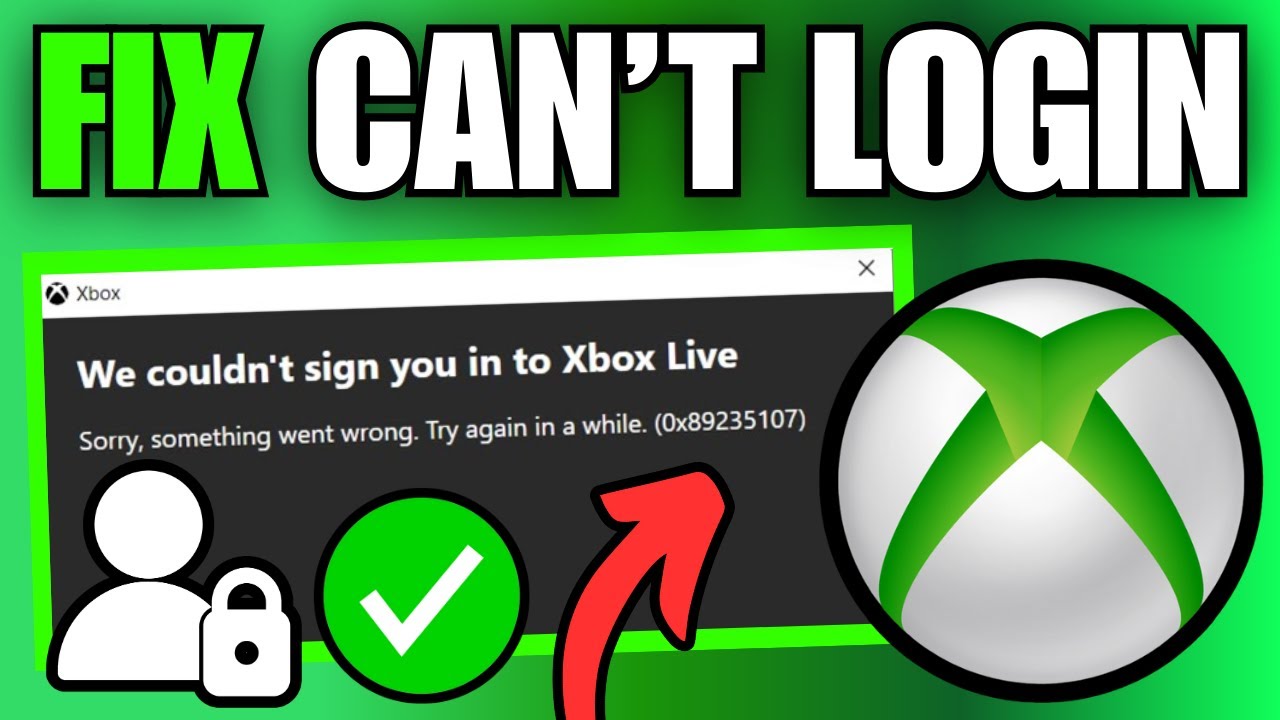
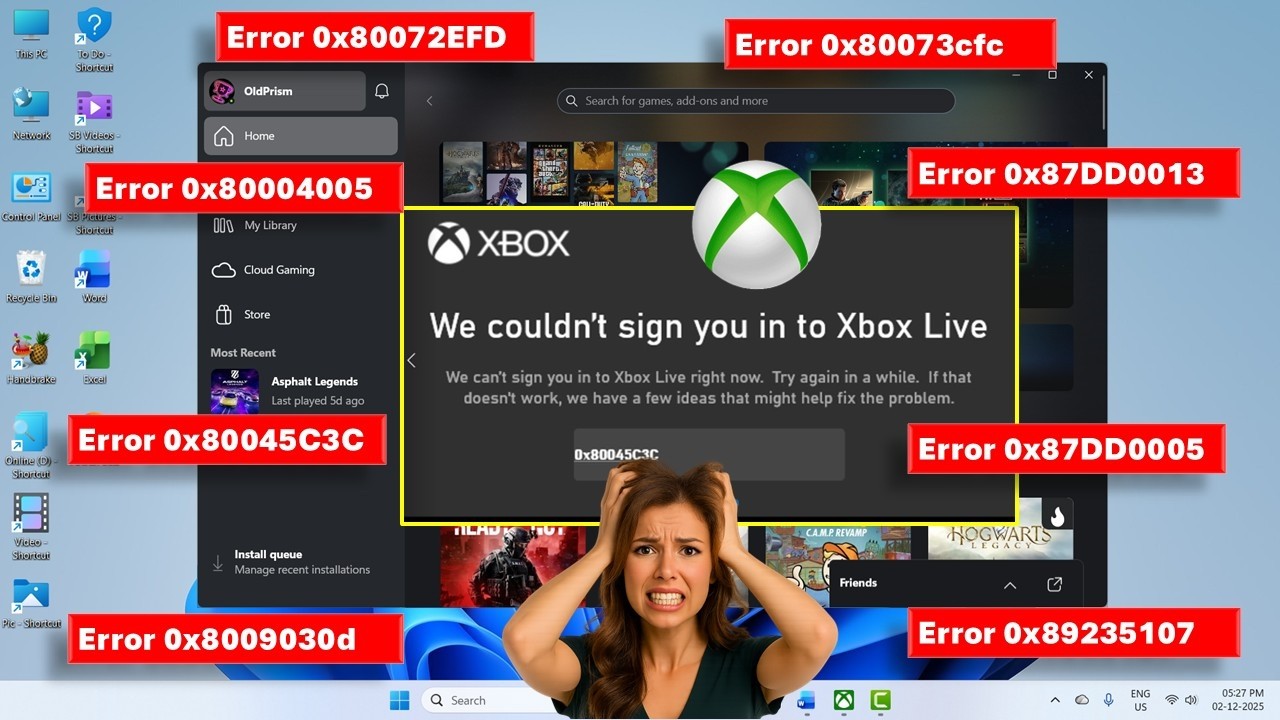
If the Xbox app says “We couldn’t sign you in to Xbox Live” with error code 0x800040005 on Windows, this updated fix guide will get you back online. This error usually happens when Xbox services are stopped, the Microsoft Store cache is corrupted, or your Windows sign-in services are out of sync. Follow these steps in order and you’ll be signed in again fast 🎮✅
✅ What you’ll learn in this tutorial
• Start and set Xbox services to Automatic (common root cause)
• Clear Microsoft Store cache using WSReset
• Repair or reset the Xbox app safely (games stay installed)
• Repair or reset Microsoft Store if needed
• Re-sync sign-in by logging into Microsoft Store first, then Xbox app
• Run SFC /scannow to repair corrupted Windows files that break sign-in
• Install pending Windows Updates to prevent the error from returning
⏱️ Timestamps
00:00. What error 0x800040005 means + why it happens
00:23. Fix Xbox services. Set to Automatic and Start them
00:43. Clear cache + repair or reset Xbox app and Microsoft Store
01:28. Restart and re-sign in. SFC scan + Windows Update as final fixes
🎯 Why Watch This Video?
Because this error is usually not your account. It’s a Windows services and cache sync issue. This tutorial helps you:
• Restore the Xbox Live services that the app depends on
• Clear corrupted cache that blocks sign-in
• Fix Windows system file problems that can break Microsoft sign-in
• Get back to Game Pass and online play without reinstalling Windows ✅
If this fixed it, comment “FIXED” and tell me which step worked. Services, WSReset, app reset, or SFC 💬
👍 Like, 🔁 share, and ✅ subscribe for more Windows and Xbox fixes. Turn on 🔔 notifications so you don’t miss the next troubleshooting guide!

Доступные форматы для скачивания:
Скачать видео mp4
-
Информация по загрузке:









![No Product Key Found Windows 11/10 Error Code: 0xC004F213 [Fixed]](https://imager.clipsaver.ru/axsM8rLvvgM/max.jpg)