Install Windows Server Update Services (WSUS) in Windows Server 2019
Автор: microsoft lab
Загружено: 2018-11-05
Просмотров: 8949
Donate Us : paypal.me/MicrosoftLab
Install Windows Server Update Services (WSUS) in Windows Server 2019
1. Prepare
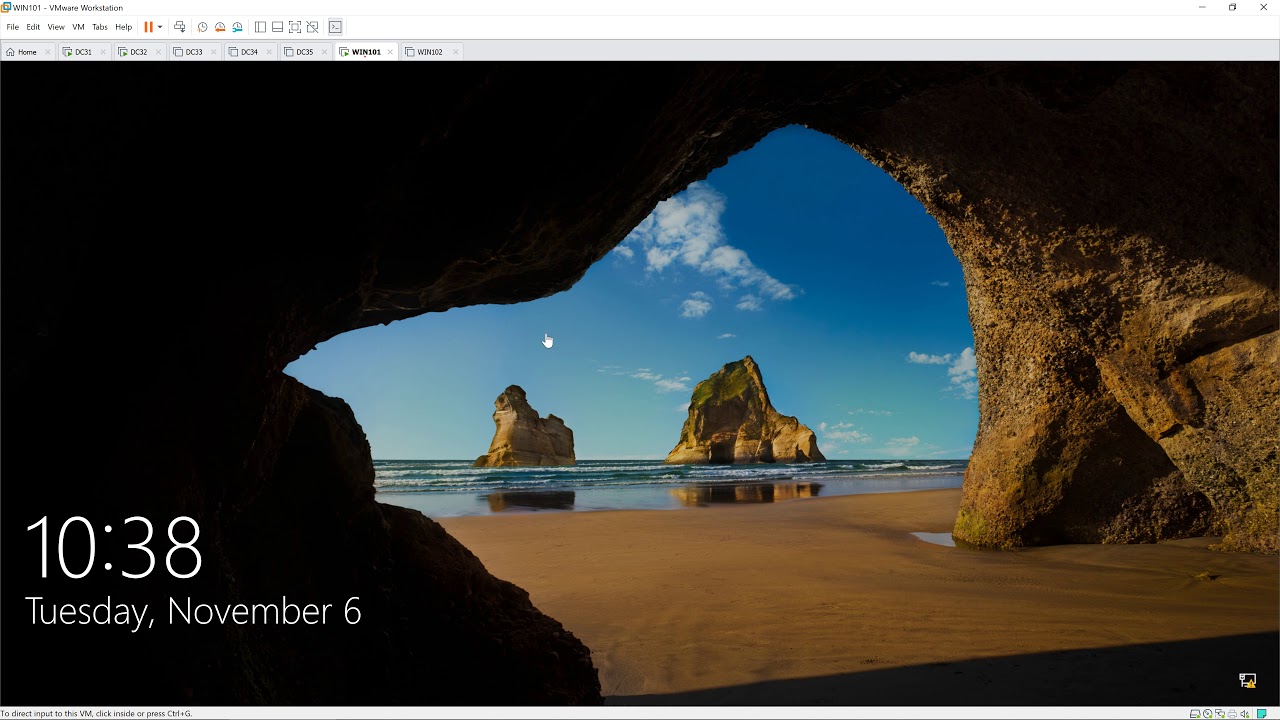
DC31 : Domain Controller(Yi.vn) | DC32 : Domain Member (Connected to Internet) | WIN101 : Client
2. Step by step : Install Windows Server Update Services (WSUS) on DC32
DC32 : Install Windows Server Update Services (WSUS)
Server Manager - Manager - Add Roles and Features - Next to Server Roles : Select "Windows Server Update Services" - Add Features
Next to Content : Select "Store updates in ..." : E:\WSUS ( or path you want ) - Next to Install - Close
Notifications - Click "Lauch Post-Installation tasks"
Tools - Windows Server Update Services - Windows Server Update Services Configuration Wizard - Next to "Specify Proxy Server" - Start Connecting - Next to Finish
Tools - Windows Server Update Services - Synchronizations - Sync now
WIN101 : Update Windows === Fail
DC31 : Configure the Group Policy for WSUS server(DC32) via GPO
Server Manager - Tools - Group Policy Management - Yi.vn - Right-Click "Default Domain policy" : Edit - Computer Configuration - Policies - Windows Components
Windows Update :
Double-Click "Configure Automatic Updates" : Enable - OK
Double-Click "Specify intranet Microsoft update service location" : Enable
Set the intranet update service for detecting updates : http://DC32:8530 # port 8530
Set the intranet statistic server : http://DC32:8530 # port 8530
Start - Run - cmd - gpupdate /force
DC32, WIN101 : Update policy. Start - cmd - gpupdate /force
WIN101 : Check update Windows === OK
---------------------------------------------------******************** / microsoftlab ********************-----------------------------------------------
Доступные форматы для скачивания:
Скачать видео mp4
-
Информация по загрузке:
![[Windows Server 2012 basics] Урок 14 - WSUS, сервер обновлений](https://image.4k-video.ru/id-video/1X85e2984v4)


![Настройка WSUS-сервера и групповых политик - GPO [Основы системного администрирования]](https://image.4k-video.ru/id-video/OzMYL3EzGTY)


