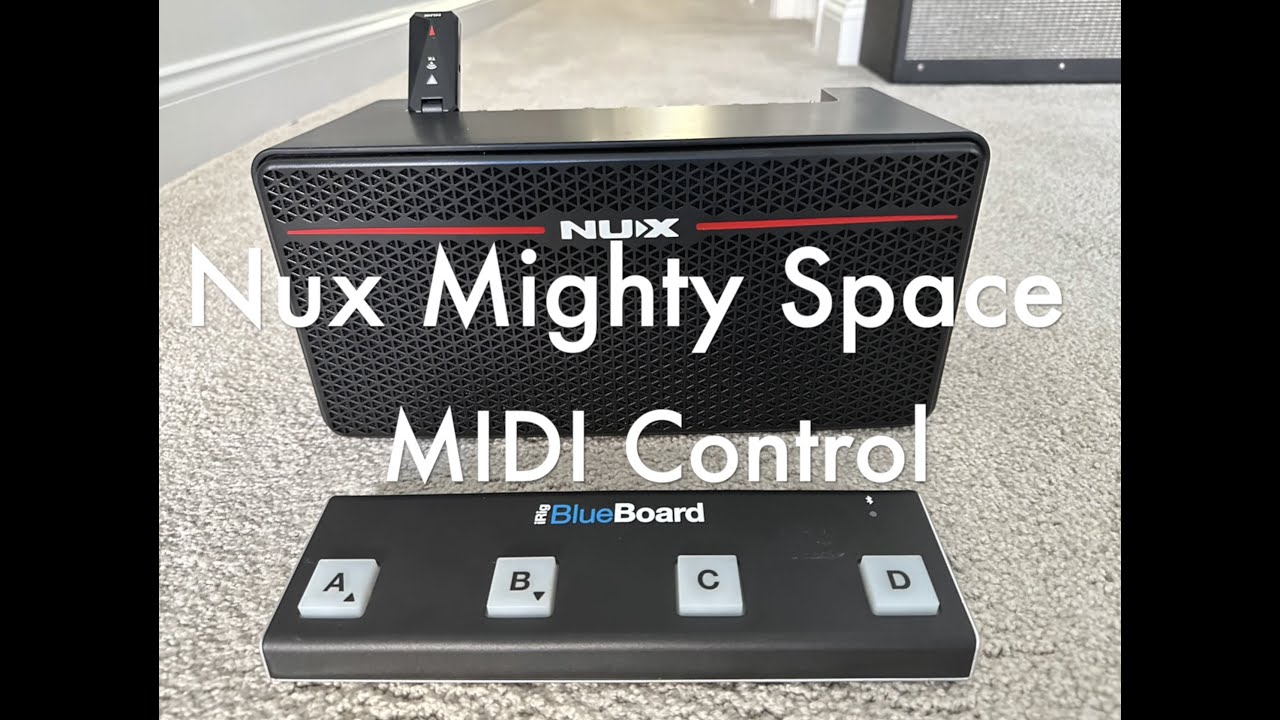
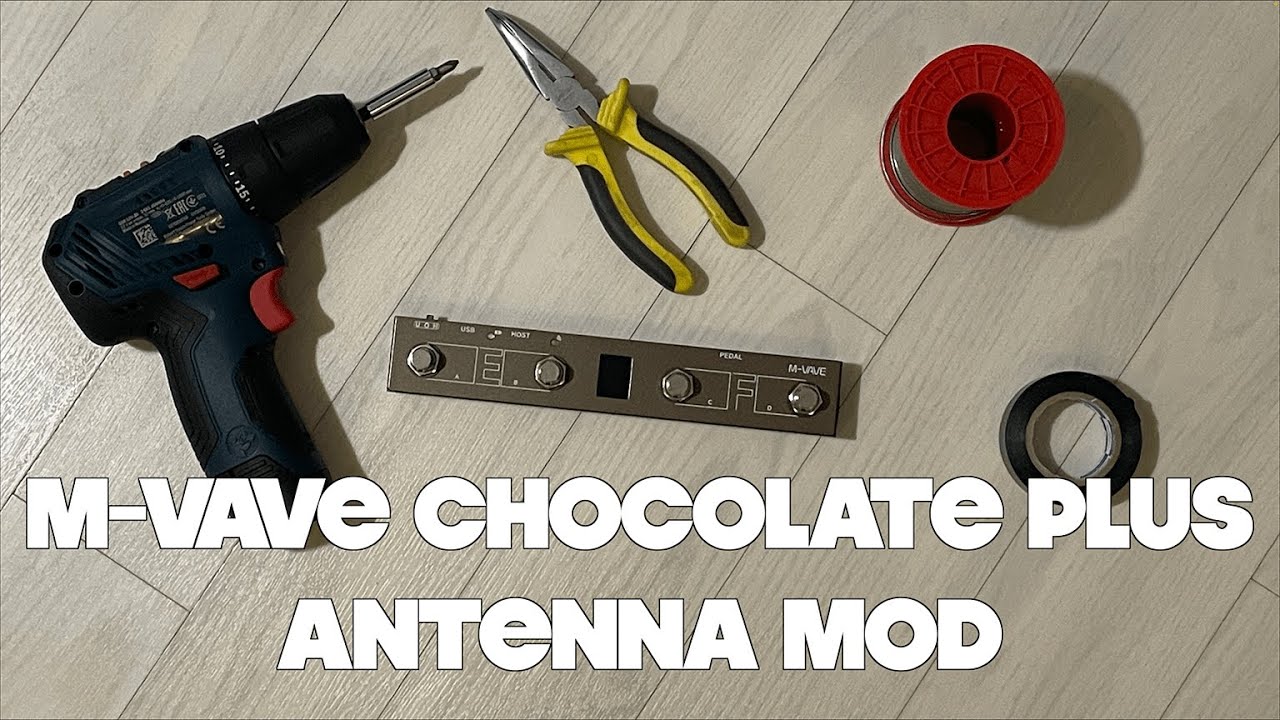
GUITAR 4: Control NUX Mighty devices from M-Vave Chocolate MIDI pedal.
Автор: Tutorial Jam
Загружено: 2022-12-23
Просмотров: 12624
LINKS
Mvave Chocolate:
https://s.click.aliexpress.com/e/_Eua...
TIME-STAMP
00:00 - Intro
00:44 - What you will need
02:01 - Install FootCtrl official app
03:51 - Pair the M-Vave pedal to smartphone
05:09 - Explore FootCtrl app
05:48 - Recommendations!!!
07:07 - Configure the M-Vave pedal
08:37 - Configure Mightier Amp app
12:40 - Let us have fun
14:59 - Extra gift
15:32 - Conclusion
STEP-BY-STEP
Install FootCtrl app and configure pedal
1. Reverse the Chocolate pedal and point with your smartphone to the QR code below, this will drag you to the manufacturer website from where you will be able to download the app CubeSuit (Footctrl). This app is also available for iOS directly within the Apple Store.
2. Do not start the app yet.
3. Turn on the Chocolate pedal and turn on the Bluetooth on your smartphone. The led on the pedal will start blinking.
4. VERY IMPORTANT: double check localization on your smartphone to be active, if not turn it on, the Chocolate pedal uses a Bluetooth protocol that requires that to make the device visible.
5. Stay close to the Chocolate pedal with your smartphone and search for Bluetooth devices on your smartphone.
6. It will find a device name “FootCtrl”, click on it and pair it as for other devices. The blue led will now stay fixed.
7. Now open the app CubeSuit we just installed in previous steps.
8. The app will find immediately the “FootCtrl” device. The app may also list other Bluetooth devices you could have connected to the smartphone, for example your Mighty Air or Mighty plug device, please ignore that.
9. Make sure the “FootCtrl” device appears in a box fully green. If the device appears in a red box it means the app found it but could not recognize it. Follow previous steps.
10. Click on the green box named “FootCtrl” and you will be shown the main configuration screen.
11. At mid height of the configuration screen there is a rolling menu you can scroll. Whichever selection you make you will find a description on how it will work in the box above, if you are familiar with midi commands you could find it useful.
12. For our needs just select "Program Change B”. The selection will be immediately memorized in the pedal without pressing anything else.
13. Now close the CubeSuit app, you will not need it anymore unless you want to change the pedal behaviour.
Enable M-Vave within Mightier Amp app.
1. Now we will see how to enable the pedal within Mightier Amp, when done the pedal will be used as an input device and will make it possible to select options exactly as you would do directly touching your smartphone screen.
VERY IMPORTANT: detach the Chocolate pedal from your smartphone main Bluetooth, it would conflict with Mightier Amp and the pedal would never show up as a MIDI/HID device.
2. Open the Mightier Amp.
3. Click on rightmost tab (Settings), scroll down to the selection named “Remote Control…”, click on it.
4. You will see at least one voice “HID Input”, this allows using different devices, including the Chocolate pedal but it is a legacy option I would suggest you ignore for now.
5. Turn on the Chocolate pedal, make sure the blue light is blinking, if it would connect automatically with your smartphone Bluetooth turn it back off and on.
6. Press the button “Start Scanning” in Mightier Amp, the voice “FootCtrl” will shortly show up.
7. Touch that line, this will make it appear a small “gear” icon on the right.
8. Press the “gear” button for the settings.
9. Press “Channel Hotkeys”.
10. Press “Previous Channel” and press the leftmost button (A) on the Chocolate pedal, you will see “PC 0” appear in the text field. “PC 0” is the message sent from the pedal and it has been mapped to the function “Previous Channel”, so as you can imagine pressing the button will now move the selection in the app to the previous selection channel.
11. Press “Next Channel” and press the rightmost button (D) on the Chocolate pedal, you will see “PC 3” appear in the text field.
12. Press back button on your smartphone to return on the menu selection.
13. Press “Effect On/Off Hotkeys”
14. Assign second button (B) to “Toggle EFX” and third button (C) to “Toggle Reverb”.
Enjoy
1. Return to the main tab in the app (Editor) and try pressing the buttons, you will see changes taking place. Buttons A and D will scroll through channels, please note the colors changing.
2. Buttons B and C will toggle on and off the EFX and the Reverb in the presently selected channel.
3. By the way, you neither need to keep the screen on or the app in foreground, you will notice the system will work anyway even if you open something else (like your favorite tablature app). Quite convenient!!
Доступные форматы для скачивания:
Скачать видео mp4
-
Информация по загрузке: