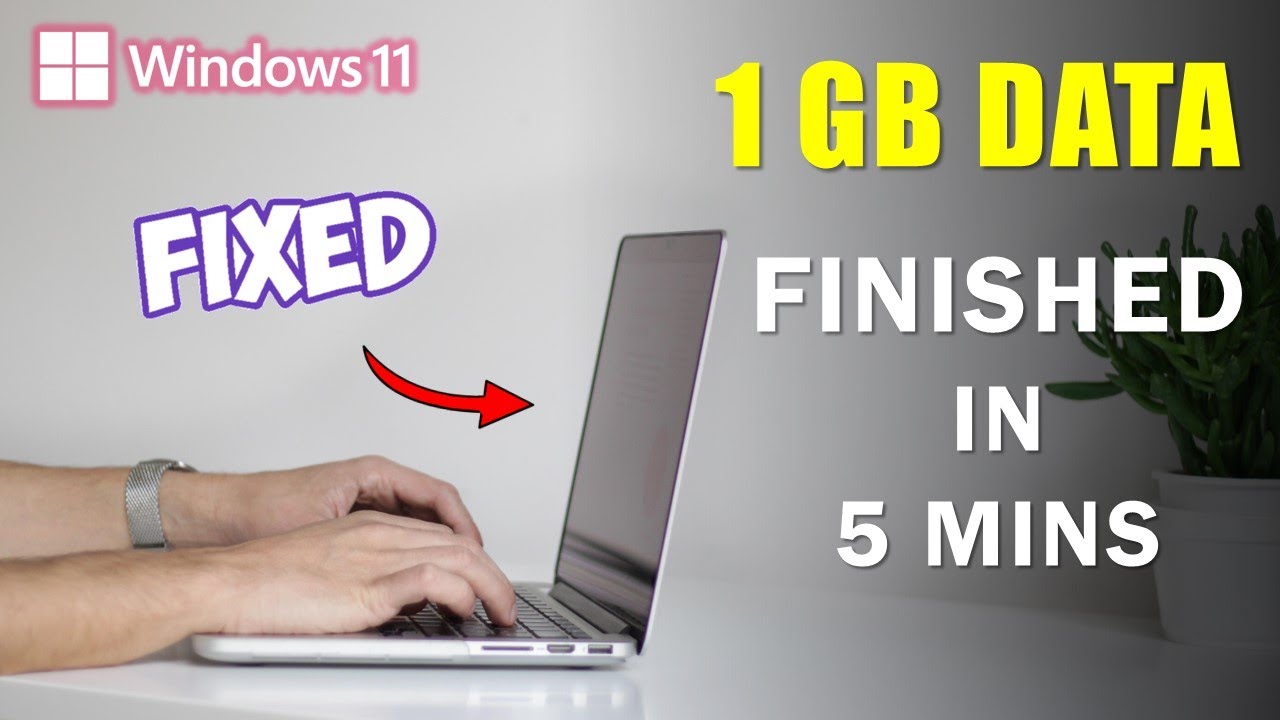
Laptop Data Jyada Khata Hai? 😡 FIX High Data Usage on Windows 10 in 5 Minutes!
Автор: TechNaimics
Загружено: 2025-10-20
Просмотров: 97
Laptop Data Jyada Khata Hai? 😡 FIX High Data Usage on Windows 10 in 5 Minutes!
#Stop_High_Internet_Data_Usage_Win10/11
That's a very common concern. Windows 10 and 11 often use a high amount of data due to various built-in features that operate automatically in the background.
Here are a breakdown of the main culprits and the steps you can take to stop or significantly reduce the high data usage.
Why Windows Uses High Data Usage
The high data consumption is typically due to system features designed to keep your PC up-to-date and synchronized, many of which run in the background without your direct knowledge.
1. Windows Updates (and Automatic Downloads):
Windows automatically downloads large feature and security updates.
Delivery Optimization is a major factor. This feature (on by default) allows your PC to download updates and apps from other PCs on your local network or the internet (peer-to-peer sharing), and also sends updates from your PC to others, consuming significant upload bandwidth.
2. Background Apps and Services:
Many Microsoft Store apps and system services run in the background, constantly downloading fresh content, notifications, or checking for updates.
The "System" process itself can appear to be the biggest consumer, as it includes things like Windows Error Reporting (WER) and the Background Intelligent Transfer Service (BITS), which handle downloads, uploads, and telemetry.
3. Cloud Services and Syncing:
OneDrive and other cloud services (like Dropbox, Google Drive) constantly sync files, which can consume a lot of data, especially if you have large files or a lot of changes.
Settings Sync also uses data to keep your preferences synchronized across your Microsoft devices.
⚙️ How to Stop High Data Usage
The most effective way to immediately curb high data usage is to enable the Metered Connection setting. For more fine-grained control, follow the steps below.
1. Set Your Connection as Metered (Most Effective)
Setting a connection as "Metered" signals to Windows and many apps to reduce data usage by postponing non-essential updates and synchronization.
For Wi-Fi:
Go to Settings (Windows Key + I).
Select Network & Internet.
Click on Wi-Fi.
Click on your connected Wi-Fi network's name (or Properties).
Toggle "Set as metered connection" to On.
For Ethernet (Windows 11):
Go to Settings- Network & Internet -Ethernet.
Click on your Ethernet connection.
Toggle "Set as metered connection" to On.
2. Disable Delivery Optimization
This prevents your PC from sharing updates with other PCs on the internet.
Windows 10:
Go to Settings -Update & Security - Windows Update.
Click Advanced options.
Click Delivery Optimization.
Toggle "Allow downloads from other PCs" to Off.
Windows 11:
Go to Settings - Windows Update.
Click Advanced options.
Click Delivery Optimization.
Toggle "Allow downloads from other PCs" to Off.
3. Limit Background App Data
Prevent apps from consuming data when you are not actively using them.
Windows 10:
Go to Settings - Privacy.
Scroll down to Background apps.
You can toggle "Let apps run in the background" to Off completely or turn it off for individual apps you don't need running.
Windows 11:
Go to Settings - Apps - Installed apps.
Find an app you want to restrict, click the three dots next to it, and select Advanced options.
Under "Background app permissions," change the setting to "Never." Repeat for other unnecessary apps.
4. Pause OneDrive Syncing
If you use OneDrive, it can consume large amounts of data by constantly syncing files.
Right-click the OneDrive cloud icon in the system tray (near the clock).
Select the Settings gear icon.
Choose Pause syncing and select a duration (e.g., 2 hours, 8 hours, 24 hours).
5. Set a Data Usage Limit
You can set a hard limit that, when reached, will restrict background activity.
Go to Settings - Network & Internet.
Click on Data Usage (or Advanced Network Settings - Data Usage).
Select your active network connection from the dropdown menu.
Click Enter limit.
Disclaimer: - Some contents are used for educational purposes under Fair Use. Copyright Disclaimer Under Section 107 of the Copyright Act 1976, Allowance Is Made For " Fair Use" For Purposes Such as Criticism, Comment, News, Reporting, Teaching, Scholarship, and Research. Fair Use is a Permitted by Copyright Statute that Might Otherwise be infringing. Non-profit, Educational, Or Personal Use Tips the Balance in Favour of Fair Use. All Credit for Copyright Materials Used in the Video Goes to the Respected Owner.
Follow me on:
@Instagram: / mr.naim_ahmad
@Telegram group: - https://t.me/TechNaimics
Доступные форматы для скачивания:
Скачать видео mp4
-
Информация по загрузке: