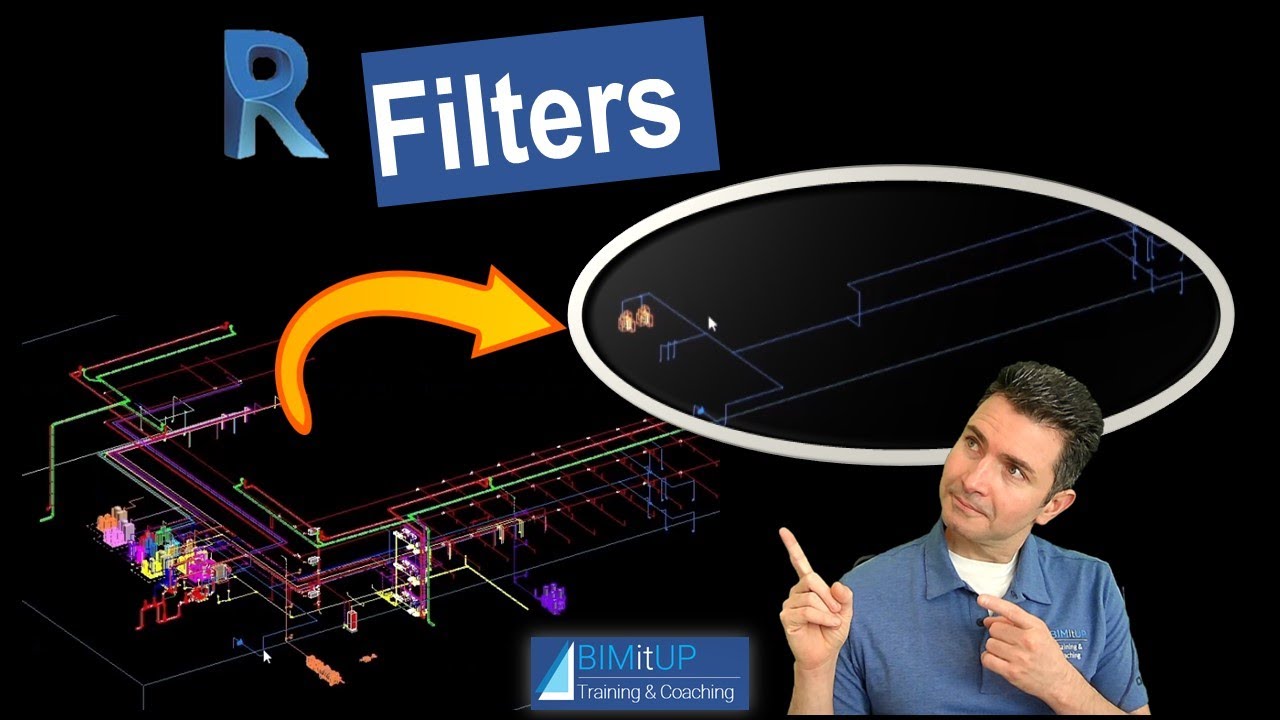
How to use Filter In REVIT for Pipe System
Автор: AutoCAD & Revit Tools
Загружено: 2023-08-16
Просмотров: 17311
AutoCAD & REVIT TIPS
AutoCAD & REVIT TIPS
In Autodesk Revit, you can apply filters to pipes to control their visibility and appearance in views. Filters help you categorize and differentiate pipes based on specific parameters. Here's how you can apply a filter to pipes in Revit:
Open the View: Open the view (such as a floor plan, section, or elevation) in which you want to apply the filter to pipes.
Go to Visibility/Graphics Overrides: In the view, go to the "View" tab on the ribbon, and then click on the "Visibility/Graphics" button. This will open the Visibility/Graphics dialog box.
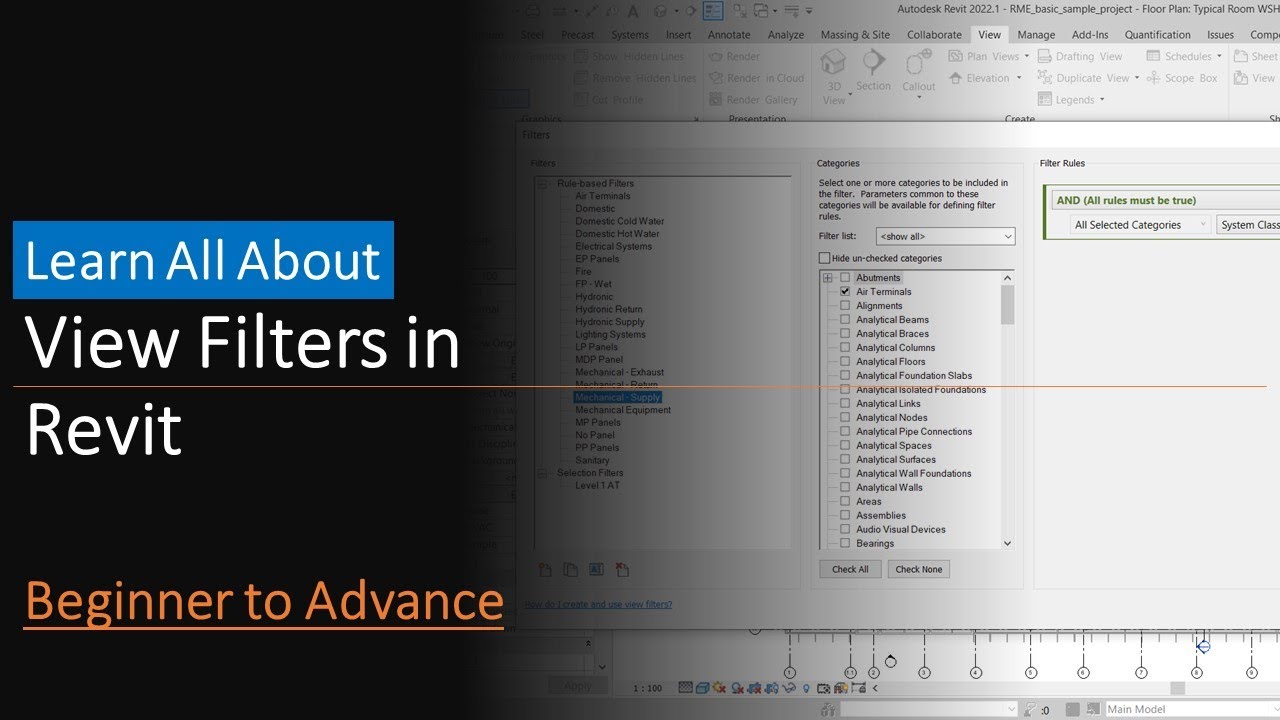
Select Filters Tab: In the Visibility/Graphics dialog, navigate to the "Filters" tab. Here you can define and apply filters to various elements, including pipes.
Add a New Filter: Click the "Add" button to create a new filter. Give your filter a name and select the category "Pipe" from the drop-down menu.
Define Filter Criteria: In the "Filter Rules" section, you can define criteria for the filter. These criteria will determine which pipes will be affected by the filter. For example, you can set the criteria to show only pipes with a certain diameter, material, or system classification.
Apply Graphic Overrides: In the "Graphics Overrides" section, you can choose how the filtered pipes will be displayed. You can change their color, line pattern, line weight, and other graphical properties. This helps differentiate the filtered pipes from others.
Preview and OK: As you make changes to the filter criteria and graphic overrides, you can see a preview of how the filtered pipes will appear in the "Preview" section. Once you're satisfied with the settings, click the "OK" button to apply the filter.
Apply Filter to View: Back in the Visibility/Graphics dialog, make sure the newly created filter is selected in the "Filters" list. Then, check the box next to "Pipe" under the "Filter" column. This applies the filter to the selected view.
Close and View the Changes: Close the Visibility/Graphics dialog and observe how the filter affects the visibility and appearance of pipes in the view.
Remember that filters are view-specific, so you'll need to apply them separately to each view where you want the filtering to take effect.

Доступные форматы для скачивания:
Скачать видео mp4
-
Информация по загрузке: