Популярное

Музыка Кино и Анимация Автомобили Животные Спорт Путешествия Игры Юмор

Интересные видео

2025 Сериалы Трейлеры Новости Как сделать Видеоуроки Diy своими руками

Топ запросов

смотреть а4 schoolboy runaway турецкий сериал смотреть мультфильмы эдисон
dTub
Скачать

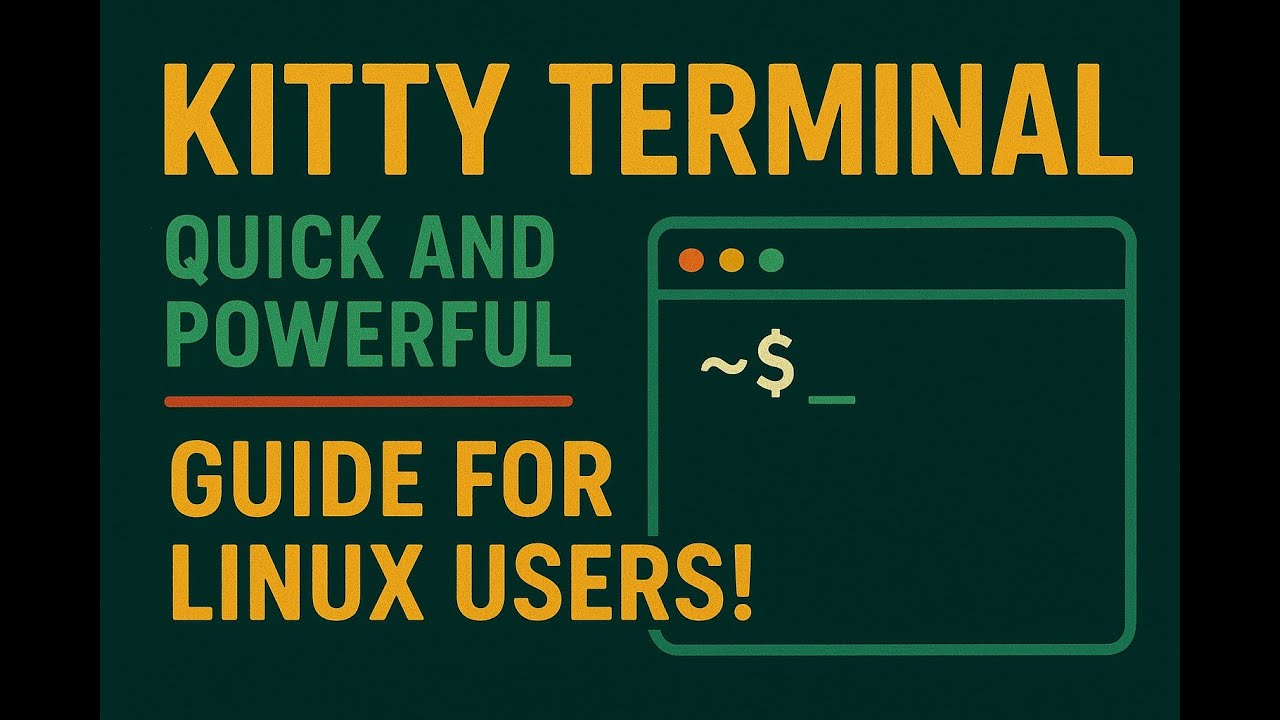
Kitty Terminal: Quick and Powerful Guide for Linux Users!

Автор: LinuxHowTo

Загружено: 2025-12-08

Просмотров: 239

Описание:

Ready to supercharge your terminal experience? In this video, we’ll introduce you to Kitty, a fast, GPU-accelerated terminal emulator that supports high-resolution images, tabs, window splits, custom layouts, and themes—all while staying lightweight and responsive. This guide will show you the essentials so you can start using Kitty’s real power quickly. Let’s dive in and unlock the full potential of your terminal!

Learn:
1. Install Kitty
Ubuntu/Debian:

sudo apt update
sudo apt install kitty
Other distros: Use your package manager (dnf, pacman, etc.).

Start Kitty:

kitty

🔍 Zoom In / Zoom Out in Kitty
Zoom in: Ctrl + Shift + +
Zoom out: Ctrl + Shift + -
Reset zoom: Ctrl + Shift + Backspace

✅ Default Kitty Copy/Paste
Already built-in (no config needed):
Copy: Ctrl + Shift + C
Paste: Ctrl + Shift + V

2. Tabs & Splits (Powerful Workspace)

New tab:
Ctrl + Shift + t

Switch between panes:
Ctrl + Shift + arrow keys

Close tab/pane:
Ctrl + Shift + q

With splits and tabs, you can manage multiple sessions inside one window like a mini tiling manager.

3. High-Quality Inline Images
Kitty can display real images in the terminal (not ASCII):

Basic:
kitty +kitten icat image.png

Clear image:
kitty +kitten icat --clear

Tip: Use this for images or even animated GIFs in the terminal.

4. Layouts & Sessions (Workspaces)
You can predefine multiple tabs and splits in a session file:
Create file ~/.config/kitty/mylayout.conf:

mylayout.conf
new_tab
launch top

new_tab
cd ~/Downloads
launch vim

new_tab
cd ~/test


Start session:
kitty --session mylayout.conf
Perfect for opening your full workflow in one command.

5. Themes & Fonts (Customize Quickly)
Change font:
kitty +list-fonts # see available fonts

Add to ~/.config/kitty/kitty.conf:

font_family JetBrains Mono
font_size 14

Quick color theme:
kitty +kitten themes
Use arrows to preview and Enter to apply.

6. Clipboard & Scrollback
Copy: Ctrl + Shift + c
Paste: Ctrl + Shift + v
Scrollback: Ctrl + Shift + PageUp / PageDown

✅ Why Kitty is Powerful
GPU-accelerated → fast, smooth scrolling
Tabs + splits → multi-session workflow
High-res images in terminal → diagrams, screenshots, GIF
Custom layouts & sessions → instant workspace setup
Themes & ligatures → modern, readable code

In short, Kitty lets you run multiple terminals, view images, and organize your workflow in a single fast window — all visually clean and responsive.

You can find the tutorial file and config files used in this video at this GitLab link: https://gitlab.com/hatem-badawi/linux....

Hit subscribe for more Linux tips and like if this helped.
Let us know: What feature of Kitty are you most excited about?

👉 Watch now and unlock the full power of Kitty Terminal!

#KittyTerminal #LinuxTips #TerminalEmulator #ProductivityHacks

(Short, clear, and packed with practical knowledge!)
Kitty Terminal: Quick and Powerful Guide for Linux Users!

Поделиться в:

Доступные форматы для скачивания:

Скачать видео mp4

  • Информация по загрузке:

Скачать аудио mp3

Похожие видео

Мой опыт перехода с MacOS на Linux | Полный гайд

Мой опыт перехода с MacOS на Linux | Полный гайд

Debian: САМЫЙ СТАБИЛЬНЫЙ Linux и ТЁМНАЯ История Создателя

Debian: САМЫЙ СТАБИЛЬНЫЙ Linux и ТЁМНАЯ История Создателя

Отказ от территорий? / Войска оставили позиции

Отказ от территорий? / Войска оставили позиции

FFmpeg: бесплатный видеоконвертер из командной строки

FFmpeg: бесплатный видеоконвертер из командной строки

Почему твой Второй Мозг не работает: ты неправильно понял Zettelkasten

Почему твой Второй Мозг не работает: ты неправильно понял Zettelkasten

💾СОБРАЛ NAS НА TrueNAS💽 НЕ ПОНИМАЮ, КАК ЖИЛ БЕЗ НЕГО САМОДЕЛЬНОЕ ХРАНИЛИЩЕ ЭТО ПРОСТО

💾СОБРАЛ NAS НА TrueNAS💽 НЕ ПОНИМАЮ, КАК ЖИЛ БЕЗ НЕГО САМОДЕЛЬНОЕ ХРАНИЛИЩЕ ЭТО ПРОСТО

Структура файлов и каталогов в Linux

Структура файлов и каталогов в Linux

Как Ubuntu Предала Linux - Вся Правда о Взлёте и Падении Canonical

Как Ubuntu Предала Linux - Вся Правда о Взлёте и Падении Canonical

wc Command   Count Everything in Linux!

wc Command Count Everything in Linux!

Лучший способ установки Windows 11 на любой ПК быстро и без проблем на любой ПК

Лучший способ установки Windows 11 на любой ПК быстро и без проблем на любой ПК

Проблемы, с которыми вы столкнетесь в Linux (и как их решить)

Проблемы, с которыми вы столкнетесь в Linux (и как их решить)

Сисадмины больше не нужны? Gemini настраивает Linux сервер и устанавливает cтек N8N. ЭТО ЗАКОННО?

Сисадмины больше не нужны? Gemini настраивает Linux сервер и устанавливает cтек N8N. ЭТО ЗАКОННО?

Give Your Linux Terminal A Stunning Makeover

Give Your Linux Terminal A Stunning Makeover

Master Python's json Module   Handle JSON Like a Pro!

Master Python's json Module Handle JSON Like a Pro!

13 Linux Commands Every Engineer Should Know (Real-World Example)

13 Linux Commands Every Engineer Should Know (Real-World Example)

The Windows 11 Disaster That's Killing Microsoft

The Windows 11 Disaster That's Killing Microsoft

Нашел идеальный Линукс! CachyOS: Оптимизированный Arch для Всех! Мнение и Опыт

Нашел идеальный Линукс! CachyOS: Оптимизированный Arch для Всех! Мнение и Опыт

Такая флешка нужна каждому! Реаниматор любого ПК из обычной USB флешки

Такая флешка нужна каждому! Реаниматор любого ПК из обычной USB флешки

Интернет подключён, но сайты не открываются — 5 рабочих способов (Windows)

Интернет подключён, но сайты не открываются — 5 рабочих способов (Windows)

ЧТО ТАКОЕ АЛЬТ ЛИНУКС? | Обзор Хорошего Дистрибутива

ЧТО ТАКОЕ АЛЬТ ЛИНУКС? | Обзор Хорошего Дистрибутива

© 2025 dtub. Все права защищены.


  • Контакты
  • О нас
  • Политика конфиденциальности


Контакты для правообладателей: infodtube@gmail.com