Excel Module 7 End of Module Project 2 SoftWear | EXCHANGE DATA WITH OTHER PROGRAM
Автор: AssignmentsDoneByExperts
Загружено: 2025-05-01
Просмотров: 5
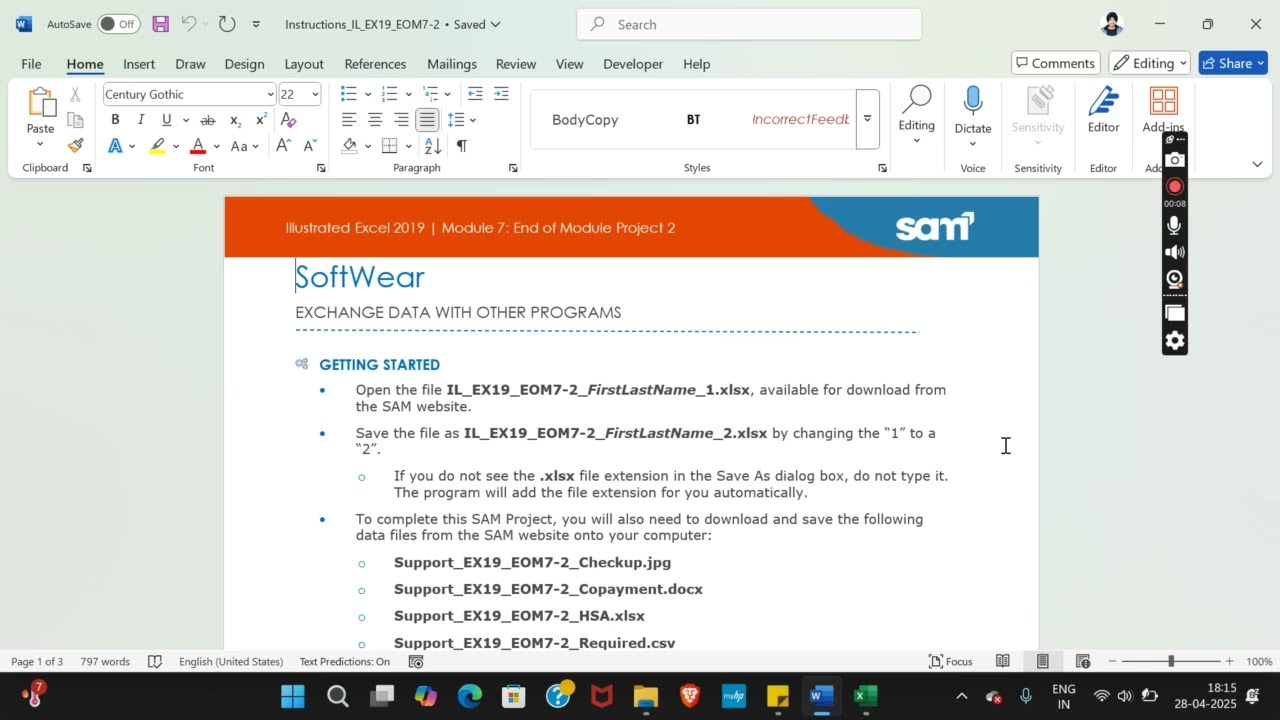
Excel Module 7 End of Module Project 2 SoftWear | EXCHANGE DATA WITH OTHER PROGRAM #illustratedexcel
If you directly want to get the project from us then contact us on our Whatsapp. Link is given here,
Whatsapp Contact Link:
https://api.whatsapp.com/message/4B6NMKKBK...
Whatsapp Number:
+919116641093
+918005564456
Gmail Id:
singhal.agrawal.bharati@gmail.com
We are providing help in all Online Courses, Computer Science, Business and Management, Business Math, Business and Finance, Business and Accounting, Human Resource Management, History, English.
PROJECT STEPS
1. Ashanti Powell works in the Human Resources Department of SoftWear, an athletic-leisure apparel company in San Diego, California. She is developing an Excel workbook to compare health insurance plans for SoftWear employees, who can choose from four types of plans. She asks for your help to improve the appearance of the workbook and include data stored in other files.
Do not enable content or update links after you open the SAM Project file.
Go to the Health Plans worksheet. In cell C1, insert the picture Support_EX19_EOM7-2_Runners.jpg, which the company uses on its website.
2. Apply the Brightness 0% (Normal) Contrast -40% correction to the picture of the runners to make it more muted. Sharpen the picture by 25% to make the images more well-defined. Add the Tight Reflection: 4 point offset effect from the Reflection gallery.
3. Ashanti needs to add another shape and picture to the SmartArt on the worksheet to show four health plans instead of three. She also wants to indicate which one is the current plan. Add a shape to the SmartArt after the POS shape. Type HSA in the new shape. Use the picture placeholder to add the picture Support_EX19_EOM7-2_Checkup.jpg to the SmartArt. Add another shape after the PPO shape. Type Current Plan in the new shape, and then demote the new shape.
4. Change the SmartArt colors to Colored Fill—Accent 5 in the Accent 5 section of the Change Colors gallery so that the diagram coordinates more closely with the rest of the worksheet. Apply the Intense Effect SmartArt style.
5. Ashanti wants to include an image listing health plan details, which she captured from a PowerPoint presentation. In cell J1, insert the picture Support_EX19_EOM7-2_Summary.png to include the health plan details.
6. Go to the Plan Comparison worksheet. Add a Purple, Accent 5 border to the SW logo on the left to match the same logo on the Health Plans worksheet.
7. Copy the formatting of the first SW logo (on the left) to the second logo (on the right in cell G6). Without moving the second logo to the left or right, align the top of the second logo with the top of the first logo so that both logos appear in rows 1:4.
8. Ashanti has a Word document with a table that lists the co-payment amounts employees make for each type of plan. Use Word to open the document Support_EX19_EOM7-2_Copayment.docx. Copy the table and then paste it into the Plan Comparison worksheet using source formatting starting in cell B23.
9. The embedded data includes an incorrect amount. In cell C26, edit the embedded data to use 25% as the co-payment amount for POS plans.
10. Ashanti also has a text file that lists the additional charges employees are required to pay for each type of plan. Import the Text/CSV file Support_EX19_EOM7-2_Required.csv. Choose to load the data to a location in the worksheet. View the imported data as a table and insert the data in cell H5 of the existing worksheet.
11. Apply the Purple, Table Style Medium 6 table style to the imported table to coordinate with the rest of the worksheet contents, and then format the range I6:L7 in the Currency number format.
12. Ashanti originally inserted the HSA plan data as a link to another Excel workbook. She asks you to update the data and then remove the link. Display the links to external files, and then update the values from the workbook Support_EX19_EOM7-2_HSA.xlsx. Break the link to the Support_EX19_EOM7-2_HSA.xlsx file.
Your workbook should look like the Final Figures on the following pages. Save your changes, close the workbook, and then exit Excel. Follow the directions on the SAM website to submit your completed project.
Доступные форматы для скачивания:
Скачать видео mp4
-
Информация по загрузке:


