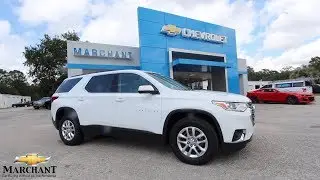
How To Use Android Auto with a 2018 Chevy Traverse | Tinney Automotive
Автор: Tinney Chevrolet GMC Lynchburg
Загружено: 2018-08-26
Просмотров: 21282
https://www.tinneyhasit.com/Chevrolet...
We are going to show you how to connect and use an Android phone to a Chevy Traverse. Android Auto is a simple way to use your Android phone while driving your vehicle. The all-new 2018 Chevrolet Traverse is equipped with the Chevy MyLink infotainment system which supports Android Auto connectivity.
How To Use Android Auto with a 2018 Chevy Traverse | Tinney Automotive
To start, you’ll first need to download Android Auto from the Google Play Store. Next, connect your Android compatible phone to the MyLink radio system using the USB charging cable that came with your phone. Once you’ve connected the phone you’ll notice the Android Auto icon will appear on the MyLink 8” color touchscreen. Simply select the icon to use Android Auto.
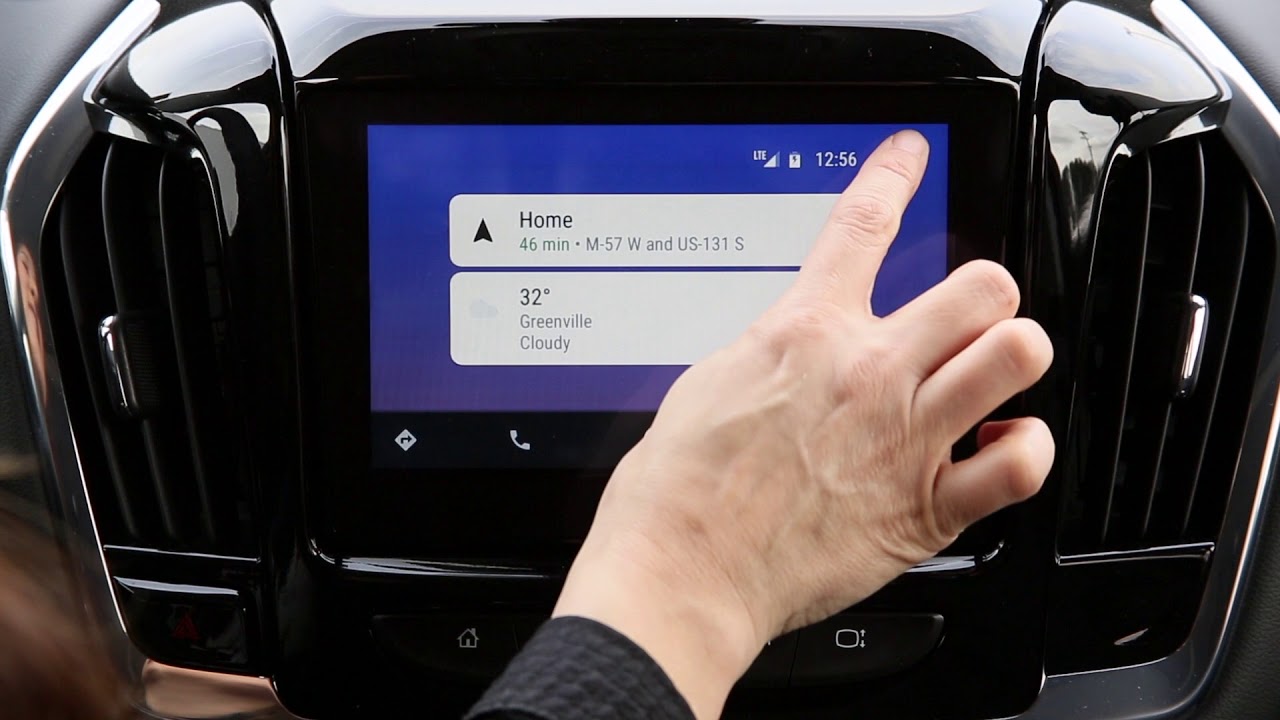
Let’s get aquatinted with the icons. First, directions or location using Google Maps. Next to that is the phone icon for hands-free calling. The center circle is the Home button. Music and all audio are selectable with the headphone icon which takes you to Google Play Music. The last icon, the one to the right, returns you back to the Chevrolet MyLink infotainment home screen.
Using Android Auto, you’ll notice some important information in the upper right of the screen. You’ll see the LTE phone connection, battery life, a clock, and a microphone that, when touched, communicates with Google Now.
We show you how to use Google Maps in Android Auto too. From accessing recent searches you may have looked for outside of driving your car, to finding gas stations, restaurants, and more. We also go over using the hands-free button on the steering wheel to access Google Maps for directions.
Next, we go through using your phone with Android Auto. When you tap on the phone icon you’ll see you can access your voicemail, call history, and missed calls. As we show you, It’ll work a lot like your Android phone.
Receiving a text is very easy and safe when you’re using Android Auto. When you receive a text from someone you will get a notification and the text can be read to you by your Google Assistant. No more looking at your phone while driving! This is all hands-free, keeping your eyes on the road while driving, but being connected.
After the text you receive is read to you the Google Assistant will ask if you want to reply. All you have to do is talk, there’s no need to see or touch your phone. You can tell Google you’ll text back later or summons it to translate your voice message into a text, all handsfree! There also appears an auto-reply response on the 2018 Chevy Traverse MyLink screen that can reply “Driving right now.” This is another way to keep connected while driving while keeping your focus on the road.
You can always summons Google to call, send a text, listen to voicemail, get turn-by-turn directions, or play a song by using the handsfree voice activation button located on the Traverse steering wheel.
We used the Essential PH-1 in this video. The same process of using and connecting a Samsung s7, Samsung s7 Edge, Samsung s9, Google Pixel, Samsung Note, HTC, Motorola, LG G5, or LG G6. Android Auto works on all of these.
If you have any more questions about Android Auto and connecting or using it in the new Chevy Traverse, leave a comment below. You can also like this video and subscribe to our channel for more features and new things with your Chevy Traverse!
https://www.tinneyhasit.com/Chevrolet...
Make sure to subscribe to our YouTube channel right here: / tinneyautogroup
Доступные форматы для скачивания:
Скачать видео mp4
-
Информация по загрузке:



![Камеди клаб [НОВЫЙ 2026] [full HD] Сборник избранных смешных и юмористических эпизодов | часть 1](https://image.4k-video.ru/id-video/fQW92rrpV2w)