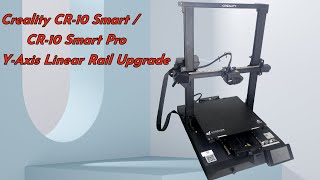
Installation Guide for the Creality CR 10 SE Z axis Rail Upgrade
Автор: TBSTRON3D
Загружено: 2024-10-30
Просмотров: 1570
Product link:https://strong3d.myshopify.com/produc...
Download link for the STL files used for assisted installation in the video: https://www.thingiverse.com/thing:681...
Installation Guide for the Creality CR-10 SE Z-axis Rail Upgrade
Note : The following steps should be performed while the machine is powered off. Keep all removed parts safe, as most of them will need to be reinstalled. If needed, take photos before disassembly for reference.
1. Unplug the LED light connector.
2. Remove the screws securing the LED light bracket, and then remove the bracket.
3. Remove the screws securing the crossbeam, and take it off.
4. Detach the cables from the crossbeam.
5. Remove the lead screw fixed seat.
6. Remove the Z-axis timing pulley and take off the timing belt.
7. Disconnect the print head cables and unplug the X-axis motor cable.
8. Remove the entire X-axis assembly.
9. Detach the left and right plastic covers of the X-axis, and loosen the adjustment nut of the X timing belt.
10. Remove the left and right Z-axis wheel assemblies.
11. Remove the brass lead screw nut. Remove the POM wheels from the left and right Z-axis wheel assemblies.
12. Use M5*8 screws to secure the brass nuts and slider mounting brackets to the front metal plate of the Z-axis.
13. Use M5*8 and M3*6 screws to secure the rear metal plate to the brass nuts and slider mounting brackets. The process is the same for both sides. (12 M5*8 screws, 4 M3*6 screws, 4 brass nuts).
14. Use M3*6 screws to attach the small brackets to the rear metal plate.
15. Use M3*6 screws to secure the brass lead screw nuts to the small brackets.
16. Install the assembled left and right Z-axis wheel assemblies onto the X-axis profile.
17. Secure the right plastic cover to the front metal plate. Make sure to loop the timing belt around the X-axis motor pulley. Also, check that the timing belt is properly positioned and adjust its tension.
18. Reattach the left plastic cover to the front metal plate.
19. Use M3*8 screws and M3 T-nuts to attach the Z-axis rail (install one screw every 1-2 holes).
20. Clip the positioning jig onto the Z-axis profile.
21. Insert the entire X-axis assembly into the Z-axis profile and use a suitable support to hold it at the correct height.
22. Insert the Z-axis rails into the Z-axis profile and secure the top of the rails using the positioning jig.
23. Tighten the screws securing the Z-axis rails.
24. Use M3*6 screws to secure the slider mounting brackets to the rail sliders (8 screws in total).
25. Remove the positioning jig from the rails.
26. Reinstall the top crossbeam onto the Z-axis profile.
27. Reinstall the timing belt and pulley onto the lead screw.
28. After placing the lead screw fixed plate, secure it with screws.
29. Adjust the level of the X-axis (this step is crucial). Once adjusted, tighten the set screws on both timing pulleys.
30. Move the Z-axis up and down, then tighten the X-axis direction screws.
31. Reinstall the LED light bracket in its original position.
32. Plug the LED strip connector back in.
33. Secure the filament detection switch cable back in its original position.
34. Use M3*6 screws to secure the printed cable bracket onto the rear metal plate.
35. Reconnect the X-axis motor cable and other cables for the print head to their correct positions.
The upgrade is now complete. After powering on, please run a leveling process before starting any prints. Thank you.

Доступные форматы для скачивания:
Скачать видео mp4
-
Информация по загрузке: