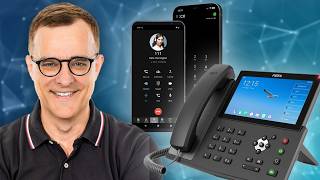
Snom D815 SIP Phone Product Feature Video & How to Connect to WiFi
Автор: VoIP Supply
Загружено: 2025-01-30
Просмотров: 838
We have everything you need for VoIP!
https://www.voipsupply.com/?utm_sourc...
See the Snom D815 SIP Phone here:
https://www.voipsupply.com/snom-d815-...
See ALL Snom products here:
https://www.voipsupply.com/manufactur...
Take an extremely detailed look at the Snom D815 SIP Phone with our Product Feature Video! In this video, we'll show you what's in the box, review the phone's features and functionality, and lastly, show you how easy it is to connect the device to your WiFi network!
Rebecca:
Hi everyone and welcome to VoIP Supply's product feature video series. Today we are going to be featuring the Snom D815 desk phone. We're going to take it out of the box, get it all set up, and run through some of the features and functionality of this phone. Let's get started.
Well, perfect. We've got our quick installation guide here. All the information that you need. If you lose it, as you know, we have it for you on Voipsupply.com on the product page. All right. Nicely wrapped.
Our phone.
Underneath here, this is going to be the stand. Cord. Cord. Handset. Here we go. That's about it. Let's get it all set up. So here's the stand, and basically we need to slide these into the little grooves like this. Oh, there we go. Perfect. Okay. Next, we can attach the handset.
And that's going to go in here.
And we've got to power it on, I'd say. And now our Snom D815 is powering on as you'll see, all the lights are coming on for us. So while this is powering on, let's go in and take a closer look at this phone. So of course you've got your volume down here, you've got six buttons, meaning this is going to be your messages, directory, call history, hold, call transfer, and conference and you have 10 directory keys. These four keys on the right-hand side, light up. So for your headset, your mute, and speakerphone, you have nice big buttons here, easy to press, easy to read, and a nice color screen for you as well. Now we're going to show you a really cool feature that you can swap out the faceplates. Let's peel this off.
Nice and clear. So in order to swap out the faceplate, it's easier to just take off the handset and you might need a little tool or something because there's a tiny little notch right here and it just pops off like that. And you can see that it's magnetic so it's easy to attach and detach like that.
And the reason why you might want to swap out your faceplate is for custom branding. So you could put your logo right on the front. So you'll see here when I took the handset off, that it is antibacterial plastic that is used here and then really cool that the speaker is right underneath the handset like that. All right, so now let's talk a little bit more of the features and the functionality of the Snom D815.
The Snom D815 dusk phone is a PoE phone with two USB ports. It has a five-inch color LCD screen with HD audio and it is headset compatible. It also is expansion module ready and it has a three-year warranty. And now it's time to pass this over to our engineer here at VoIP Supply, Joe Pencille, to dive even further into this phone.
Joe Pencille:
Thank you, Rebecca. Today I'm going to go ahead and show you how easy it is to connect the Snom D815 to your wireless access network. Go ahead and click on WiFi and you want to make sure that the wireless local area network is enabled. Shows that the wireless is enabled, it's not connected. Go ahead and press down and scan your wireless local area network. This will scan all the wireless access points that you have available. For demonstration purposes, I'm going to go ahead and click on the VoIP Supply Lab and you can go ahead and enter your password.
Right now, it's going to connect to the VoIP Supply Lab and change the local area network IP address.
Okay, it's connected. It shows to reboot. To continue, and the password's okay. Go ahead and click on reboot.
There's my extension, here's my network. I'm going to backspace this out because I need it to look at an IP address. So make sure you press edit mode and that you're in numeric. Go ahead and add your server so the phone can connect. Use the asterisk key for a dot.
Okay, press the navigation button. Okay. It wants the password of the SIP extension.
Okay, now the phone is SIP registered. I'm going to go ahead and give the extension a call. Okay, let's go ahead and answer, "Hi, this is Joe." And there you have it. And now back to you Rebecca.
#VoIP #WiFi #tech
@snomamericas
Follow us on Social Media!
VoIP Supply LinkedIn / voip-supply
VoIP Supply Facebook / voipsupply
VoIP Supply X https://x.com/voipsupply

Доступные форматы для скачивания:
Скачать видео mp4
-
Информация по загрузке: