How to update firmware for Sony A6700
Автор: Tora Tora
Загружено: 2024-05-05
Просмотров: 2630
How to Update Firmware for Sony A6700**
Recently Sony Released a6700 Firmware Update 1.03
It is important to keep camera firmware updated for new features and bug fixes.
Before start your progress, Check Current Firmware Version
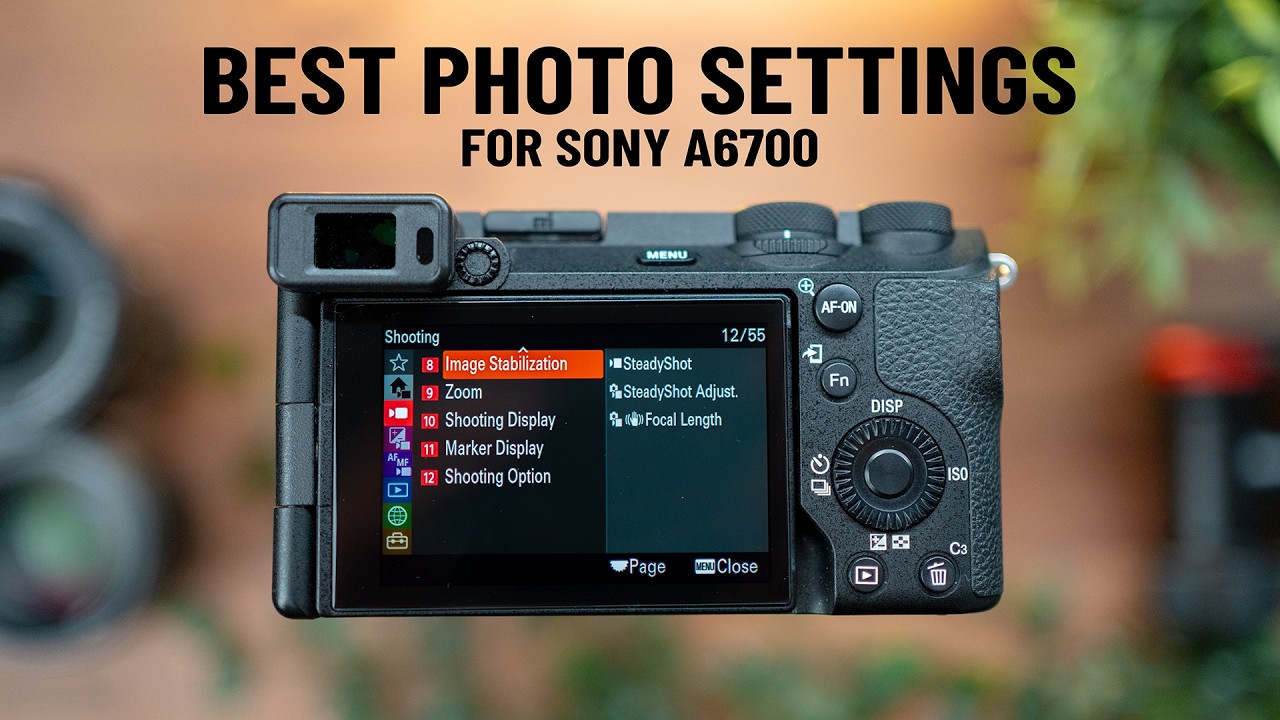
On the camera, select Menu → Setup → Setup Option → Version. If it shows
Ver. 1.02, that is old version, you need to Update to new version 1.03
9 steps,
Step1. Fully charge your camera
Step2. Format a SD card, I am using SanDisk SanDisk 128GB Extreme SDXC UHS-I Memory Card
On your PC, open a web browser and go to the Sony support website: [https://www.sony.com/electronics/support](https://www.sony.com/electronics/supp....
In the search window, type "A6700" and press enter.
Locate the section labeled “Firmware Update Ver. 1.03” and click on it.
On the update page, click the "Download" button.
A user agreement or license page may appear. Read through the agreement carefully.
At the bottom of the page, confirm your acceptance of the terms (if required) and click on "Download Now." You do not need an account to download the firmware.
The download will start automatically. The filename should be "BODYDATA.DAT", which is the firmware update file for version 1.03.
Step4. Move the file BODYDATA.DAT file to SD card
Step5. Put the SD card with BODYDATA.DAT file into the camera
Step6. Turn on the camera then Menu → Setup → Setup Option → Version.
Step7. select Software Update, Next is Body Update screen
Step8. Scroll down and read the note, then click Execute,
Screen will turn off and the access lamp flashes.
s, press OK.
Step9. On the camera, select Menu → Setup → Setup Option → Version. If Firmware Version 1.03" is displayed, confirming the update was successful
Now it is time to enjoy your new A6700.

Доступные форматы для скачивания:
Скачать видео mp4
-
Информация по загрузке: