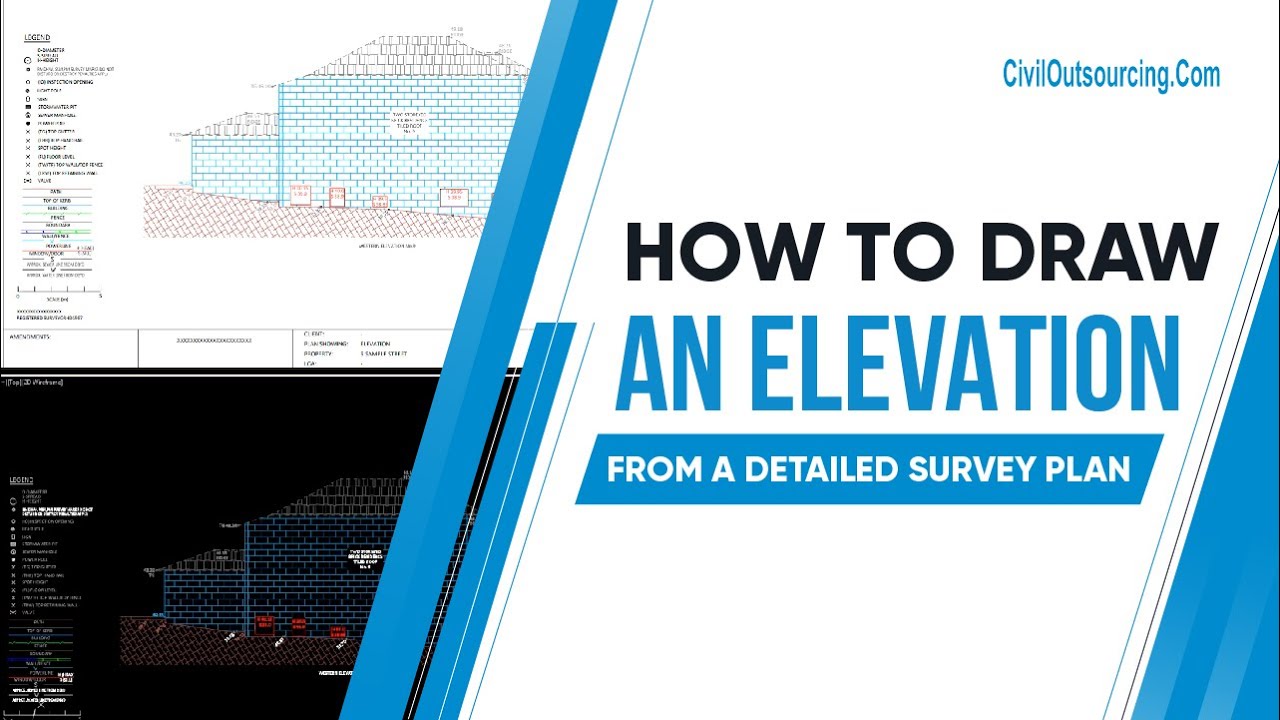
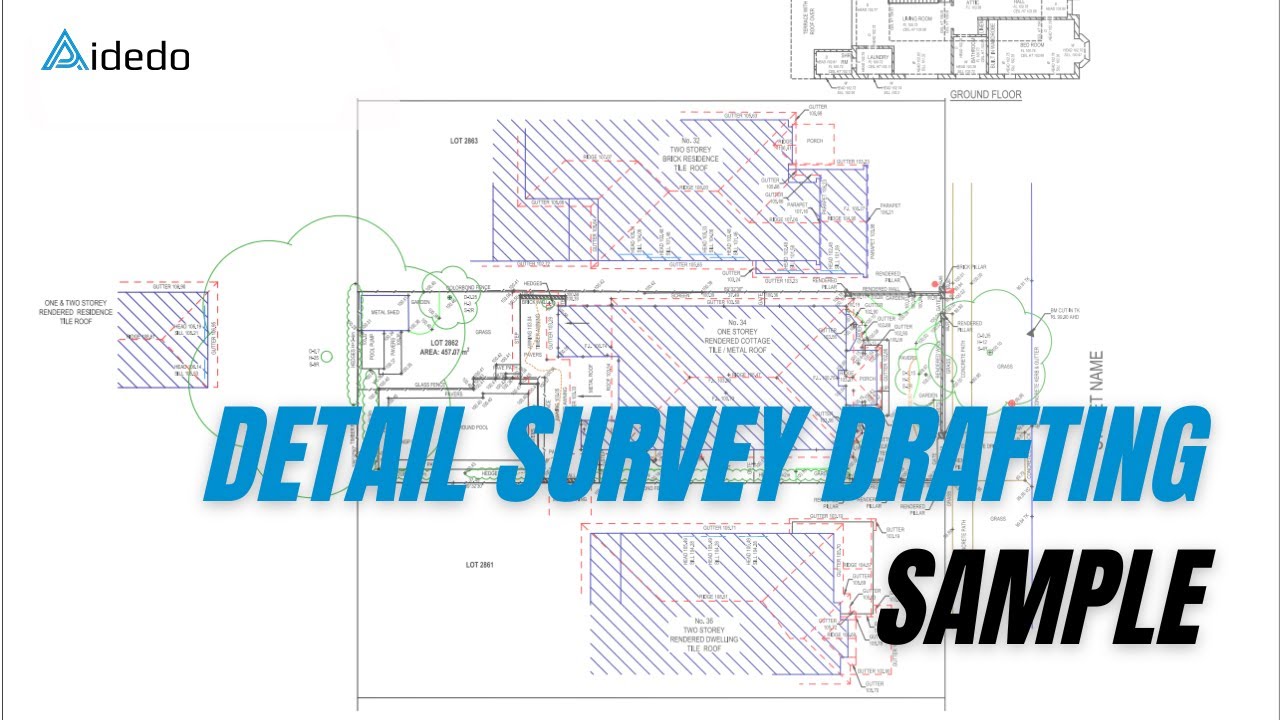
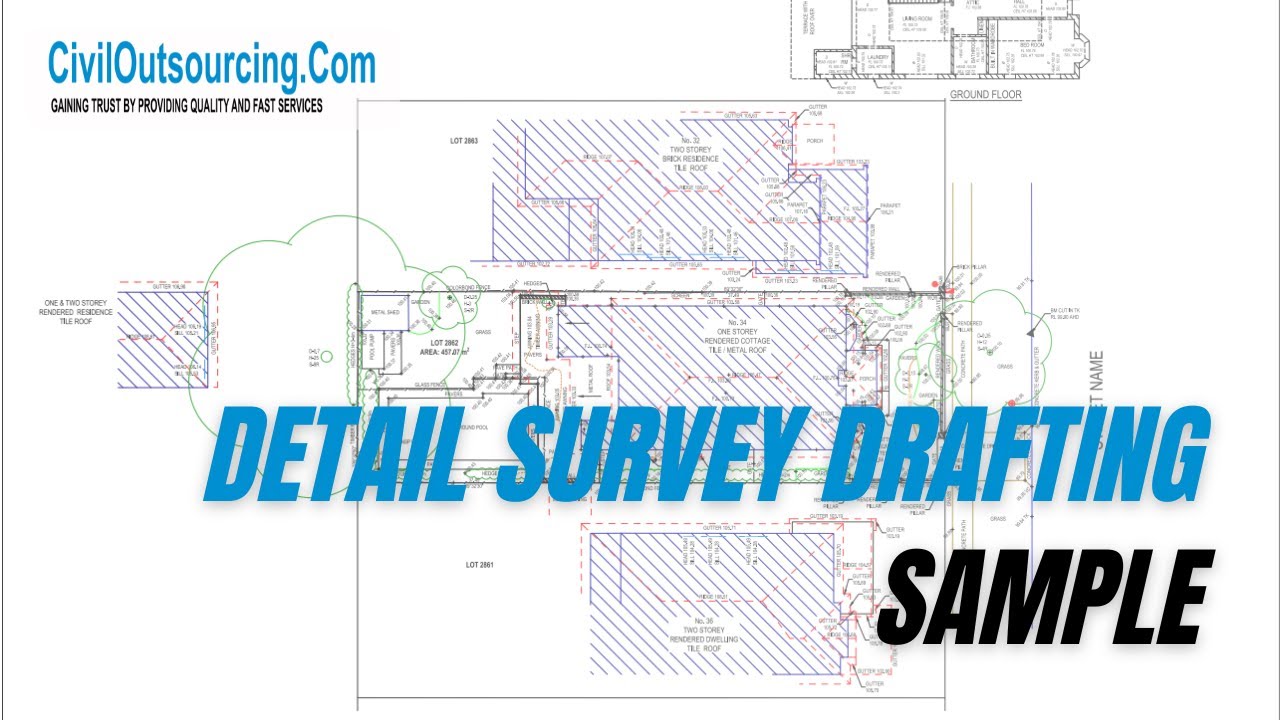
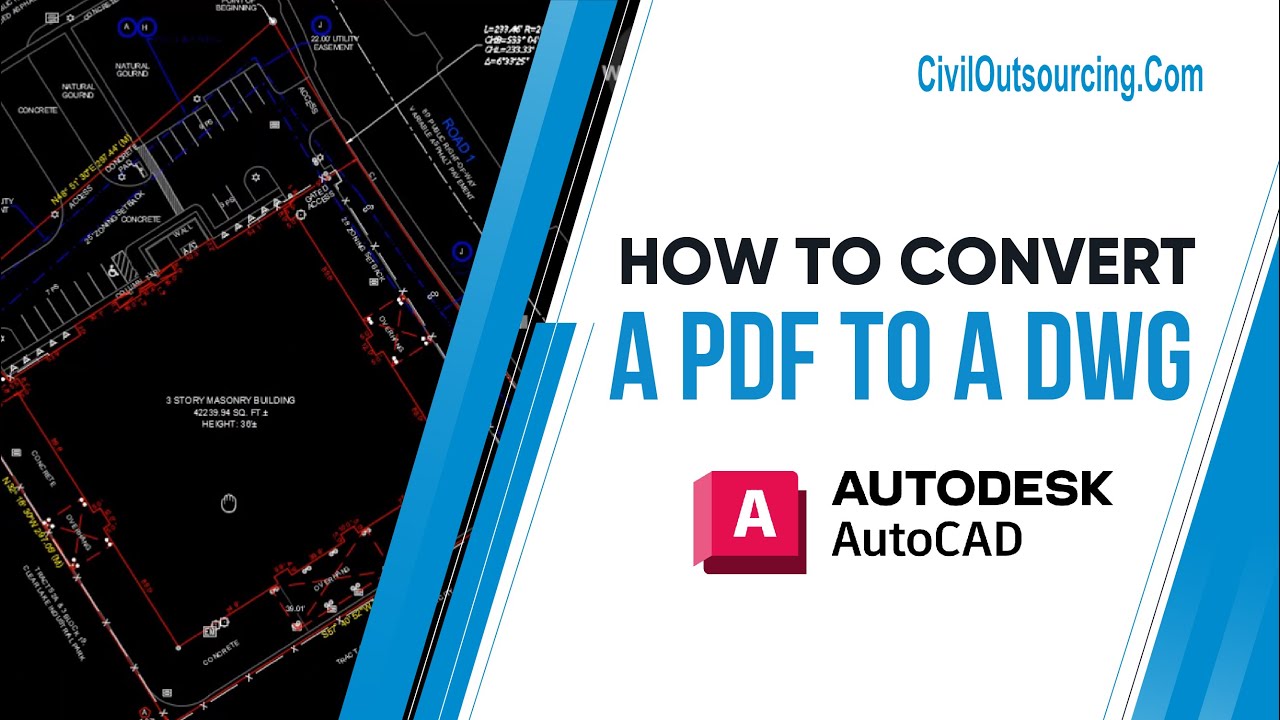
How to convert a PDF to a DWG in AutoCAD?
Автор: Civil Outsourcing - Civil and Land Survey
Загружено: 2025-03-25
Просмотров: 81
How to convert a PDF to a DWG in AutoCAD?
Step 1: Determine the drawing scale based on the Scalebar.
Step 2: Draw the property boundary line based on bearing and distance.
Step 3: Adjust the properties of the property boundary line to meet the client's specifications.
Step 4: Import the PDF into the CAD file, making sure to check the necessary options and, most importantly, enter the correct scale from the PDF.
Step 5: Label the bearing and distance to ensure the boundary is accurate before aligning the imported PDF.
Step 6: Align the PDF according to the drawn boundary
Step 7: Replace all blocks at the boundary corners on the PDF with the client’s standard blocks.
Step 8: Replace all linework, blocks, hatches, redraw any broken curves, and add annotations according to the client’s standards.
Step 9: Redraw the building setback line accurately, with the distance offset from the boundary.
Step 10: Show the full set of dimensions for the building’s outline as outlined in the detailed plan.
Step 11: Double-check and finalize the contents of the drawing.
-------------------
Civil Outsourcing - Civil Engineering And Land Survey
🔹 Website: https://civiloutsourcing.com/
🔹 E-mail: contact@civiloutsourcing.com
#civiloutsourcing #AutodeskCivil3D #landsurveying #autocad #civil3d #civilengineeringdrafting
Доступные форматы для скачивания:
Скачать видео mp4
-
Информация по загрузке:

![AutoCAD — Учебное пособие для начинающих за 12 МИНУТ! [ ПОЛНОЕ РУКОВОДСТВО ]](https://imager.clipsaver.ru/AvyOe8l463c/max.jpg)