Word 2021 In Practice Ch 2 Independent Project 2 4 | Word 2021 Chapter 2 Project 2-4 |
Автор: Lee Stewart
Загружено: 2025-10-24
Просмотров: 31
Contact Us
Whatsapp No : +994-401583314
Word 2021 In Practice Ch 2 Independent Project 2 4
#Word_2021_In_Practice_Ch 2_Independent_Project_2-4
Independent Project 2-4
In this project, you use styles, indents, lists, tab stops, the replace feature, footers, page borders, page breaks, and document properties to customize the Emergency Procedures document for Sierra Pacific Community College District.
[Student Learning Outcomes 2.1, 2.2, 2.3, 2.4, 2.5, 2.6, 2.7, 2.8, 2.9]
File Needed: EmergencyProcedures-02.docx (Available from the Start File link.)
Completed Project File Name: [your name]-EmergencyProcedures-02.docx
Skills Covered in This Project
• Modify an existing document.
• Apply a document theme and theme color.
• Change margins and font size.
• Apply and modify a style.
• Apply a border to selected text.
• Apply and customize a numbered and bulleted list.
• Use the Format Painter.
• Modify indents.
• Set and modify tab stops.
• Use Replace.
• Insert a footer with document properties and current date.
• Insert a page border.
• Insert Page break.
• Center text vertically.
• Use Side to Side page movement.
Steps to complete This Project
Mark the steps as checked when you complete them.
1. Open the EmergencyProcedures-02.docx start file. If the document opens in Protected View, click the Enable Editing button so you can modify it.
2. The file will be renamed automatically to include your name. Change the file name if directed to do so by your instructor, and save it.
3. Change the theme to Integral and the theme color to Red.
4. Change the top, bottom, left, and right margins to 0.75".
5. Select the entire document and change the font size to 12 pt.
6. Format the title of the document.
a. Select the title of the document and apply the Heading 1 style.
b. Change the font size to 18 pt.
c. Change the Before paragraph spacing to 0 pt.
d. Add a Bottom Border to the title using the Borders drop-down list.
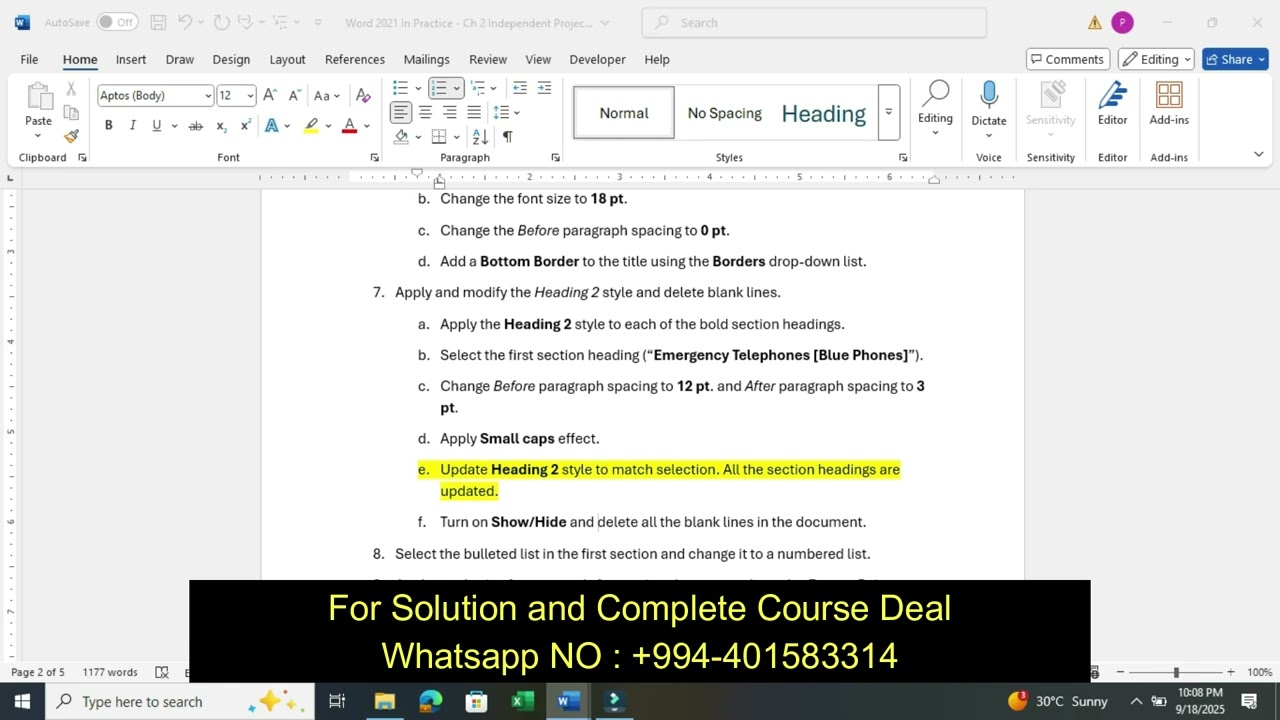
7. Apply and modify the Heading 2 style and delete blank lines.
a. Apply the Heading 2 style to each of the bold section headings.
b. Select the first section heading (“Emergency Telephones [Blue Phones]”).
c. Change Before paragraph spacing to 12 pt. and After paragraph spacing to 3 pt.
d. Apply Small caps effect.
e. Update Heading 2 style to match selection. All the section headings are updated.
f. Turn on Show/Hide and delete all the blank lines in the document.
8. Select the bulleted list in the first section and change it to a numbered list.
9. Apply numbering format, apply formatting changes, and use the Format Painter.
a. Apply numbering to the text below the section headings in the following sections: “Assaults, Fights, or Emotional Disturbances”; “Power Failure”; “Fire”; “Earthquake”; and “Bomb Threat.”
b. Select the numbered list in the “Bomb Threat” section.
c. Open the Paragraph dialog box, set Before and After paragraph spacing to 2 pt., deselect the Don’t add space between paragraphs of the same style check box, and click OK to close the dialog box.
d. Use the Format Painter to copy this numbering format to each of the other numbered lists.
e. Reset each numbered list so it begins with 1. Select the items in each numbered list, right-click the selected items, and select Restart at 1 from the context menu. For a list that continues to the second page, be sure to select the entire list.
10. Customize a bulleted list and use the Format Painter.
a. Select the text in the “Accident or Medical Emergency” section.
b. Create a custom bulleted list and use a double right-pointing triangle symbol (Webdings, Character code 56).
c. Open the Paragraph dialog box and confirm the left indent is 0.25" and hanging indent is 0.25". If not, change the settings.
d. Set Before and After paragraph spacing to 2 pt. and deselect the Don’t add space between paragraphs of the same style check box.
e. Use the Format Painter to apply this bulleted list format to the following text in the following sections: “Tips to Professors and Staff” and “Response to Students.”
11. Change indent and paragraph spacing and apply a style.
a. Select the text below the “Emergency Telephone Locations” heading.
b. Set a 0.25" left indent.
c. Set Before and After paragraph spacing to 2 pt.
d. Confirm the Don’t add space between paragraphs of the same style box is unchecked (Paragraph dialog box).
e. Apply Book Title style to each of the telephone locations in the “Emergency Telephone Locations” section. Select only the location, not the text in parentheses or following text.
12. Change left indent and paragraph spacing and set a tab stop with a dot leader.
a. Select the text below the “Emergency Phone Numbers” heading.
b. Open the Paragraph dialog box and set a 0.25" left indent for this text.
Доступные форматы для скачивания:
Скачать видео mp4
-
Информация по загрузке:





