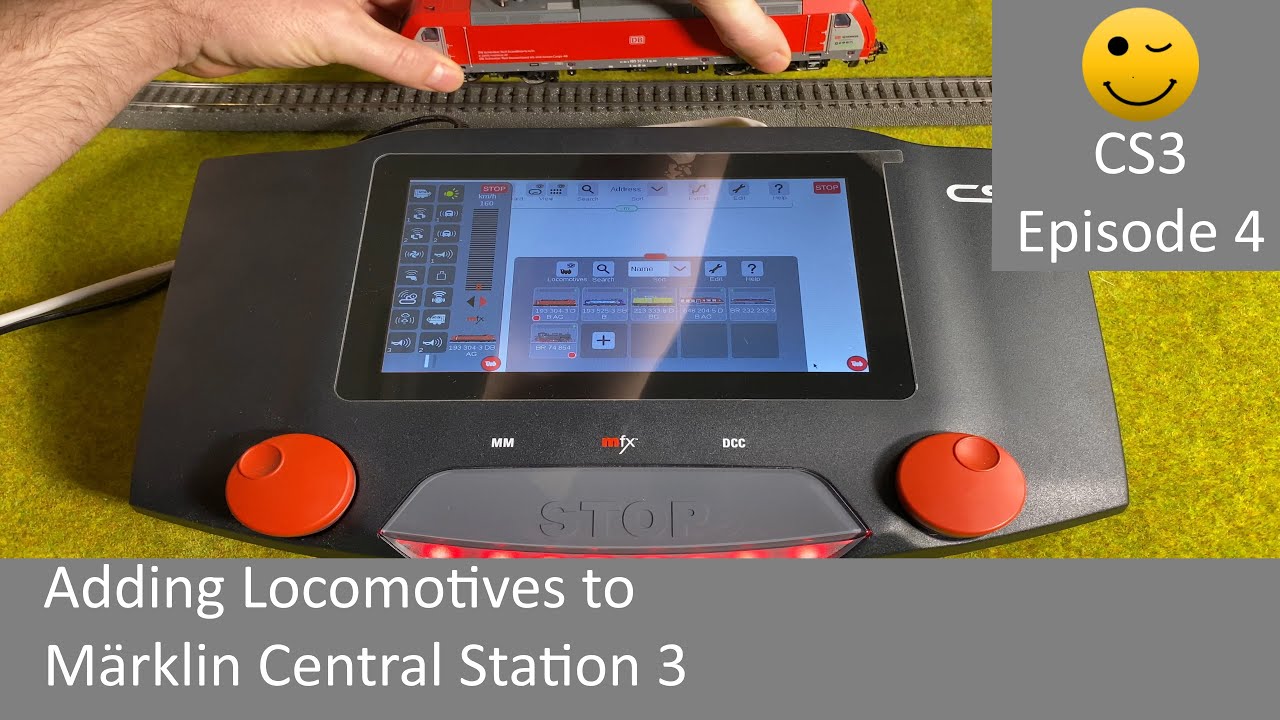
Adding Locomotives to Märklin Central Station 3 (CS3 Episode 4)
Автор: Model Train Fun
Загружено: 2021-09-10
Просмотров: 16518
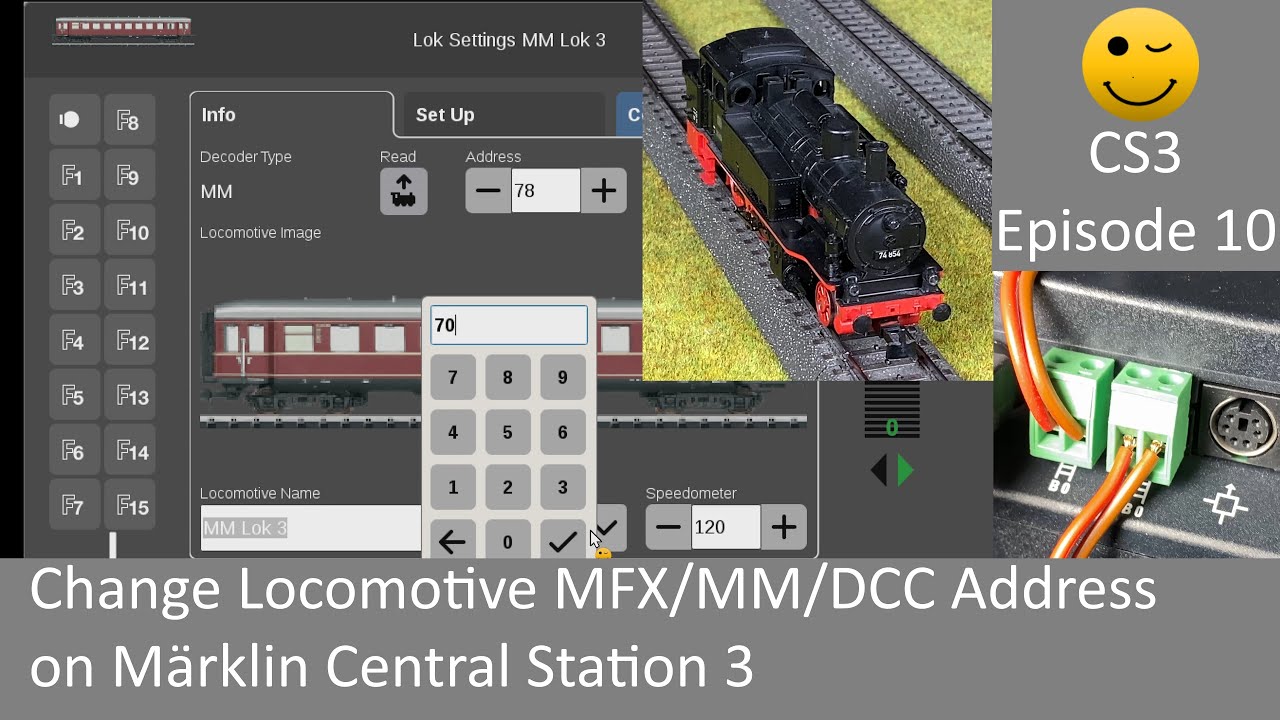
This video illustrates how to add locomotives to the Märklin Central Station 3. It is an essential tutorial to get started with the Central Station. It is illustrated how to add a Märklin digital locomotive (MM, FX & MFX), a DCC locomotive, a non-Marklin locomotive and a second hand (used) locomotive. This tutorial covers both the standard as well as the simplified UI.
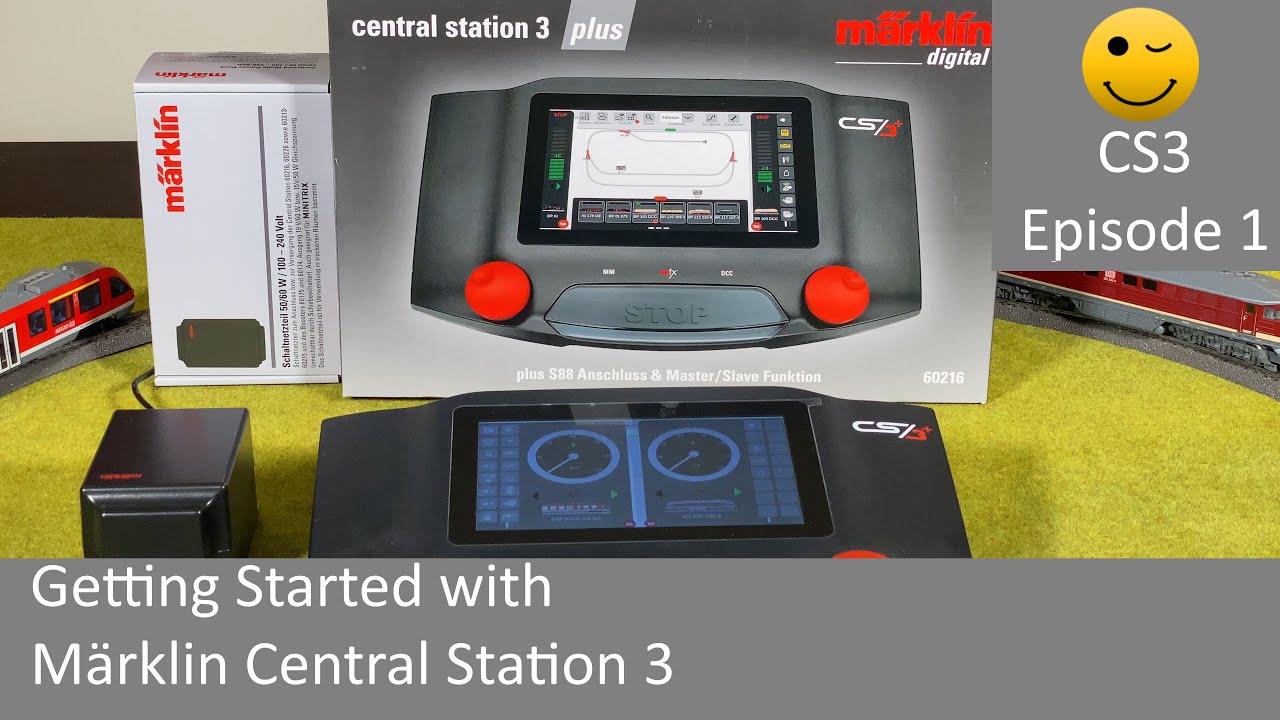
Please see the "Getting started" video (CS3 Episode 1) on how to control locomotives: • Getting Started with Märklin Central Stati...
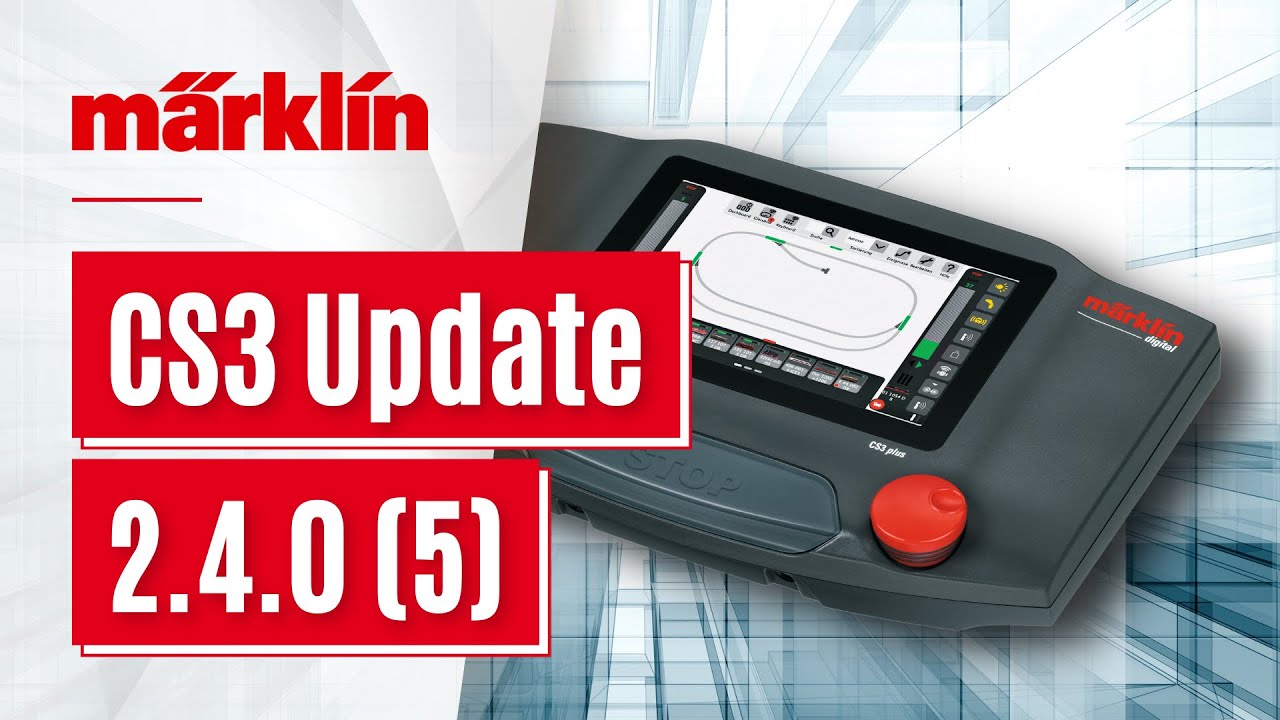
The tutorial covers Central Station 3 with software version 3.2.1 (8). Newer versions should work the same, but some older may not. If you have an older software version consider upgrading your Central Station to the latest version. See the "update you CS3" video (CS3 Episode 2) for how to update to latest version: • Updating Your Märklin Central Station 3 (C... .
Tips & How to included:
Tip: Put CS3 in stop mode before adding locomotive to the track
How to add MFX locomotive
Tip: Use "Edit-Rediscover lost mfx locomotives" if the MFX locomotive does not register automatically
How to manually add locomotive
How to add non-MFX Märklin locomotive from the CS3 database
How to add non-Märklin locomotive?
How to add DCC locomotive?
How to quickly add a Märklin/DCC locomotive using "Direct Address"
Tip: Search for model number e.g. 29530 in the CS3 database
Tip: Search for rail road (e.g. DB, SBB or UP) in the CS3 database
Tip: Search for locomotive class using "BR class" e.g. "BR 86" in CS3 database
Tip: "Loc Symbol" only for MS2
Tip: You can use MM, FX, MFX and DCC at the same time
Tip: Use DCC if the decoder does not support MFX to get access to F16 and above
Tip: Default locomotive MM/FX/DCC address is typically 3
Tip: Consult manual to find locomotive address and function keys
Tip: CS3 has a big database of pictures that you can search and choose from
How to configure the function keys for a manually added locomotive
Tip: Look in "Common" first for function icons
How does Switching, Momentary and Duration Function Work?
Tip: Use the "Test" icon to test the function
Tip: Save CS3 configuration with you Locomotive config
How to find the locomotive address
Tip: Must be on the programming track
Tip: Programming track is the "prog" connector on the CS3
How to add lomotive in simplified UI?
How to change to the simplified UI
Tip: Standard and simplified UI uses the same locomotives
Tip: Simplified UI assists you in adding a locomotive
Interesting links (English):
Märklin: https://www.maerklin.de/en
Märklin Central Station 3: https://www.maerklin.de/en/products/d...
Märklin Central Station 3+: https://www.maerklin.de/en/products/d...
Märklin Central Station 3 Manual: http://streaming.maerklin.de/public-m...
Enjoy and have fun with model trains :-)
Chapters
00:00 Intro
00:38 Software Version
02:16 Adding MFX locomotive
04:09 Use "Rediscover MFX" when Locomotive not recognized
04:40 How to manually add locomotive?
05:42 Adding non-MFX Märklin loco from database
08:55 Quickly add Märklin/DCC loco using direct address
10:49 Manually add non-Märklin/DCC locomotive
20:38 Configuring functions for a manual locomotive
22:42 Switching Function
25:22 Momentary and Duration Function
29:00 Save your CS3 configuration
29:58 Adding second-hand (used) locmotive
30:54 Setting up a programming track
33:20 Search for/find/read the locomotive address
35:54 Edit and delete locomotives
36:36 How to change to simplified UI
37:25 Simplified: Assisted add locomotives
43:57 Simplified: Edit and delete locomotive
Доступные форматы для скачивания:
Скачать видео mp4
-
Информация по загрузке: