How to Add a Scrollbar in a Text Widget Using Tkinter in Python
Автор: vlogize
Загружено: 2025-09-29
Просмотров: 2
A step-by-step guide on how to effectively add a scrollbar to a text widget in `Tkinter` using the `place` geometry manager.
---
This video is based on the question https://stackoverflow.com/q/63659304/ asked by the user 'Saksham Kushwaha' ( https://stackoverflow.com/u/13875145/ ) and on the answer https://stackoverflow.com/a/63659352/ provided by the user 'Andy_ye' ( https://stackoverflow.com/u/13226563/ ) at 'Stack Overflow' website. Thanks to these great users and Stackexchange community for their contributions.
Visit these links for original content and any more details, such as alternate solutions, latest updates/developments on topic, comments, revision history etc. For example, the original title of the Question was: How to add scrollbar in text widget in tkinter python?
Also, Content (except music) licensed under CC BY-SA https://meta.stackexchange.com/help/l...
The original Question post is licensed under the 'CC BY-SA 4.0' ( https://creativecommons.org/licenses/... ) license, and the original Answer post is licensed under the 'CC BY-SA 4.0' ( https://creativecommons.org/licenses/... ) license.
If anything seems off to you, please feel free to write me at vlogize [AT] gmail [DOT] com.
---
How to Add a Scrollbar in a Text Widget Using Tkinter in Python
If you are working on a GUI application with Python's Tkinter library and need to include a text widget that supports scrolling, you might encounter challenges, especially when trying to use the place geometry manager. Many guides suggest using the pack manager, which can be less flexible than place. Let’s explore how to solve this issue effectively.
Understanding the Problem
When utilizing the place geometry manager in Tkinter, it can be tricky to integrate a scrollbar into a text widget. The place manager allows for precise control over the position of widgets, but you may find that the traditional approach to adding scrollbars does not work well in this scenario. The objective is to add a scrollbar to a text widget while maintaining control over its placement in your GUI.
The Solution: Using tkinter.scrolledtext
Fortunately, Tkinter has a built-in module called tkinter.scrolledtext, which simplifies the process of adding scrollable text areas without extra complex setups. Here's how you can implement it step-by-step.
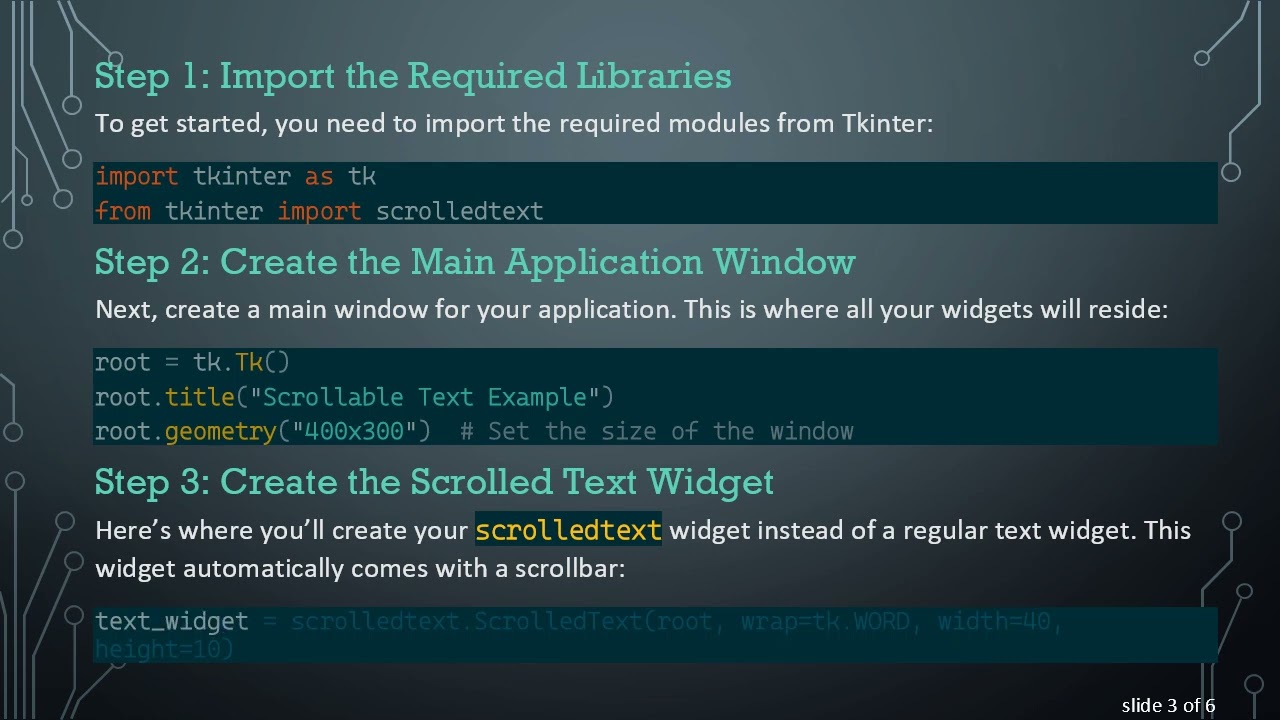
Step 1: Import the Required Libraries
To get started, you need to import the required modules from Tkinter:
[[See Video to Reveal this Text or Code Snippet]]
Step 2: Create the Main Application Window
Next, create a main window for your application. This is where all your widgets will reside:
[[See Video to Reveal this Text or Code Snippet]]
Step 3: Create the Scrolled Text Widget
Here’s where you’ll create your scrolledtext widget instead of a regular text widget. This widget automatically comes with a scrollbar:
[[See Video to Reveal this Text or Code Snippet]]
Step 4: Add Content to the Text Widget
You can insert any text you want into your text widget as needed. For example:
[[See Video to Reveal this Text or Code Snippet]]
Step 5: Run the Application
Finally, don’t forget to run your application’s main event loop! This keeps the window open and responsive:
[[See Video to Reveal this Text or Code Snippet]]
Full Code Example
Here’s the complete code for reference:
[[See Video to Reveal this Text or Code Snippet]]
Conclusion
Using the tkinter.scrolledtext module provides an intuitive and effective way to add a scrollbar to a text widget in Tkinter, especially when utilizing the place geometry manager. This method not only simplifies your task but also enhances the usability of your UI by ensuring content can be easily navigated, no matter its length. With this straightforward approach, you can effectively manage text input in your applications without breaking a sweat!
Доступные форматы для скачивания:
Скачать видео mp4
-
Информация по загрузке:




![Criação de Chatbot com IA em Tempo Real | Jornada Python [Aula 4]](https://image.4k-video.ru/id-video/x9us47urjcQ)