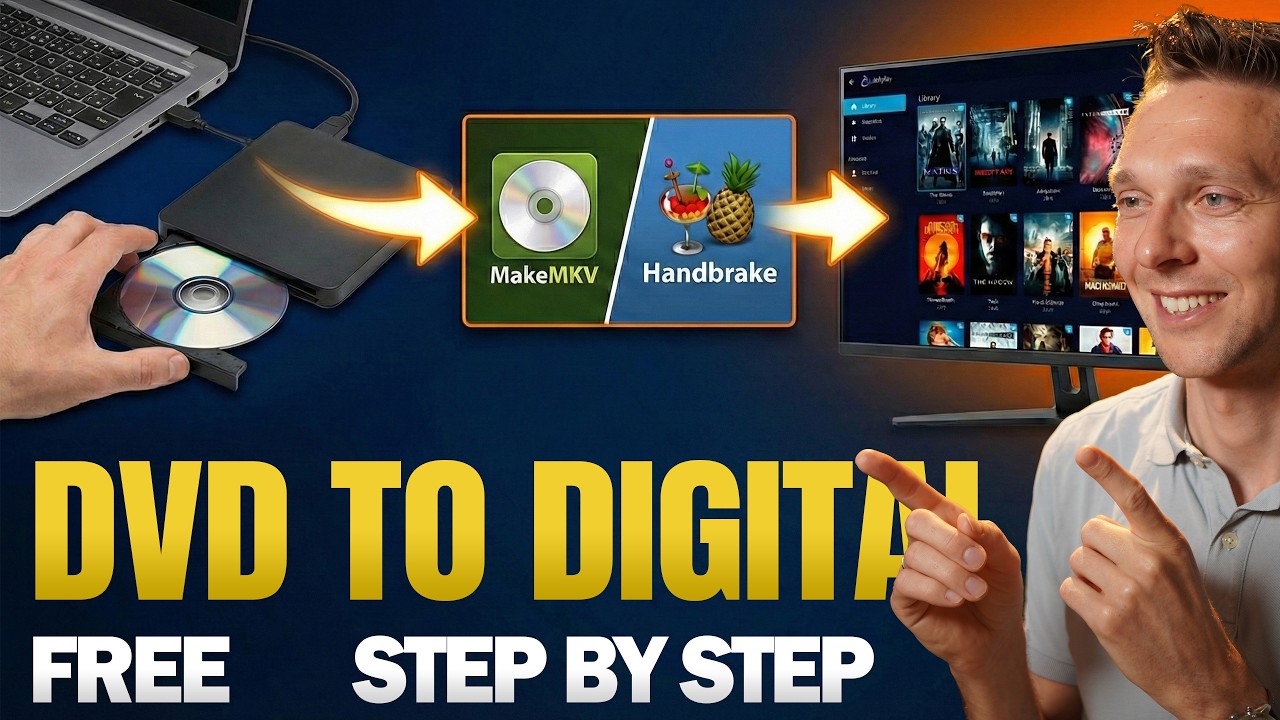
The Ultimate FREE DVD Ripping Workflow - MakeMKV + Handbrake
Автор: Matt Tutorials
Загружено: 2026-01-20
Просмотров: 249
Want to rip your DVDs without losing quality or filling up your hard drive? In this tutorial, I break down the ultimate free workflow using MakeMKV and Handbrake. Learn how to fix interlacing issues, select the right audio tracks, and compress your movies to modern H.265 MKV files that look amazing on your iPhone, TV, and Home Server. 👇🏻👇🏻👇🏻 Start here 👇🏻👇🏻👇🏻
Do you want to support me? Leave a like, watch another video from me, buy Elementor Pro or a hosting plan with 80% discount via the link below. That will help me enormously to create these free videos for you and keep going!
⇒ Software that I recommend:
✅ MakeMKV ⇒ https://www.makemkv.com/
✅ HandBrake ⇒ https://handbrake.fr/
✅ Create a Pi Media Center ⇒ • Why I Cancelled Netflix (And Built THIS In...
⇒ See my PC build and studio gear:
🖥️ https://matttutorials.com/gear/
⇒ Top video's I recommend:
• Why I Cancelled Netflix (And Built THIS In...
• How to Make an e-Commerce Website | Elemen...
• Google Business Profile Setup in 4 Simple ...
• Yoast SEO vs Rank Math vs All In One SEO
• Secure Your WordPress Website 2026 | Solid...
• Semrush SEO Tutorial 2025 | Step-by-step f...
• BEST Mailchimp Alternative ⚡2500 subs & 15...
• Copy or Migrate Your WordPress Website | F...
I want you to succeed with your website, so lets get started.
⏱️Timestamps⏱️
0:00 Get "Make MKV"
1:00 Rip a DVD
6:30 Setup Handbrake
13:17 Comparing the difference
Thank you for watching! 😀
✅For tips and tricks on getting the most out of WordPress, don't forget to subscribe: https://wpressdoctor.com/sub
🧾 Transscript 🧾
To do it the right way, we only need 2 free programs. For Mac or Windows, it doesn't matter. We're going to use "Make MKV". The links are in the description of this video and also in the comments. So, we're going to download this one. Just download it and press on install. Then, select your language. We press on next. Accept the terms. Next. And we also want to have the CDRom Device Arbittor. I don't know. Press okay. Next. Install. There we are. Press next. And we're going to run it and press finish. On modern PCs, we don't have any more of these things, disc drives. So, you can just pick one up on Amazon. I could put a link in the description, which is an affiliate link, of course. It's just a few bucks. I think €15 I paid for this one. Just hook it up on your system and you're good to go. And call me old, but look at this. Isn't this beautiful? Just these these just physical products. If "Make MKV" does not see your drive, just make sure to restart it and open it up again and then it might work. There you go. Now it will see my drive and you can see that this open. So I'm going to put in this original DVD. I'm going to close it. Then we just let this thing scan it. And sometimes you will see this "No disc inserted". No problem. Just try again with another disc or just open it up and close it again and it's a matter of time before it will pick it up. I really don't know why it works that way. Maybe the drive has to heat up so that all everything works better. I don't know. Just keep trying. It will work eventually. Once you see over here that the disc is the right one, you press on file, open disk, and just click on it. Now, the entire content on the disc will be scanned by "Make MKV" to make sure what's the file, what are the dummy files, what is something that we don't need, what are the copy protected fake files and all this will be placed in over here. Once the entire disc has been scanned, this is what we see. We can click over here to DVD Disc to make our choices what will be included inside of the MKV file. Of course, you will need the video - 20 chapters, 6.3 GB. It will be smaller than that. Don't worry. We have the video file itself. You cannot deselect it. But then select the audio you want. Do you want SurroundSound English? Or maybe we want French or maybe you want both. That's okay. Just select them both. or maybe just the audio in stereo. It's also possible. And then we have over here the subtitles. Well, you can select different kind of subtitles, whatever you want. Most of the time the first three are the normal one. And then comes the for the bad of hearing. So you can see "Music's playing" or "This one is saying it" or "this one". That's also possible. You can just disable this one if you don't need it. Once you've selected the right audio and the right subtitles, we're going to change the output folder. So you click over here and I'm going to just rip it to my C disk. Going to make a new folder which is called ripped DVDs. Select the map. There we are. And just press on this button, "Make MKV". And now it will rip your entire DVD with all the selected audio and subtitles to one single file. Now this ripping process will take a couple of minutes. So while we wait, we're going to install the next program we're going to use, which is Handbreak.
#ripdvd #howto
Доступные форматы для скачивания:
Скачать видео mp4
-
Информация по загрузке: