Can You Call the Same Function with Both a Scale and Checkbutton in Tkinter?
Автор: vlogize
Загружено: 2025-09-30
Просмотров: 0
Discover how to handle Scales and Checkbuttons in Tkinter to call the same function seamlessly in Python 3.x!
---
This video is based on the question https://stackoverflow.com/q/63784674/ asked by the user 'fernando' ( https://stackoverflow.com/u/14067660/ ) and on the answer https://stackoverflow.com/a/63784783/ provided by the user 'fernando' ( https://stackoverflow.com/u/14067660/ ) at 'Stack Overflow' website. Thanks to these great users and Stackexchange community for their contributions.
Visit these links for original content and any more details, such as alternate solutions, latest updates/developments on topic, comments, revision history etc. For example, the original title of the Question was: Is it possible to call the same function with a Scale and a checkbutton in tkinter using Python 3.x?
Also, Content (except music) licensed under CC BY-SA https://meta.stackexchange.com/help/l...
The original Question post is licensed under the 'CC BY-SA 4.0' ( https://creativecommons.org/licenses/... ) license, and the original Answer post is licensed under the 'CC BY-SA 4.0' ( https://creativecommons.org/licenses/... ) license.
If anything seems off to you, please feel free to write me at vlogize [AT] gmail [DOT] com.
---
Understanding Function Calls with Tkinter Widgets in Python
When developing applications with a graphical user interface (GUI), you might encounter scenarios where you need to trigger the same function through different user inputs. This is particularly common with the Tkinter library in Python. One such inquiry involves whether you can call the same function using both a scale and a checkbutton in a Python 3.x application. Let's explore this problem and its solution comprehensively.
The Problem: Function Handling in Tkinter
Imagine you have implemented a Scale widget in your Tkinter application that allows users to select a numerical value. You want to enhance your application by allowing users to interact in another way, using a Checkbutton.
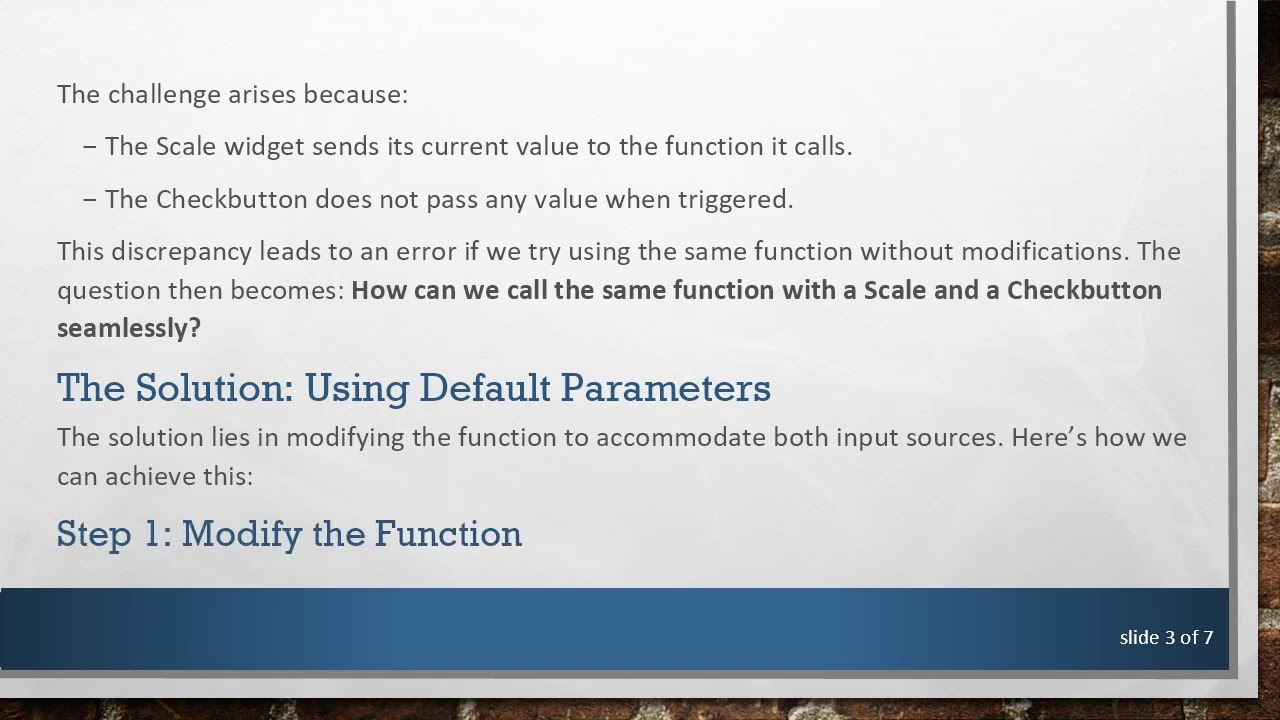
The challenge arises because:
The Scale widget sends its current value to the function it calls.
The Checkbutton does not pass any value when triggered.
This discrepancy leads to an error if we try using the same function without modifications. The question then becomes: How can we call the same function with a Scale and a Checkbutton seamlessly?
The Solution: Using Default Parameters
The solution lies in modifying the function to accommodate both input sources. Here’s how we can achieve this:
Step 1: Modify the Function
We can define a default parameter for the function so that it can accept either a value from the Scale or a default value when called from the Checkbutton.
[[See Video to Reveal this Text or Code Snippet]]
Step 2: Explanation of the Code
Importing Tkinter: We start by importing the necessary components from the Tkinter library.
Creating the Main Window: We initialize the main application window using Tk().
Defining the Function:
The function get_scale() is defined with a default parameter scale_value.
This allows the function to check the Scale’s current value when called but provides a fallback (the default value of 1) when it's called from the Checkbutton.
Creating Widgets:
A Scale widget is created that ranges from 0 to 10. It calls get_scale() whenever its value changes.
A Checkbutton is also defined, which calls the same function when toggled.
Packing Widgets: Finally, we place both widgets in the application window using pack().
Running the Application: root.mainloop() starts the Tkinter event loop, allowing the application to respond to user interaction.
Step 3: Testing the Integration
With this setup, moving the Scale will display its current value, while checking or unchecking the Checkbutton will also call the get_scale() function without generating an error. This flexibility allows for more interactive and responsive GUI applications.
Conclusion
In conclusion, leveraging default parameters in your function lets you utilize user input from different sources in Tkinter effectively. This not only streamlines your code but also enhances the usability of your application.
Feel free to try out this solution in your own Tkinter projects and expand the functionality as needed!
Доступные форматы для скачивания:
Скачать видео mp4
-
Информация по загрузке: