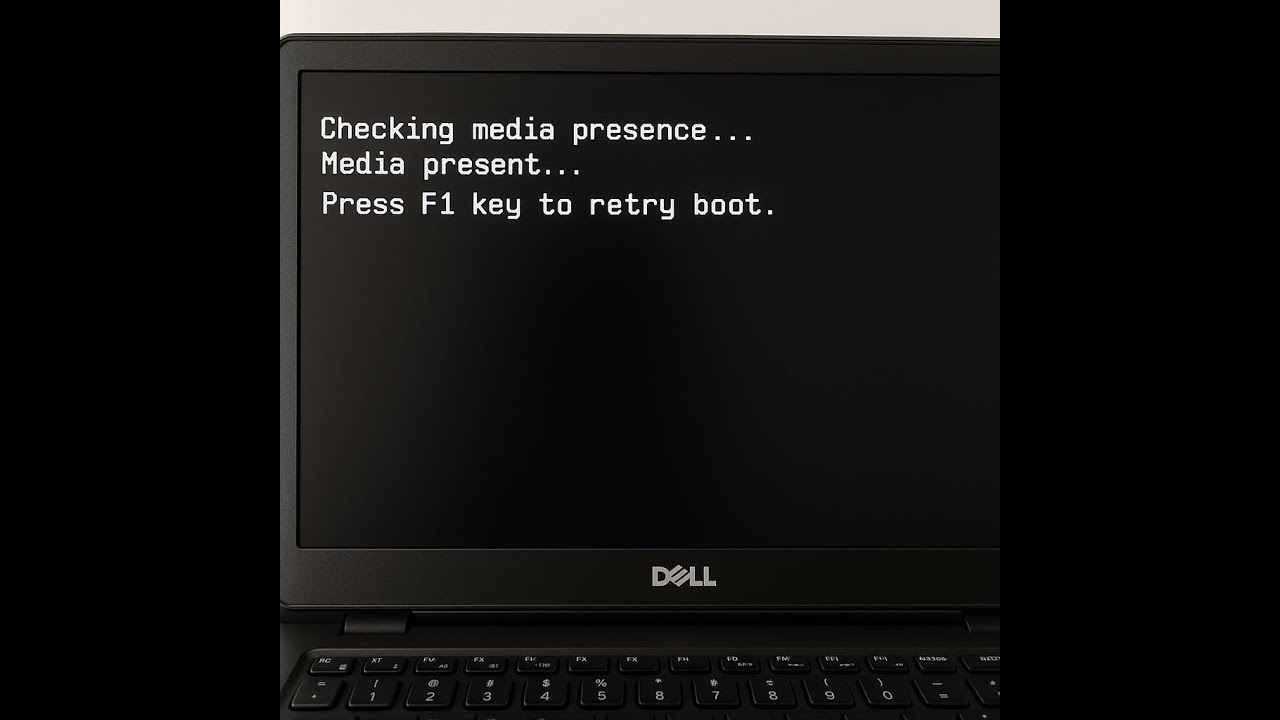
dell laptop checking media presence
Автор: All laptop solution
Загружено: 2025-04-08
Просмотров: 4659
dell laptop checking media presence
Check Boot Order in BIOS
Power on the laptop and immediately press F2 repeatedly to enter BIOS.
Go to Boot Sequence or Boot Order.
Make sure your internal hard drive (HDD/SSD) is at the top.
If it’s not listed, your hard drive might be disconnected or failed.
2. Disable PXE Boot (Network Boot)
In BIOS, go to Advanced Boot Options.
Disable "Legacy Option ROMs" or "PXE Boot", depending on your model.
Or, disable "Network Boot" and ensure UEFI Boot is selected.
3. Check UEFI/Legacy Boot Mode
In BIOS:
Try switching from Legacy to UEFI, or vice versa.
Save changes and restart.
4. Reseat the Storage Drive
Turn off the laptop.
If you're comfortable, open the back panel and reseat the HDD/SSD.
Ensure it's connected securely.
🔧 If Problem Still Exists:
✅ Run Dell Diagnostics
Restart the laptop and press F12.
Choose Diagnostics.
Let it run and see if it detects a hard drive failure.
✅ Use Bootable USB
If your drive is faulty or Windows is corrupted:
Use another PC to create a Windows 11 bootable USB via Microsoft’s Media Creation Tool.
Boot from it by pressing F12 on startup.
Try Startup Repair or reinstall Windows.
• how to fix uefi secure boot problem in win...
this pc can't run windows 11 | the pc must support tpm 2.0
• this pc can't run windows 11 | the pc must...
how to turn off background data on windows 10
• how to turn off background data on windows...
how to download and install wifi driver in windows 7
• how to fix camera and webcam not working i...
how to fix uefi secure boot problem in windows 11
• how to fix uefi secure boot problem in win...
windows 11 official launch ! check laptop and desktop compatible for windows 11
• windows 11 official launch ! check laptop ...
~-~~-~~~-~~-~
Please watch: "google drive your storage is almost full"
• google drive your storage is almost full
~-~~-~~~-~~-~
Доступные форматы для скачивания:
Скачать видео mp4
-
Информация по загрузке:





![Dell Inspiron 15 3521. Checking media [Fail] error](https://image.4k-video.ru/id-video/_5Wm3OtFcgk)