Nested gridview in asp.net - Part 43
Автор: kudvenkat
Загружено: 2013-04-02
Просмотров: 32070
Link for csharp, asp.net, ado.net, dotnet basics and sql server video tutorial playlists
/ kudvenkat
Link for text version of this video
http://csharp-video-tutorials.blogspo...
Healthy diet is very important both for the body and mind. If you like Aarvi Kitchen recipes, please support by sharing, subscribing and liking our YouTube channel. Hope you can help.
/ @aarvikitchen5572
In this video we will discuss about nesting gridview controls.
Here is what we want to achieve
1. The outermost grdiview control, should display all the continents available.
2. The Countries column in the outermost gridview control, should display all the countries belonging to the continent in another gridview control. This means we are nesting countries gridview in continents gridview.
3. The Cities column in the countries gridview control, should display all the cities belonging to the country in another gridview control. This means we are nesting cities gridview in countries gridview.
So, this effectively means we are nesting Countries gridview inside Continents gridview and Cities gridview is nested inside Countries gridview
Continents GridView Control - Countries GridView Control - Cities GridView Control
We will be using the following tables for this demo. If you need the sql script to create and populate these tables, please refer to Part 34 of asp.net gridview tutorial using the link below
http://csharp-video-tutorials.blogspo...
Step 1: Implement ContinentDataAccessLayer
Step 2: Implement CountriesDataAccessLayer
Step 3: Implement CitiesDataAccessLayer
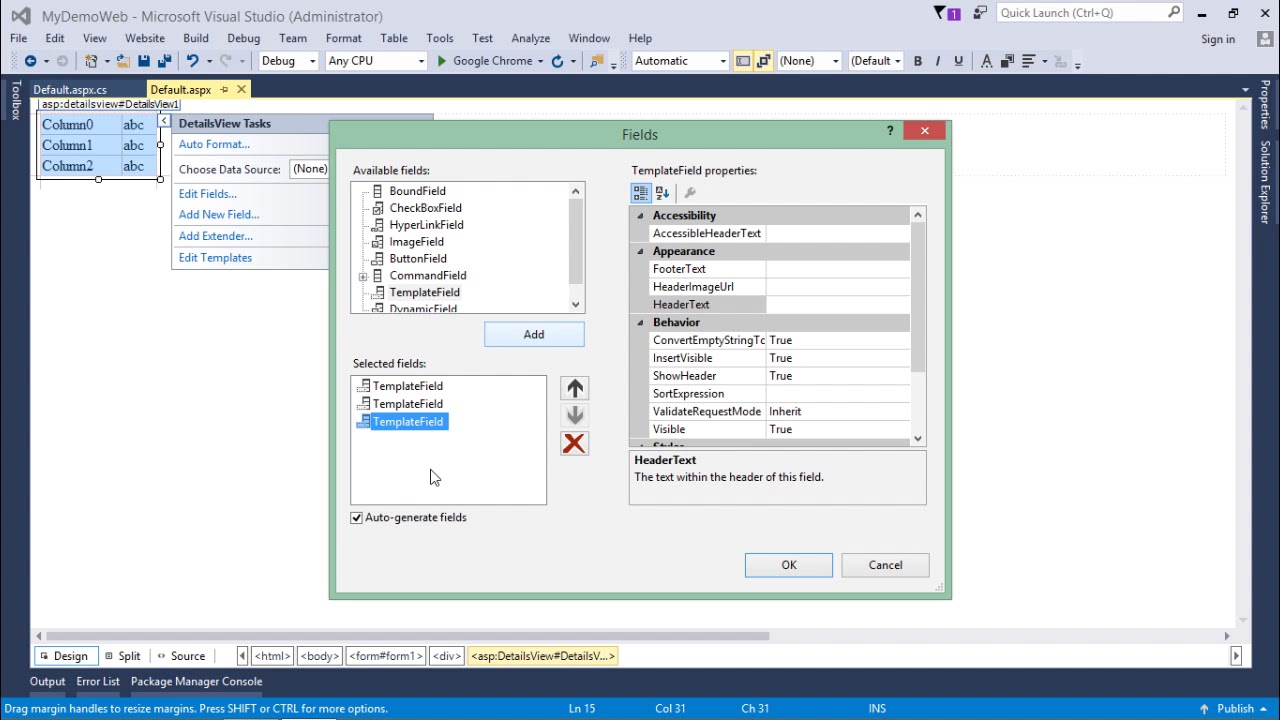
Step 4: Add a gridview control to your webform. Configure it, to include 2 BoundFields and 1 template field. Set AutoGenerateColumns="False". The 2 bound fields are for displaying ContinentId and ContinentName. Set DataField and HeaderText properties of these 2 bound fields accordingly.
Step 5: Drag and drop another gridview control, in TemplateField of GridView1 control. By Default the ID for the newly added gridview control will be GridView2. Now configure GridView2 to include 3 bound fields and a template field. The 3 bound fields are for displaying CountryId, CountryName and ContinentId. Set DataField and HeaderText properties of these 3 bound fields accordingly. Set AutoGenerateColumns="False". Set DataSource attribute of GridView2 control to bind to Countries property.
Step 6: Drag and drop another gridview control, in TemplateField of GridView2 control. By Default the ID for the newly added gridview control will be GridView3. Set DataSource attribute of GridView3 control to bind to Cities property.
Copy and paste the following code in Page_Load() event of WebForm1.aspx.cs
GridView1.DataSource = ContinentDataAccessLayer.GetAllContinents();
GridView1.DataBind();

Доступные форматы для скачивания:
Скачать видео mp4
-
Информация по загрузке: