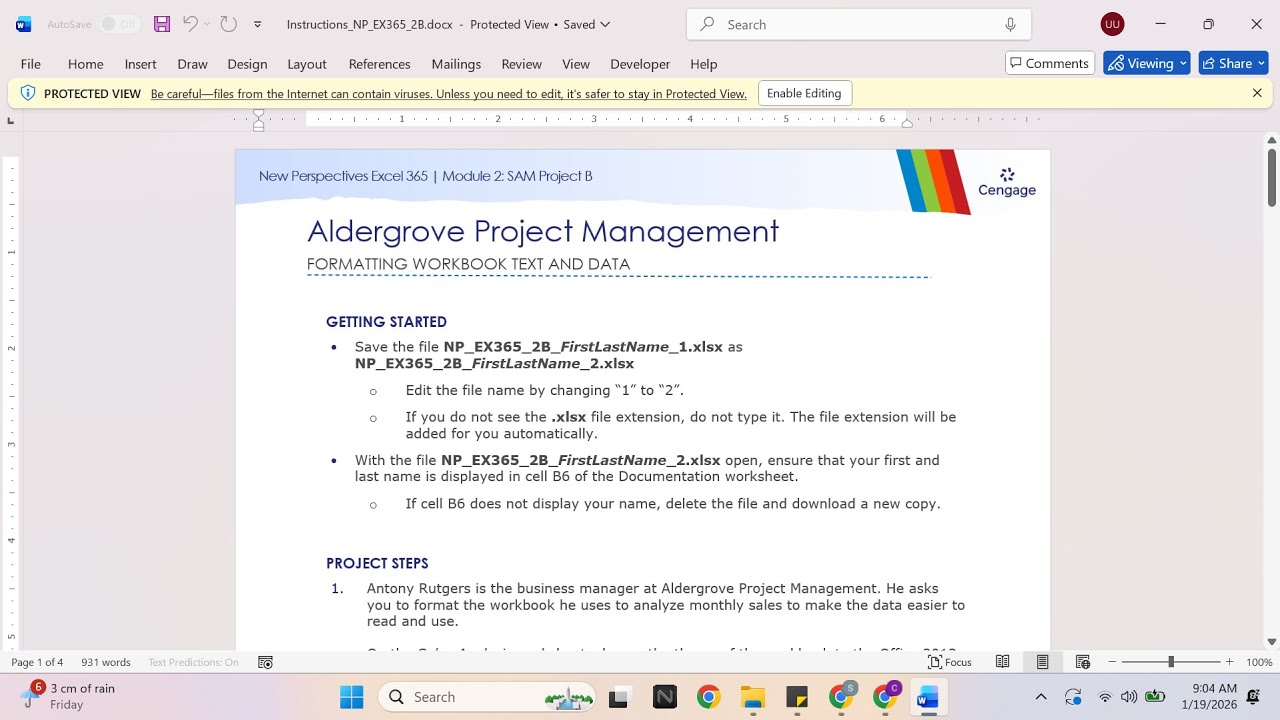
New Perspectives Excel 365 | Module 2: SAM Project B Aldergrove Project Management
Автор: Excel Tutor
Загружено: 2026-01-18
Просмотров: 0
If you directly want to get the project from us then contact us on our Whatsapp. Link is given below,
https://wa.me/message/PPXGSJS2TLWUA1
Whatsapp Contact Number:
+91 8114420233
Email ID:
excelprojectshelp@gmail.com
New Perspectives Excel 365 | Module 2: SAM Project B Aldergrove Project Management
FORMATTING WORKBOOK TEXT AND DATA
PROJECT STEPS
Antony Rutgers is the business manager at Aldergrove Project Management. He asks you to format the workbook he uses to analyze monthly sales to make the data easier to read and use.
On the Sales Analysis worksheet, change the theme of the workbook to the Office 2013-2022 Theme to use the standard theme for the company.
Start by formatting the headings on the Sales Analysis worksheet to make them more prominent as follows:
Merge and center the range A1:G1.
Apply the Heading 1 style to the range A1:G1.
Merge and center the range A2:G2.
Change the font color of the merged range A2:G2 to Blue-Gray, Text 2 (4th column, 1st row of the Theme Colors palette) to match the font color of the worksheet title.
Change the font of the merged ranges A1:G1 and A2:G2 to Arial Black to apply the font used in other company reports.
Next, Antony needs you to format the report date and average sales information to separate it from the other sales data as follows:
Change the background color of the range A4:E4 to Orange, Accent 2, Lighter 80% (6th column, 2nd row of the Theme Colors palette).
Format cells A4, C4, and A12 as bold to emphasize the text.
Format cell B4 to use a date format with a two-digit month, a two-digit day, and a two-digit year to use the standard date format for company reports.
Antony also wants you to format the table headings to clarify they are headings as follows.
Format the ranges A6:E6 and A13:G13 as italic.
Apply horizontal centering to the contents of each cell in the ranges B6:E6 and B13:G13 to improve their appearance.
Change the background color of the ranges A6:E6 and A13:G13 to Orange, Accent 2, Lighter 60% (6th column, 3rd row of the Theme Colors palette) to format the ranges as column headings.
Change the background color of the ranges A7:A10 and A14:A23 to Orange, Accent 2, Lighter 80% (6th column, 2nd row of the Theme Colors palette) to format the ranges as row headings.
Antony wants the total rows in each table to stand out. He asks you to apply the Total cell style to the ranges A10:E10 and B23:G23.
The row headings in the Sales to date table need to be formatted so it is clear they each apply to three rows of data. Format the row headings as follows:
Merge and center the range A14:A16 and then center the contents of the merged cell vertically.
Use the Format Painter to apply the formats in the range A14:A16 to the ranges A17:A19 and A20:A22
For the merged ranges A14:A22, rotate the cell contents to 90 degrees.
Antony also wants you to format the sales numbers so they are easier to decipher. Format the numbers as follows:
In the ranges B7:D10 and C14:G23, apply the Accounting number format with zero decimal places. [Mac Hint: After completing this step, reperform step 5 on the ranges A10:E10 and B23:G23.]
In the range E7:E10, apply the Percentage number format with one decimal place.
Antony asks you to identify the services that generated less than $25,000 after four months. Use the Highlight Cells Rules conditional formatting to format cells in the range G14:G22 with a value less than 25,000 using Light Red Fill with Dark Red Text.
Antony also needs you to calculate the average sales for the month. In cell E4, create a formula using the AVERAGE function with the values in the range B7:B9 to determine the average sales for the current month.
Increase the indent of the contents of cell C4 to separate the text from the date in cell B4.
Find and replace all instances of the word "Plan" with Planning to correct the name of the category.
Finally, Antony needs you to format the worksheet for printing. Make the following changes:
Insert a page break to start a new page at row 12.
Set the margins to Narrow.
Set rows 1 and 2 as print titles.
Create a custom footer for the worksheet. In the left footer section, display the current page number using a Header and Footer element. In the center footer section, display the Sheet Name using a Header and Footer element.
#samproject1b #samprojects #cengageassignments #NP_EX365_2b #NP_EXCEL #excel_assignments #excel_sam_projects #Module2SamProjectb #aldergrove_project_management #new_perspectives_excel #NP_EX365_2b_FirstLastName_1.xlsx #NP_EX365_2b_FirstLastName_2.xlsx
Доступные форматы для скачивания:
Скачать видео mp4
-
Информация по загрузке: