How to Model a Screwdriver in Autodesk Fusion
Автор: What Make Art
Загружено: 2026-01-20
Просмотров: 199
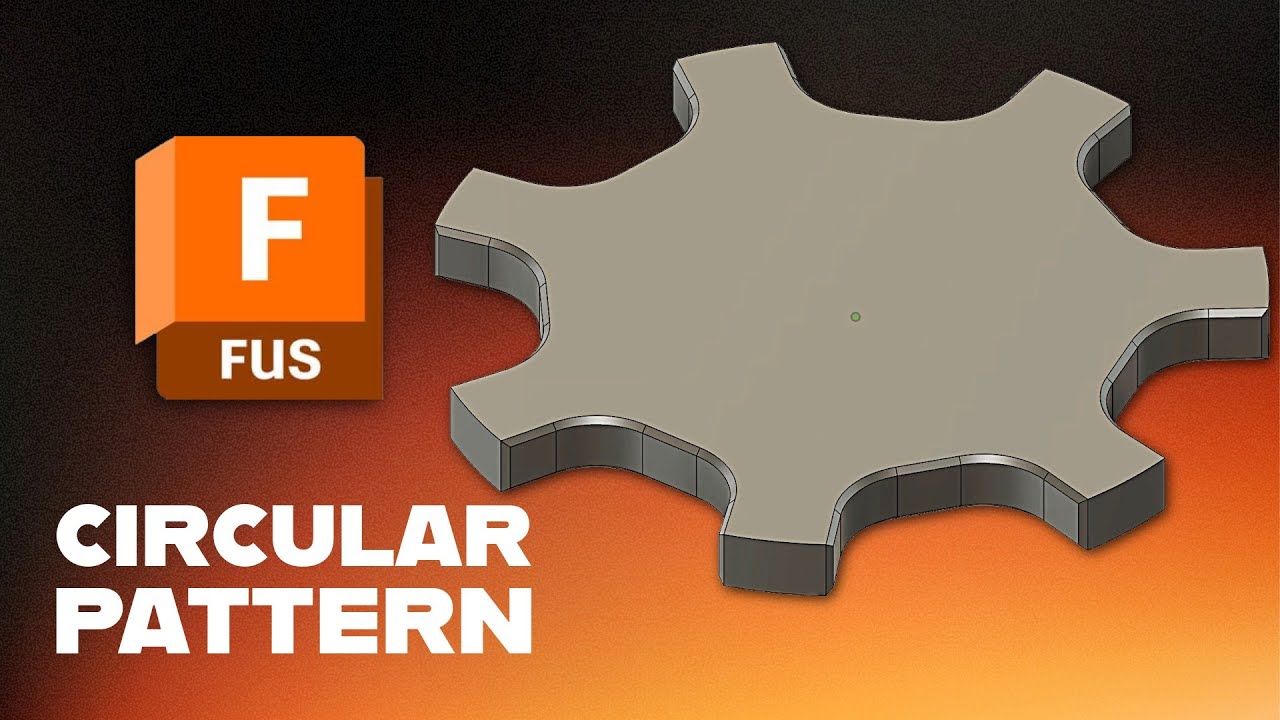
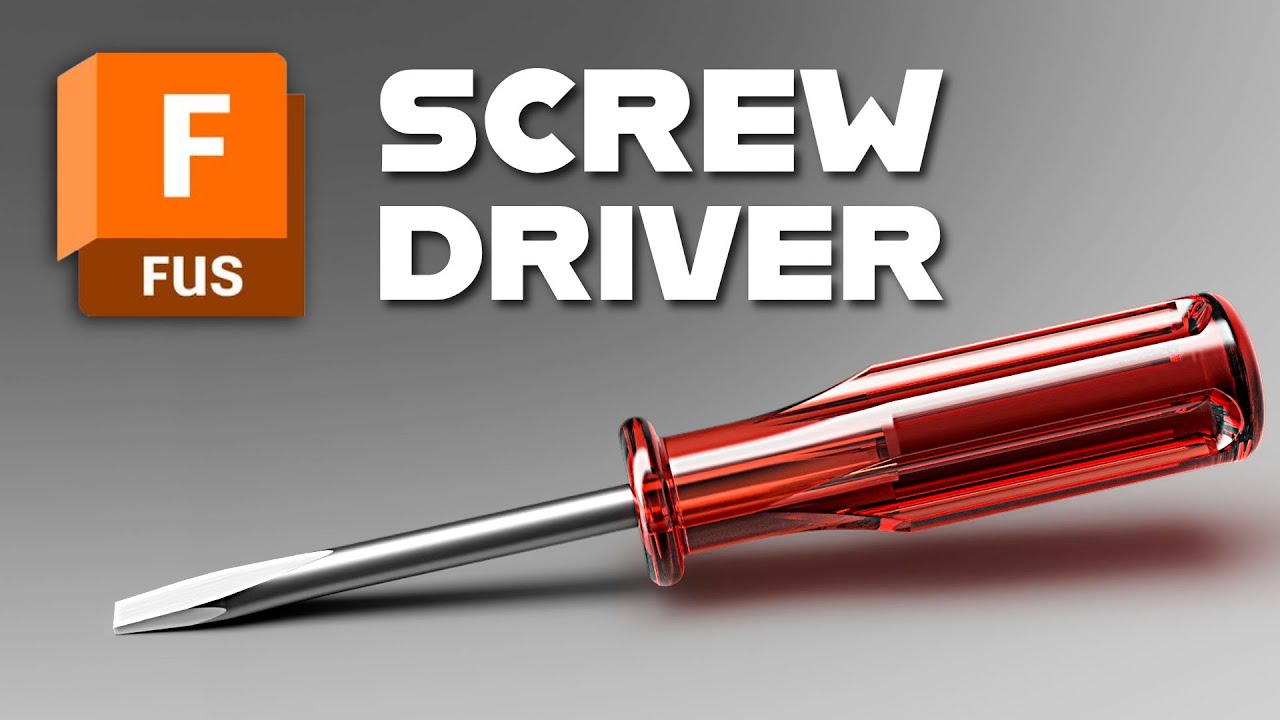
In this Autodesk Fusion tutorial, you’ll model a complete screwdriver from scratch while learning a clean hybrid design workflow. We’ll start by switching Fusion into hybrid design, then follow a component-based approach to build the handle and shaft as separate parts. Along the way, you’ll practice core parametric modeling skills like sketch constraints, tangency, construction geometry, revolve features, revolve cuts, fillets, and circular patterns.
You’ll model the screwdriver handle by sketching half a profile, fully defining it with dimensions and tangent constraints, then revolving it around the center axis. Next, you’ll create an offset sketch plane to design the grip grooves, revolve-cut the groove shape, fillet the edges, and pattern the feature around the handle. Finally, you’ll create a dedicated shaft component, revolve the shaft geometry, and cut the screwdriver tip using symmetric extrude cuts to form a proper flathead-style bit. This example uses an extra-long shaft intended for sewing machine work, making it a great practice model for real-world proportions and multi-component design.
Chapters
00:00 Intro and what you’ll model in Autodesk Fusion
00:06 Check Document Settings and switch to hybrid design
00:21 Create and name the handle component (Fusion rule number one)
00:49 Start the handle sketch (half profile for a revolve)
01:50 Add arcs, dimensions, and tangency for the handle shape
02:32 Create the bottom handle arc and lock in tangency
03:56 Clean up the sketch, constrain geometry, and fully define it
05:19 Revolve the handle profile around the center axis
05:44 Create a tangent plane, then an offset plane for the groove sketch
06:16 Project geometry and sketch the groove cut profile
07:54 Revolve-cut the groove feature, then add fillets
08:29 Circular pattern the groove feature around the handle
09:03 Add additional fillets to refine edges and transitions
09:41 Sketch and extrude-cut the shaft hole in the handle
10:11 Create the shaft component and project the needed circles
11:06 Sketch shaft profiles and set key dimensions for the revolve
12:27 Revolve the shaft and check fit with the handle
12:49 Create the first symmetric cut to form the tip taper
14:06 Create the second cut and center the lines for a flathead bit
15:34 Verify separate components with Display Component Colors and final result
16:03 Wrap-up and next steps
#AutodeskFusion
#Fusion360
#CAD
#ParametricDesign
#3DModeling
#MechanicalDesign
Доступные форматы для скачивания:
Скачать видео mp4
-
Информация по загрузке: