How to 3D Scan Complex Parts with the Einscan Libre - Full Scanning Workflow
Автор: Vision Miner
Загружено: 2025-04-08
Просмотров: 2953
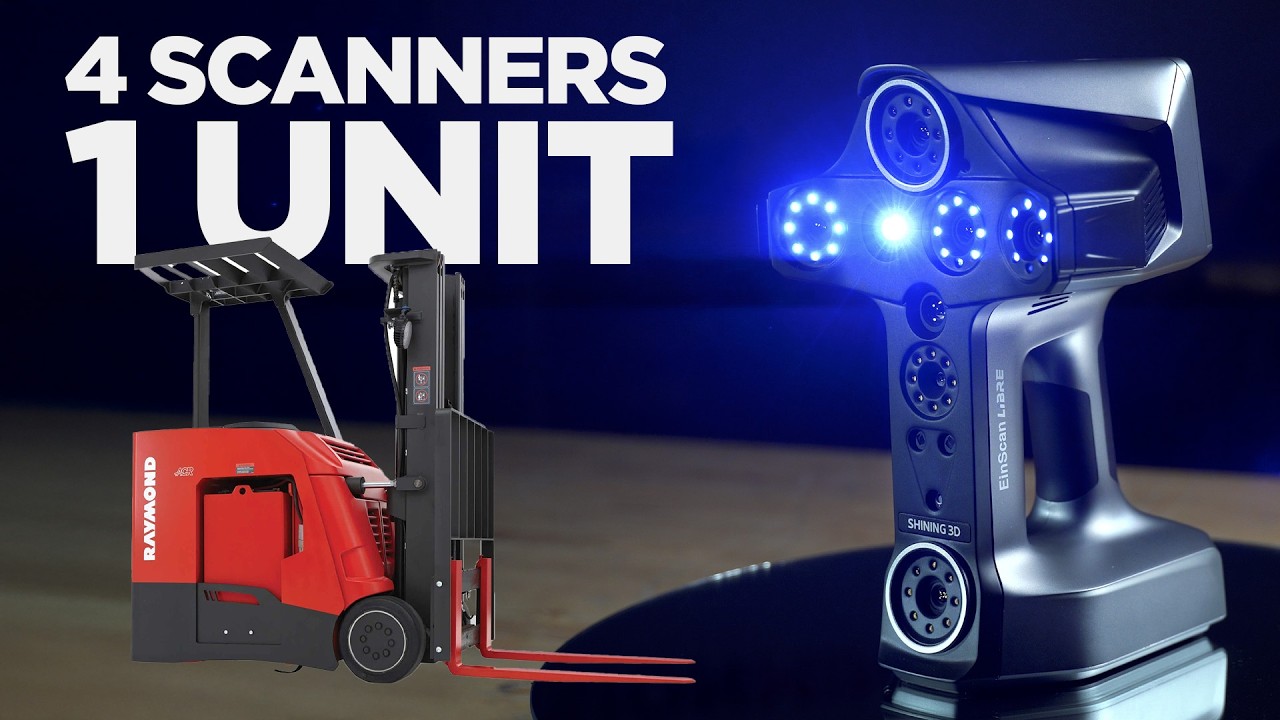
How do you scan an entire forklift with full color, reflective surfaces, and complex geometry—all using one handheld 3D scanner? In this video, we walk through a complete real-world scanning workflow using the EinScan Libre from Shining 3D, a portable 3D scanner that combines infrared, adaptive laser, and HD laser modes in a single unit.
We teamed up with Eric Lau from Shining 3D to demonstrate how each scanning mode works in real time on a full-size forklift. From fast infrared capture to high-resolution laser detail, this video shows the entire workflow—from setup to scan to mesh—so you can see what this scanner is capable of in a real industrial setting.
Whether you’re scanning for reverse engineering, inspection, CAD modeling, or 3D printing, this video gives you a complete look at how the Einscan Libre handles complex objects with mixed materials and finishes.
⸻
What You’ll Learn in This Video:
How the Einscan Libre’s 3 scanning modes work
• Infrared Rapid Mode for quick, full-color scanning of large plastic or uniform surfaces
• Infrared Adaptive + Laser Line Mode for dark, shiny, or reflective materials like hydraulic cylinders and coated metals
• 101-Line HD Laser Mode for ultra-detailed scanning without tracking markers—ideal for reverse engineering intricate parts
When and why to use each scanning mode
We show how switching between modes helps capture the forklift from every angle—including tough areas like reflective cylinders, small holes, and complex geometry.
Marker placement tips
See how to use magnetic markers and Vision Miner’s proprietary marker cubes to maintain tracking and speed up your workflow.
Live walkthrough of scan alignment and mesh creation
We show the post-processing workflow in Shining 3D’s software—aligning scans from multiple modes, generating point clouds, and building a watertight mesh you can export to programs like Geomagic Design X, Control X, or XModel.
Color scanning and texture resolution
Understand how the Einscan Libre captures surface color in different modes and why the laser HD mode delivers sharper detail at close range.
⸻
Why This Matters
If you’re working in reverse engineering, industrial design, or on-site scanning, the Einscan Libre gives you an all-in-one solution that’s portable, flexible, and highly capable. Instead of switching between multiple scanners or struggling with surfaces that won’t scan properly, you can change modes on the fly to get the data you need.
This scanner is especially useful for:
• Engineers and product developers capturing parts for CAD and manufacturing
• MRO professionals and inspectors working on industrial equipment
• 3D scanning services that need reliable, portable tools for fieldwork
• Anyone looking to reverse engineer, replicate, or inspect complex objects
⸻
Want to Try This Yourself?
We carry the EinScan Libre, the FreeScan Combo+, and every other Shining 3D scanner, plus software like Geomagic Design X, Control X, and more. If you’re not sure which scanner fits your workflow, give us a call or book a free live demo—we’ll walk you through your options and help you pick the best tool for your specific use case.
Get started here: https://visionminer.com
⸻
At Vision Miner, we specialize in Functional 3D printing, especially high-performance plastics like PEEK, ULTEM, PPSU, PPS, CFPA, and more. We also have extensive experience with 3D scanners, and a whole array of solutions available for purchase.
If you’re interested in using functional 3D printing and materials in your business, feel free to reach out, and we can help you make the right choice for your application.
Call 833-774-6863 or email contact@visionminer.com, and we’re here to help!
Follow Us
Facebook: / visionminer
Instagram: / visionminer
Twitter: / visionminer
TikTok: / visionminer
Chapters:
00:00 Introduction
00:38 What are the laser modes?
02:20 Using Infrared Rapid Mode
05:41 Using Infrared Adaptive Mode
07:11 Using Laser HD Mode
08:21 Downloading the data to the computer
08:53 What are point clouds?
10:18 How to turn your project into a mesh
11:07 Reviewing the scan data
13:15 Scan resolution
14:21 Viewing the scan data in color
15:00 Reach out, and we'll help get you set up :)
Доступные форматы для скачивания:
Скачать видео mp4
-
Информация по загрузке: