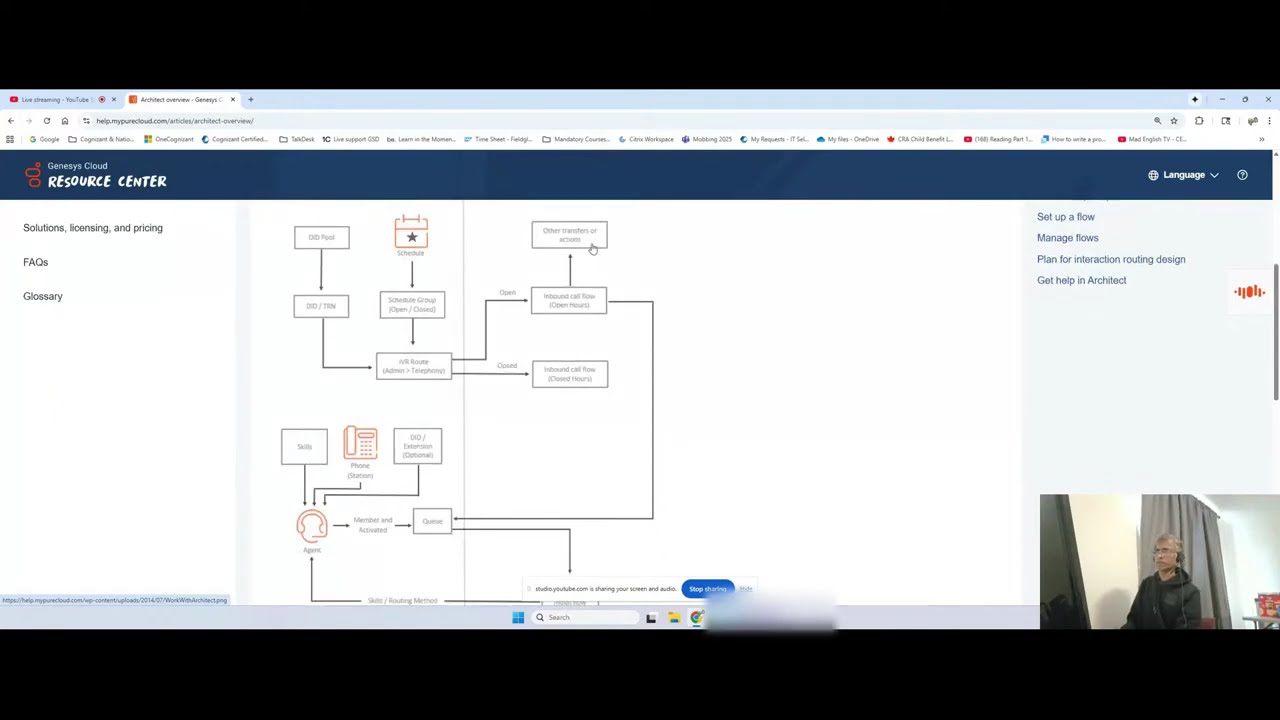
How to Assign Roles and Permissions to Users in Genesys Cloud
Автор: Genesys Cloud with Logan
Загружено: 2025-11-12
Просмотров: 60
!!CHECK TO HIT THE SUBSCRIBE BUTTON!!
How to update user with roles and permissions in Genesys Cloud?
Updating a user's roles and permissions in Genesys Cloud is typically done through the Admin section.
1 The process involves navigating to the user's profile and assigning or unassigning roles.
2 You must have the appropriate administrative permissions, such as the Admin role or a custom role with Authorization - Grant - Add and Authorization - Grant - View permissions, to perform these actions.
Steps to Assign/Update Roles for an Individual User
1. Click Admin in the top navigation bar.3
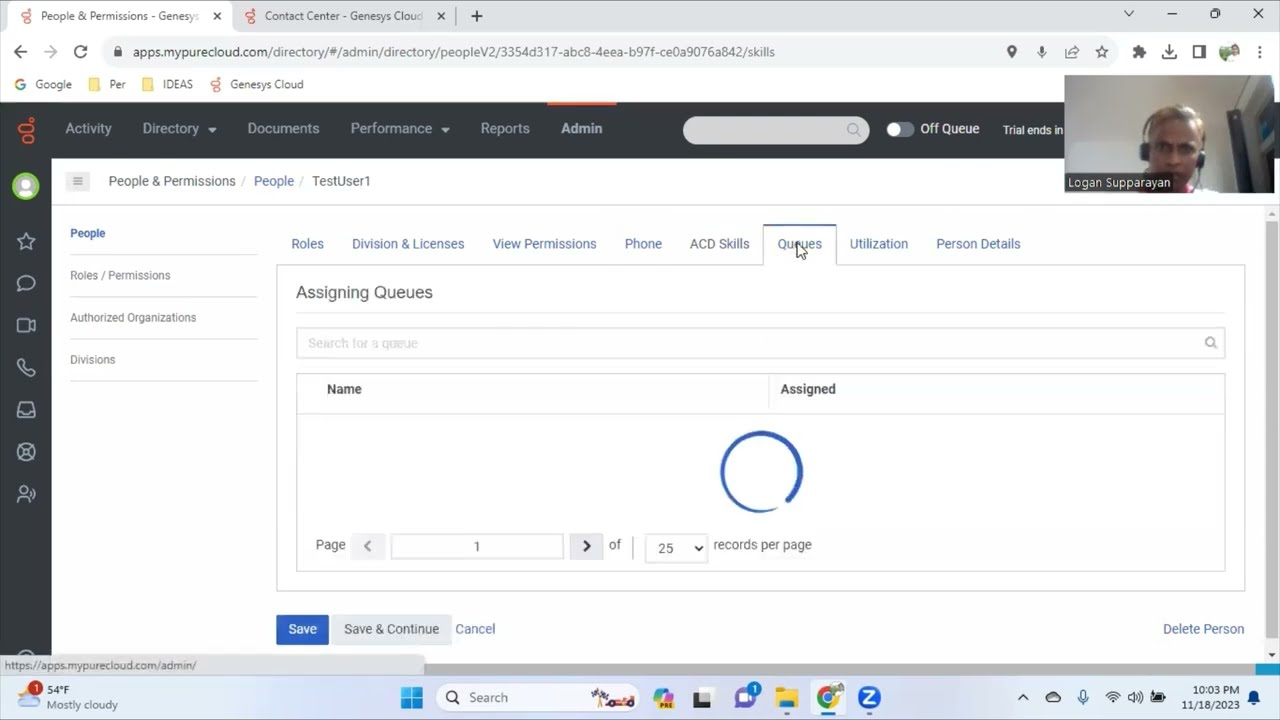
2. Under People and Permissions, click People (or Users, depending on your UI version)
3. Find the user you want to update using the search bar or by navigating the list
4. Click the user's name or click More (6$\dots$) next to their name and then click Edit Person
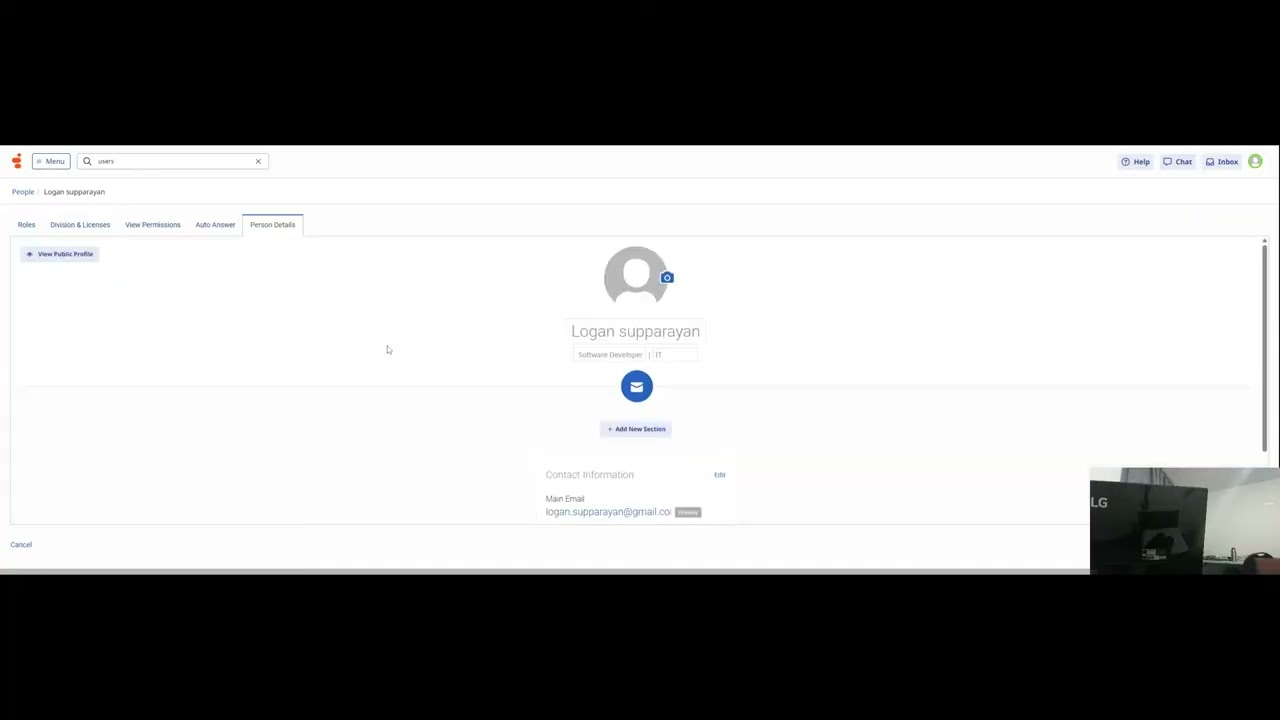
5. Go to the Roles tab (it may open there by default).
6. In the roles list, you can search for a specific role.
7. To assign a role, click the toggle or checkbox in the Assigned column next to the desired role to enable it for the user.
8. To remove a role, clear the toggle or checkbox in the Assigned column next to the role.
o Note: All users are automatically assigned the Employee role, which cannot be removed.
9. (Optional) If the role is division-aware, you may need to specify the Divisions the role applies to.
10. Click Save to apply the changes.
Please feel free to send queries (OR) ask for in person training FOR FULL COURSE WITH HANDS-ON EXPERIENCE when you are interested.!
Contact through My email:LOGAN.SUPPARAYAN@GMAIL.COM
Доступные форматы для скачивания:
Скачать видео mp4
-
Информация по загрузке:













![[4K FULL HD] Relaxing Water Background | 1 HOUR | Calm Water Wallpaper (No Sound)](https://imager.clipsaver.ru/y9PTNTSpGJs/max.jpg)