New Perspectives PowerPoint 2019 | Module 3: SAM Project 1b | Module 3: SAM Project 1b
Автор: Myitlab Success Solution
Загружено: 2026-01-01
Просмотров: 2
New Perspectives PowerPoint 2019 | Module 3: SAM Project 1b | Module 3: SAM Project 1b
Contact Us:
WhatsApp : +92 3209624776
Email : myitlab870@gmail.com
WhatsApp Direct Link for Chat
https://wa.link/xz3r2a
Yarn Town Workshops Presentation
APPLYING ADVANCED FORMATTING TO OBJECTS
GETTING STARTED
• Open the file NP_PPT19_3b_FirstLastName_1.pptx, available for download from the SAM website.
• Save the file as NP_PPT19_3b_FirstLastName_2.pptx by changing the “1” to a “2”.
o If you do not see the .pptx file extension in the Save As dialog box, do not type it. The program will add the file extension for you automatically.
• To complete this SAM Project, you will also need to download and save the following data files from the SAM website onto your computer:
o Support_PPT19_3b_Crochet.jpg
o Support_PPT19_3b_HappyMusic.mp3
• With the file NP_PPT19_3b_FirstLastName_2.pptx still open, ensure that your first and last name is displayed in the presenter notes on Slide 1.
o If the presenter notes do not display your name, delete the file and download a new copy from the SAM website.
PROJECT STEPS
1. As the owner of Yarn Town Craft Store, a yarn boutique in Seattle that sells yarns, crafting materials, and also runs workshops, you create a presentation that provides customers with information about the crafting workshops. Begin by intensifying the impact of the picture on the title slide as follows:
a. Change the brightness and contrast of the picture to Brightness: +20%, Contrast: 0% (Normal).
b. Change the Color Tone of the picture to Temperature: 8800 K.
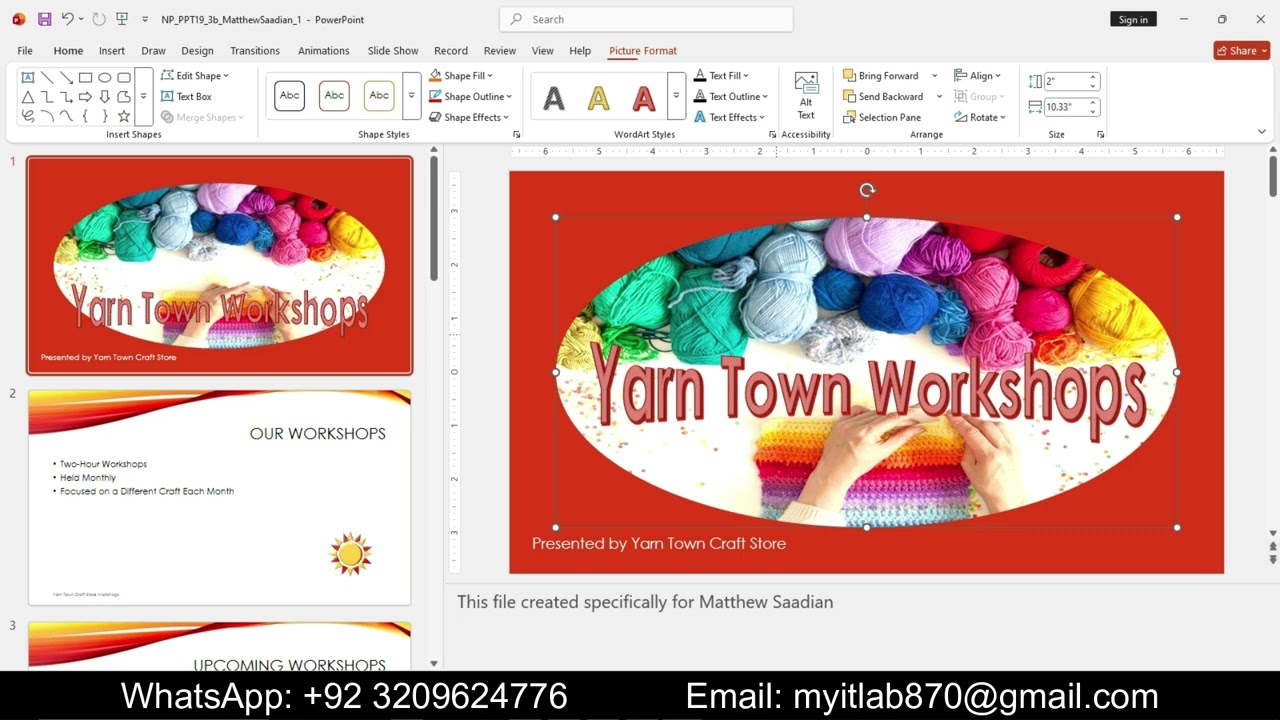
2. With the title slide still displaying, convert the text "Yarn Town Workshops" to a WordArt object, and then format the object as follows:
a. Apply the Pattern Fill: Red, Accent color 1, 50%; Hard Shadow: Red, Accent color 1 (3rd column 4th Row) WordArt style.
b. Apply the Round Bevel shape effect. [Mac Hint – Circle Bevel.]
c. Transform the WordArt object with the Deflate effect.
d. Position the WordArt object slightly above the hands as shown in Figure 1.
Figure 1: Transformed WordArt Object
3. With the title slide still displaying, insert the audio clip file Support_PPT19_3b_HappyMusic.mp3, and then modify it as follows:
a. Position the audio clip in the lower-right corner of the slide, even with "Presented by Yarn Town Craft Store".
b. Change the audio clip Start option to Automatically.
c. Select the Play Across Slides audio option.
d. Hide the audio clip object during the slide show.
4. On Slide 2 ("OUR WORKSHOPS"), click "OUR WORKSHOPS", open and use the Selection Pane to select Group 3 (the red and yellow sun shape), and then modify the sun shape as follows:
a. Ungroup the sun shape into two suns.
b. Merge the two suns into one shape using the Union merge shape option.
5. With Slide 2 ("OUR WORKSHOPS") still displaying, add more suns as follows:
a. Duplicate the sun so that there are three suns.
b. Move one of the copied suns just below "OUR WORKSHOPS".
c. Distribute the three suns Vertically.
d. Align the three suns so that the left edges are even with each other as shown in Figure 2.
Доступные форматы для скачивания:
Скачать видео mp4
-
Информация по загрузке:


